When work and life run on separate tools
Plenty of people work from home on a day that mixes both: a site meeting at ten, a call at two, and an errand that would fit perfectly in the gap between them, if only you could see the gap. Work tasks live in the company's tools, personal ones somewhere else, and nothing shows the whole day.
PJ, a construction project manager, described exactly that on a call with us. The work is "here, here, here", with no real structure, and most of it arrives by email. Asana and OneNote did not stick, and flagging emails in Outlook only buried the inbox under flags:
"A lot of my stuff is, like, singular tasks that just pop up out of nowhere."
PJ's list of requirements is a good checklist for anyone in the same spot: keep work projects and personal projects separate, but see the tasks and the calendar together. And because the employer approves software one app at a time, the only AI assistant allowed at work is Microsoft Copilot.
Step 1: separate spaces, one planner
1. Create a Work space and a Personal space
Spaces work like top-level folders. Put each work project in the Work space and home projects, like renovations or trips, in the Personal space. Nothing has to mix.
2. Give every task a due date
Wherever you write a task, in a work project or a home project, set a due date. Every task with a date shows up in My Planner on that day, from all spaces and projects at once.
3. Use My Planner as your home page
Open the daily view for today and the weekly view for planning. If a task will not happen today, move it to tomorrow or next Monday in a click.
For another take on the same idea, see how to keep personal and work life on one screen.
Step 2: put both calendars next to the tasks
Connect your calendars to My Planner: you can connect more than one, Google Calendar and Outlook Calendar alike. Meetings appear in the Schedule tile of the daily and weekly views, next to your tasks, so the free half hour between two calls is visible.
If your work calendar cannot be connected yet, because IT has not approved it, start with the personal calendar and add the day's fixed meetings by hand. It is a stopgap, but it already shows you where the gaps are.
Step 3: connect Copilot, if that is the AI your company allows
Many companies on Microsoft 365 approve Copilot and nothing else. xTiles works with AI assistants through MCP, and Copilot can use it through a custom connector. Because it is a work integration, your IT admin usually sets it up or approves it, so start with a request to them.
Once it is connected, Copilot can do the jobs that would otherwise eat your morning:
- Turn emails into tasks. Ask Copilot to read today's emails and add the ones that need action as tasks, with dates, in the right work project.
- Keep a record of important emails. Ask it to save key emails into an xTiles collection with the sender, date and a short summary. Save the text itself, not just a link: a link stops working if the original message is ever deleted.
- Plan the day. Ask for a list of today's tasks and meetings and where the free slots are.
If you also use Claude or ChatGPT outside work, they connect through official connectors; see how to connect Claude to xTiles.
While you wait for IT approval
Software approval can take weeks. You do not have to wait to start:
- Set up the Personal space and the weekly routine first, with your personal calendar.
- Create the Work space with one project per job, and add tasks by hand for a week to see if the structure fits.
- When you file the request, describe what will be connected and why, so the review is about a specific use, not a whole tool.
Free templates for a work and personal planner
All four are free in the xTiles template gallery.
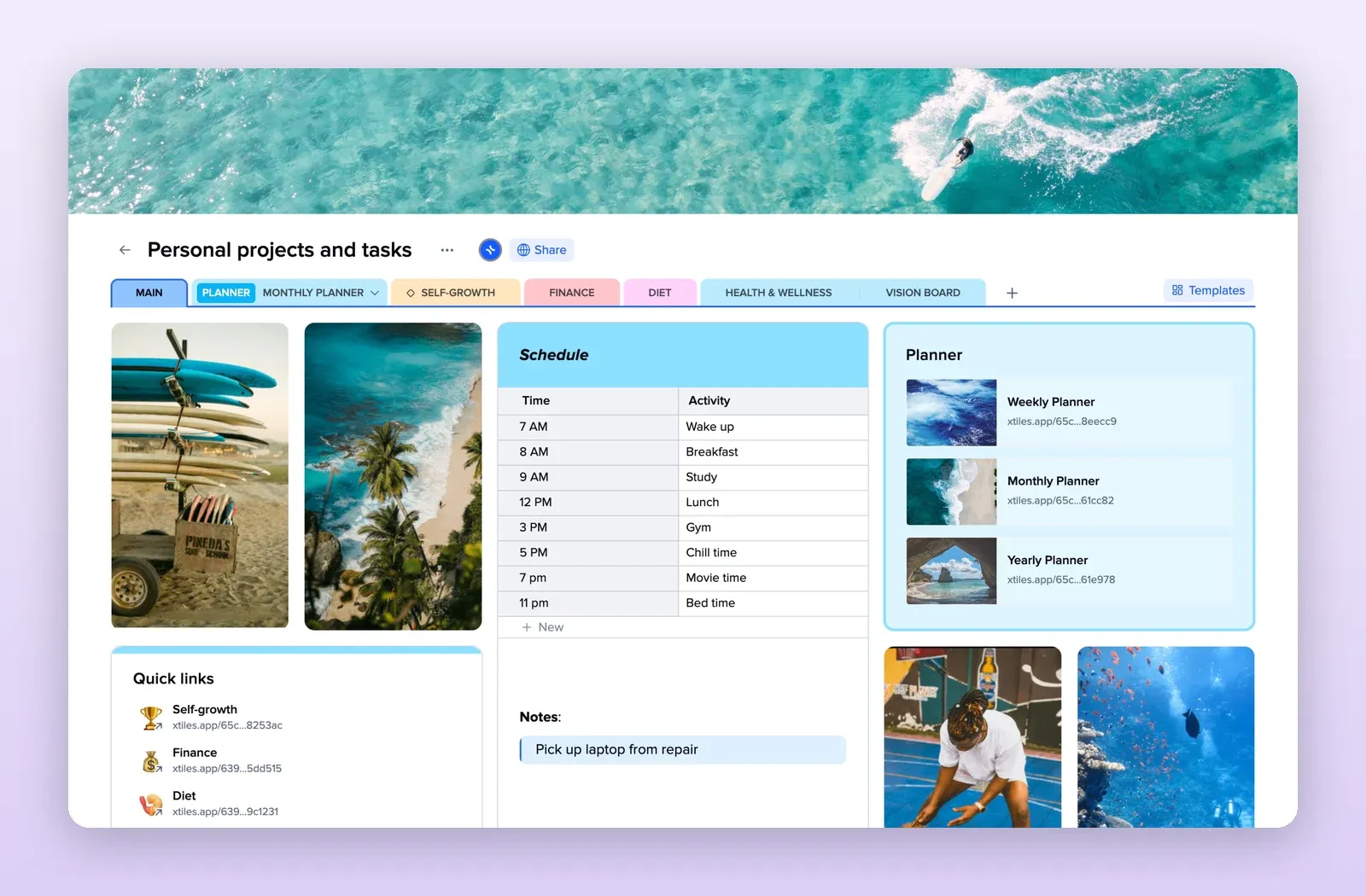
1. Work Weekly Planner: work and personal on one page
A month calendar, a schedule with a tile per day, top three work priorities and separate work and personal to-do lists. Open the Work Weekly Planner template.
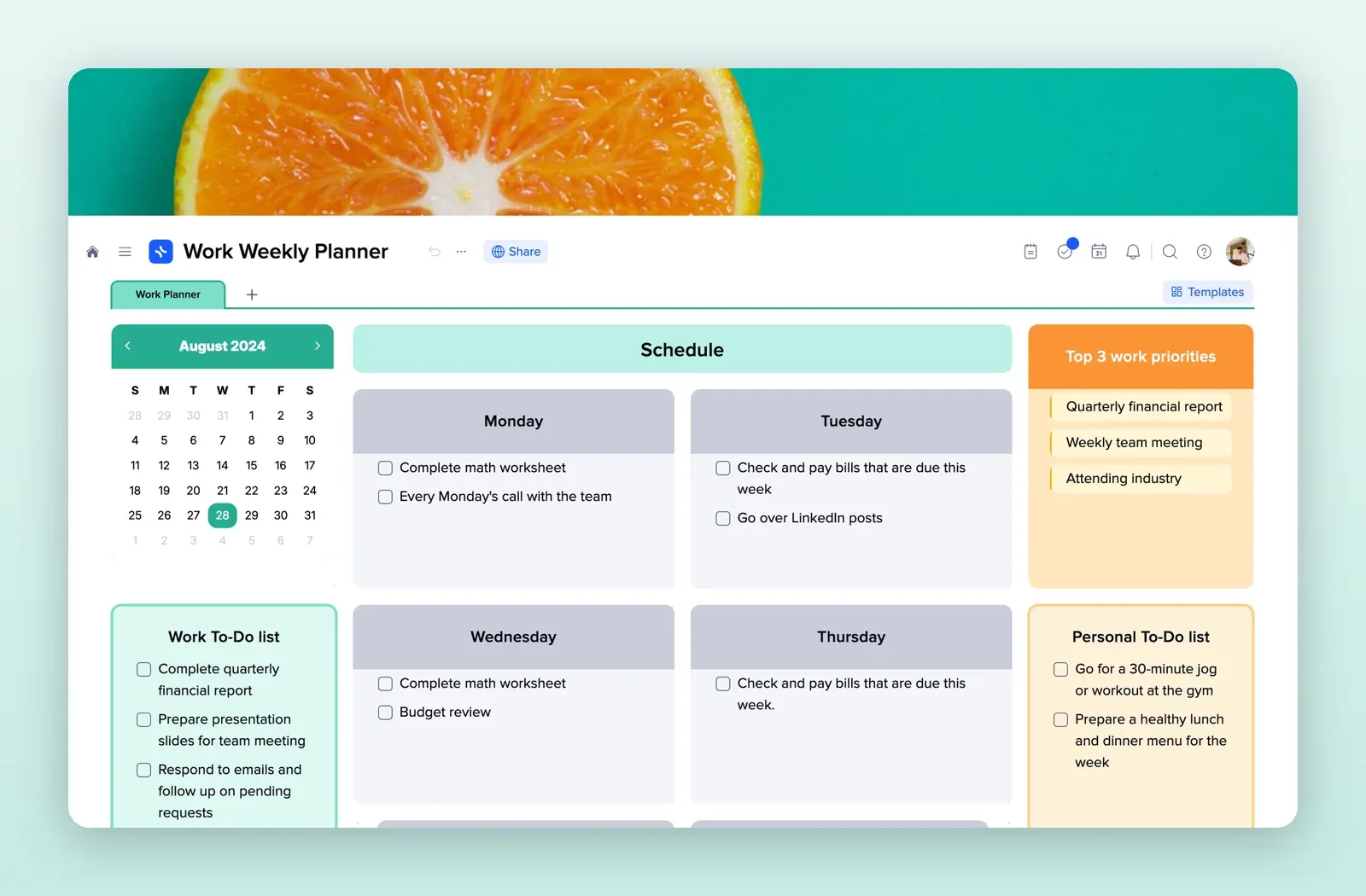
2. Time Blocking: see the gaps in your day
Morning, afternoon and evening blocks with deep work, shallow work, breaks and personal time. Useful for deciding what fits between meetings. Open the Time Blocking template.
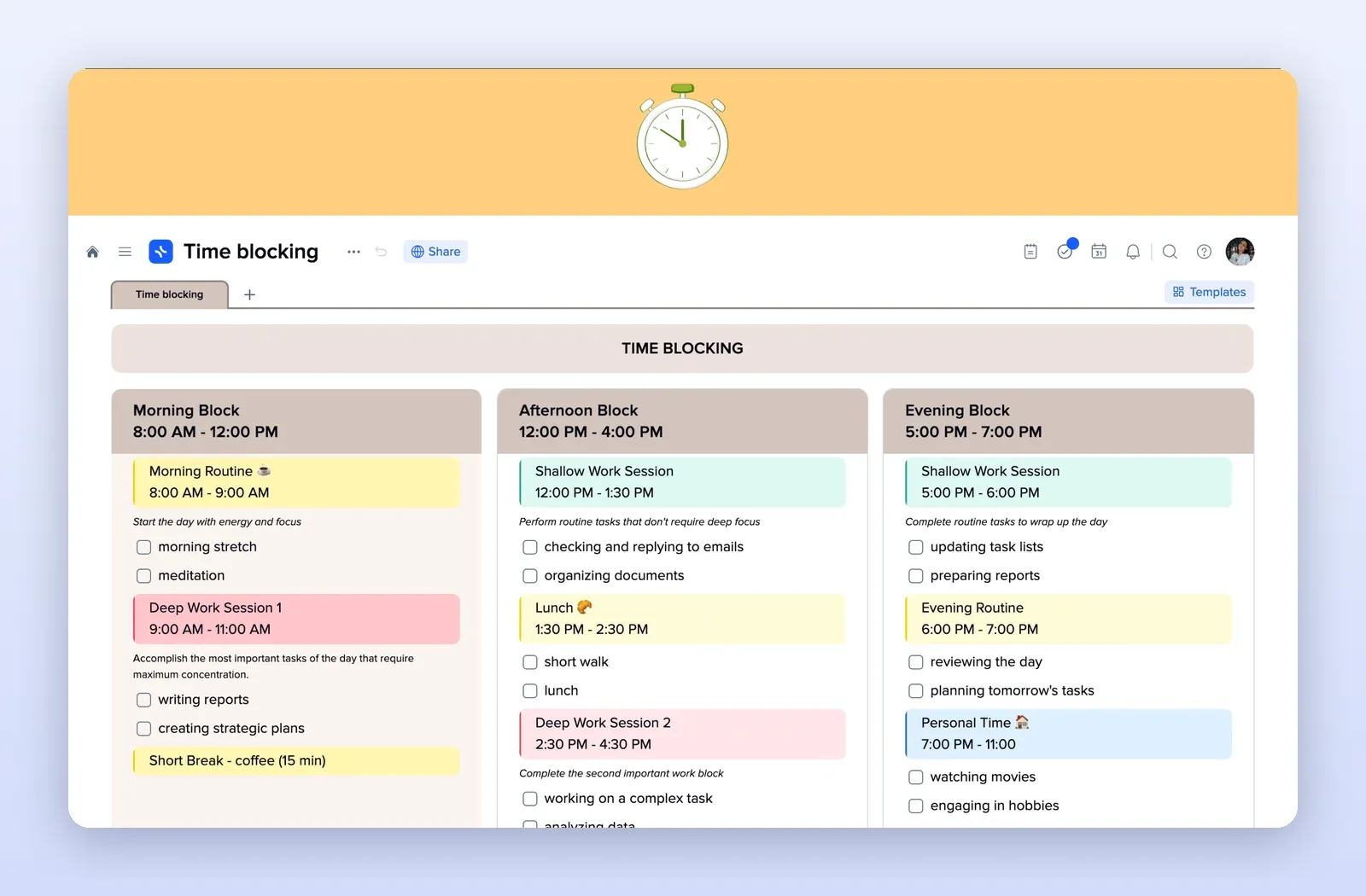
3. Project Plan: one work project
Pages for overview, budget, plan and tasks, brief and invoice. A starting structure for each project in the Work space. Open the Project Plan template.
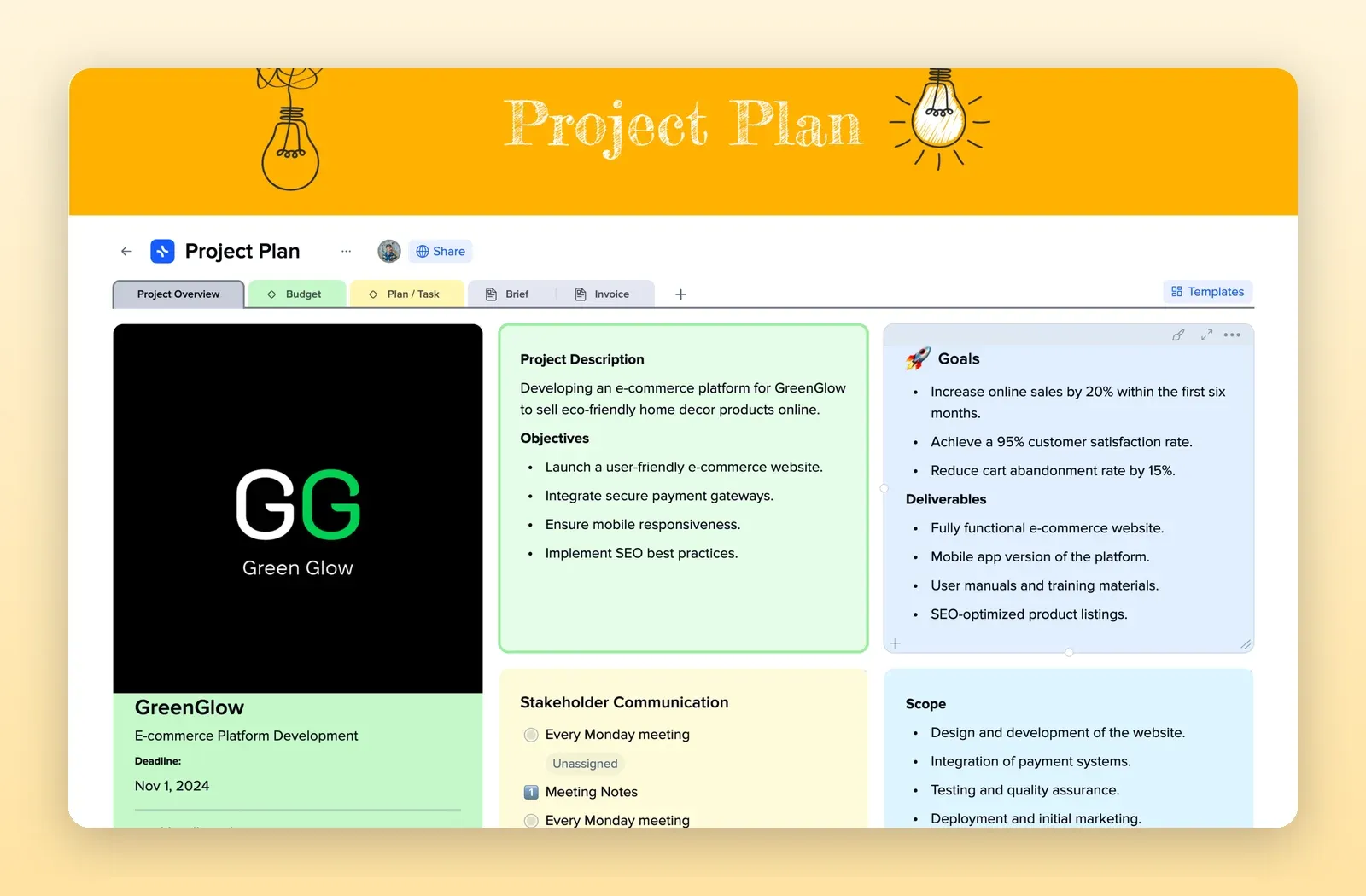
4. Personal Workspace: the home side
Tabs for main, planner, self-growth, finance and more, with a schedule and quick links. A home base for the Personal space. Open the Personal Workspace template.