The cost of switching between apps
Most people manage life in fragments. Work tasks live in one app, personal reminders in another, and the monthly big picture somewhere else entirely — maybe a notes app, maybe a spreadsheet, maybe a whiteboard photo you never look at again.
The problem isn't that any single app is bad. The problem is the switching. Every time you leave one context to check another, you lose a moment of focus and a piece of the whole picture. By the time you've checked three apps, you've forgotten why you opened the first one.
One xTiles user — a professional who uses the app for both her work tasks and personal schedule — described what she was looking for simply: "I like seeing everything on one screen without scrolling." That's not a feature request. It's a philosophy.
What "one screen" actually means
The one-screen philosophy isn't about cramming everything into a single view until it's unreadable. It's about designing your workspace so that what matters today is always visible — without hunting, without switching, without tabbing between contexts.
In xTiles, this is what the Planner does. Any task you create — in any project, for work or personal life — automatically surfaces in the Planner when it has a date. You plan your day, week, and month in one view. Everything is there when you need it, organized by time, not by app.
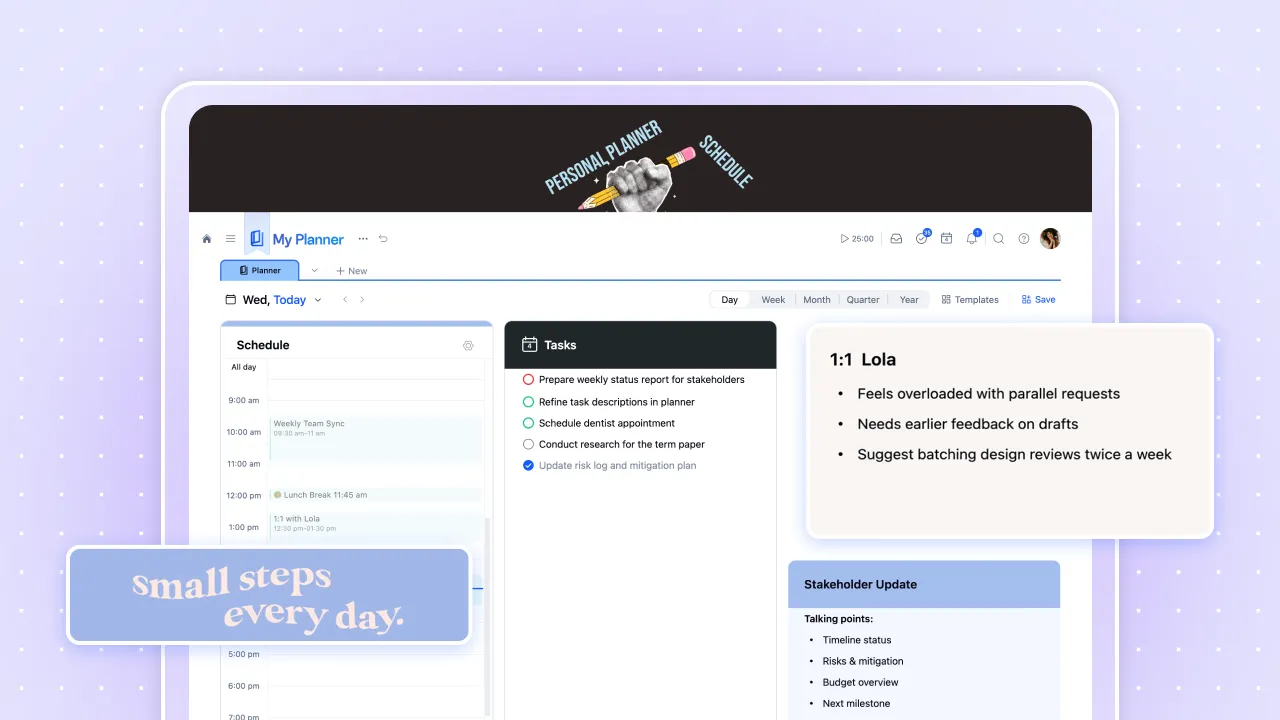
Many people — especially those with ADHD or a preference for spatial thinking — don't work well with nested menus and text-heavy lists. xTiles was originally designed around a visual, tile-based layout, similar to digital sticky notes. When users told us it helped them think more clearly, we leaned into it.
The benefit of a visual layout is immediate: you can see relationships, priorities, and gaps at a glance. No mental mapping required.
How to plan your whole life in one xTiles workspace
Here's how to set up xTiles so that personal and work life coexist on one screen — cleanly, without clutter.
Create separate Projects for work and personal
In xTiles, Projects are containers for related pages and tasks. Create one Project for work tasks, another for personal goals, and as many more as you need — a fitness tracker, a reading list, a spiritual journal. Keeping them separate keeps each context clean, while the Planner unifies them all.
📋 Work Tasks
📋 Personal Goals
📋 Monthly Planning
📋 Reading & Resources
Use the Planner for your daily and weekly view
The Planner is your command center. Every task with a due date appears here automatically — whether it was created inside a work project or a personal one. You can view today, this week, or the full month without leaving the Planner.
Plan at every scale: day, week, month, year
One of the things users notice quickly is that xTiles supports all planning horizons. You can zoom out to see monthly goals and quarterly themes, then zoom in to today's task list — all within the same space. No separate app for long-term goals.
Save web content directly to your projects
The xTiles Web Clipper browser extension lets you save any page, article, or email directly to a project — with an AI-generated summary — without leaving your browser. Everything saved also appears in your Library, so nothing gets lost.
When personal and work life share the same screen
For many people, the line between personal and work life isn't a line at all — it's a gradient. Morning routines flow into work calls. Evening tasks bleed into personal commitments. A system that forces you to separate them completely often ends up serving neither.
xTiles handles this gracefully because of how the Planner works. Tasks from a "Work" project and tasks from a "Personal" project sit side by side in the same daily view — clearly labeled by project, but unified in time. You can see a 10am client deadline next to a 3pm personal errand and plan your day accordingly.
One user told us she uses xTiles not just for work and daily scheduling, but also for her spiritual life — a morning page that sets her intentions for the day before anything else. The same Planner that holds her work deadlines also holds the practices that matter most to her personally.
That flexibility — treating work tasks and personal rituals as equally real, equally plannable — is what makes a true personal operating system different from a project management tool.
Using xTiles across different screen sizes
Many xTiles users work across devices — a large desktop monitor at home, a laptop on the go. The visual tile layout adapts to screen width, which means a workspace designed on a large monitor may look slightly different on a smaller one.
For tiles and images specifically, xTiles offers a full-width toggle: hover over any tile and click the expand icon to stretch it across the full screen width. This is especially useful on large monitors where the default width leaves whitespace on the sides.
If you notice layout inconsistencies between devices — particularly with images — the full-width setting on individual tiles usually resolves it. You can always toggle back to default width if you prefer the centered look.