Looking for a Notion alternative?

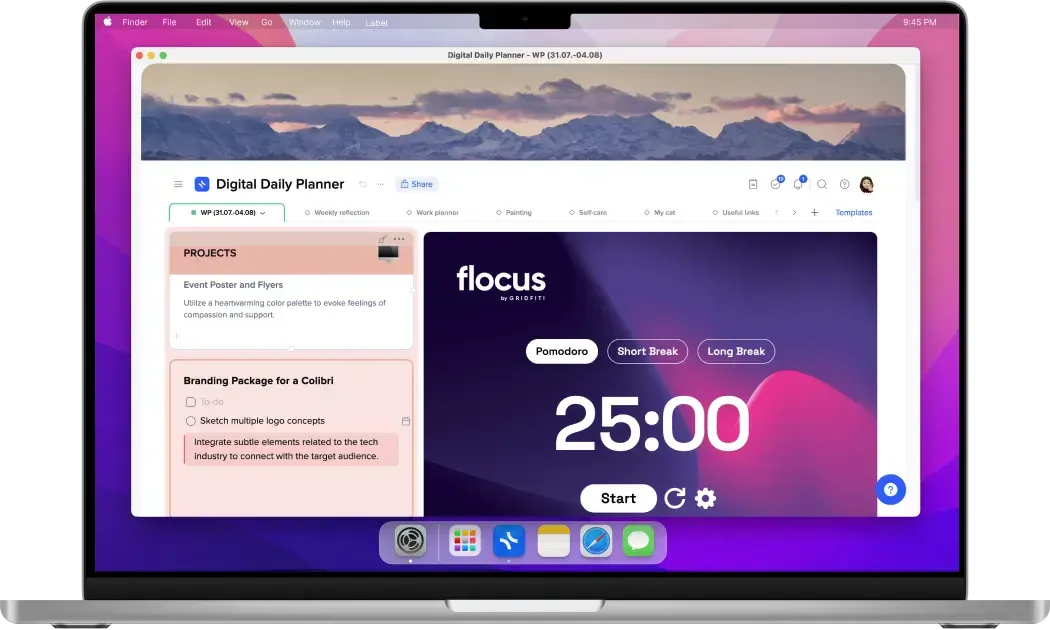
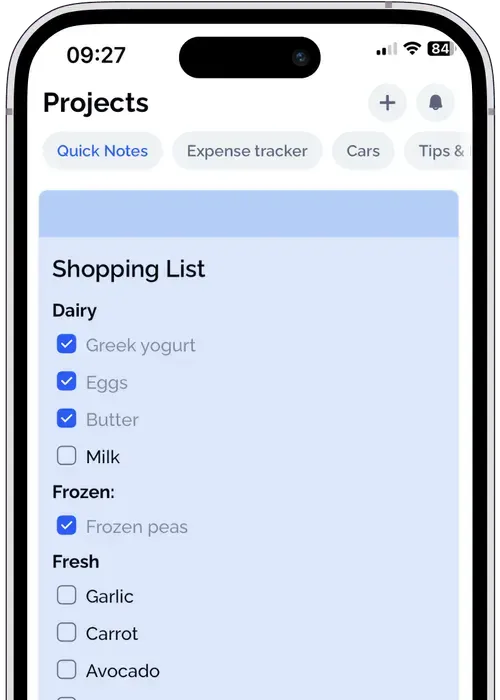
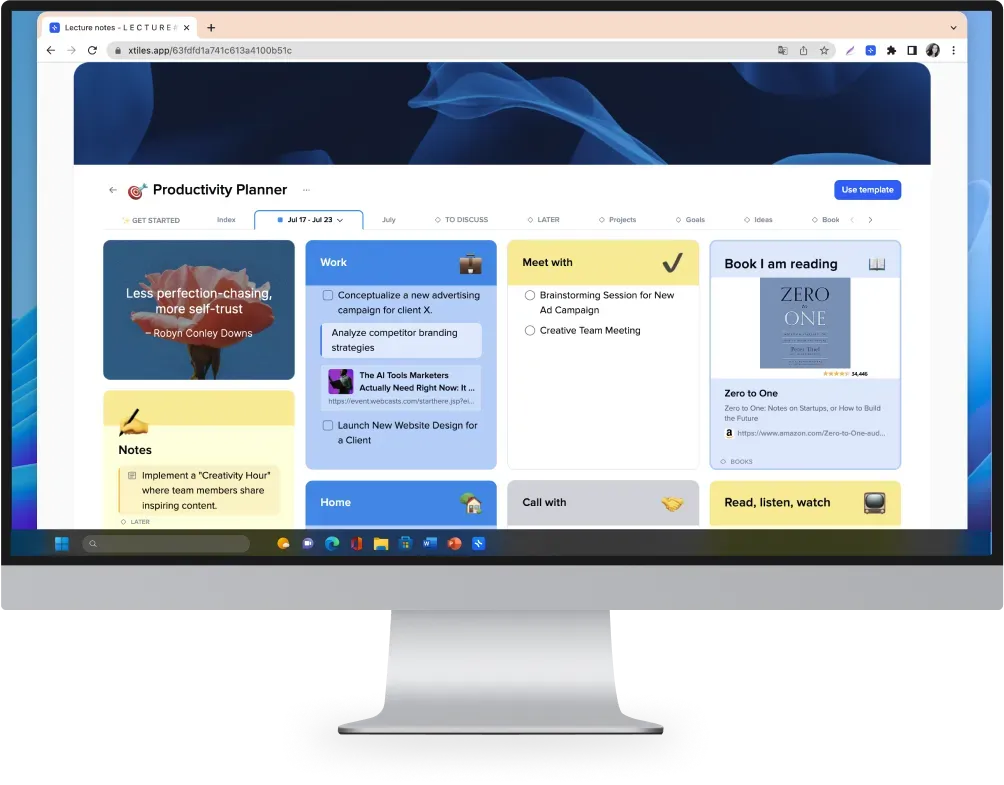
Explore xTiles - a top-notch alternative to Notion. With xTiles, you'll find an all-in-one solution that's more intuitive, adaptable, visually engaging, and customizable compared to Notion. Join xTiles to capture ideas, plan life, and do something creative daily 💙

VS
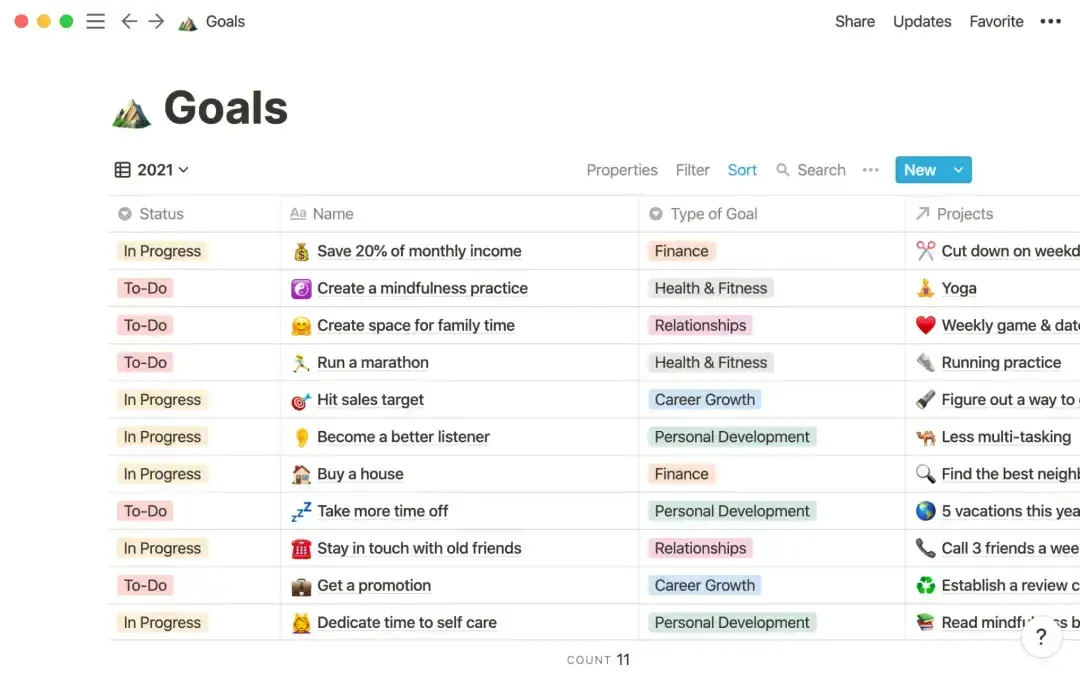
Notion app screenshot Notion
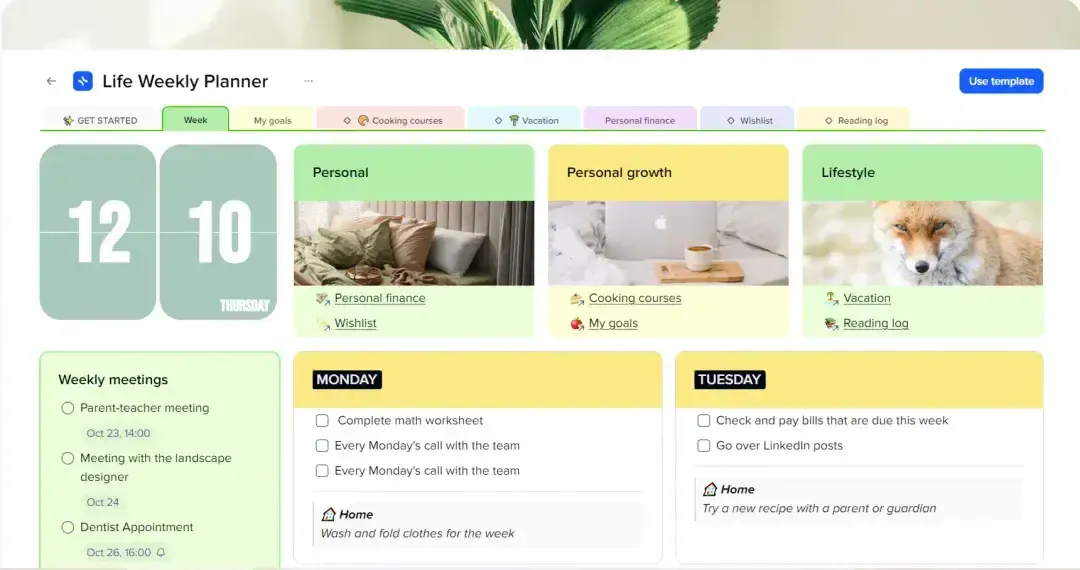
xTiles workspace screen xTiles

Are you searching for a single primary app that fits exactly to your workflow?

xTiles workspace organized as a single primary app

xTiles vs Notion

Notion xTiles
Simple Notion — Simple: No Notion xTiles — Simple: Yes xTiles
Visual Notion — Visual: Partial Notion xTiles — Visual: Yes xTiles
Flexible Notion — Flexible: Partial Notion xTiles — Flexible: Yes xTiles
Customizable Notion — Customizable: Yes, easy Notion xTiles — Customizable: Yes xTiles
All-in-one Notion — All-in-one: Yes Notion xTiles — All-in-one: Yes xTiles
Task Management Notion

Tasks as a database or checkboxes

View tasks within a specific project or create dedicated databases for tasks

xTiles

Built-in tasks. Special task block. Task panel

Tasks can be created from any note

Access all your tasks across projects and on the mobile app

Collection (Databases) Notion

Required create a database structure at the very beginning of project

Database items can belong to one collection

It is not possible to combine database and canvas in one project

xTiles

Allows structure blocks and tiles to collection any time

Collection items can belong to several collections simultaneously

Freedom to merge canvas and collections within a single project

Real-time collaboration Notion — Real-time collaboration: Yes Notion xTiles — Real-time collaboration: Yes xTiles
Starting from Notion

$0

xTiles

$0

Pricing for Personal using Notion

$12 – monthly (Plus plan)

xTiles

Free for personal use

$15 – monthly, for advanced features (Plus)

Pricing for Team using Notion

$18/member – monthly (Business plan)

xTiles

$15/member – monthly (Plus)

Convincing features

Here are a few more reasons why you should give xTiles a go...

Tasks, Reminders, Assigns

Tasks, Reminders, Assigns

Schedule and focus on what you're working on.

Visual Search

Visual Search

Instantly find notes, switch docs, and move content between projects

Nesting Blocks

Nesting Blocks

Add more details to your notes to diverge your thoughts and ideas.

Import and Export

Import and Export

Import or Export projects with PDF, PNG, and Markdown files.

Calendar view

Calendar view

Create notes directly linked to your calendar with one-click.

Databases

Databases

Kanban boards, tables, galleries, and more. Customize any workflow.

Two sided-backlinks

Two sided-backlinks

Converge your knowledge and see all needed contexts for your stuff.

Coming soon AI Assisstant

AI Assisstant

Work faster. Write better. Brainstorm new ideas and first drafts

Get going on web or desktop

Download our apps to organize the perfect workflow for your needs

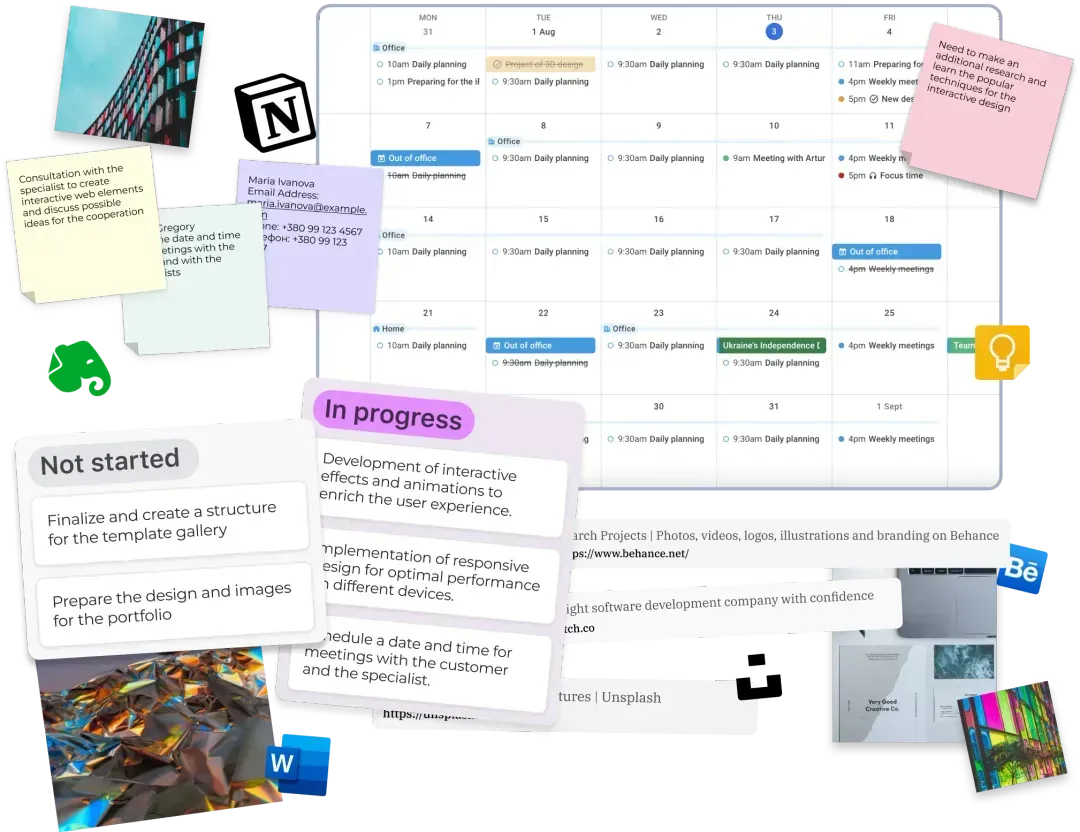
One app to replace them all

See how our price compares to bundling other apps together

Notes icon Notes Up to $15per month
Tasks icon Tasks Up to $8per month
Docs & Storage icon Docs & Storage Up to $12per month
Projects icon Projects Up to $14per month
Total bundle price, crossed out Total $49per month
With xTiles $8.25per month Get started – it's free

Our Reviews

See how xTiles helps people worldwide streamline their workflow

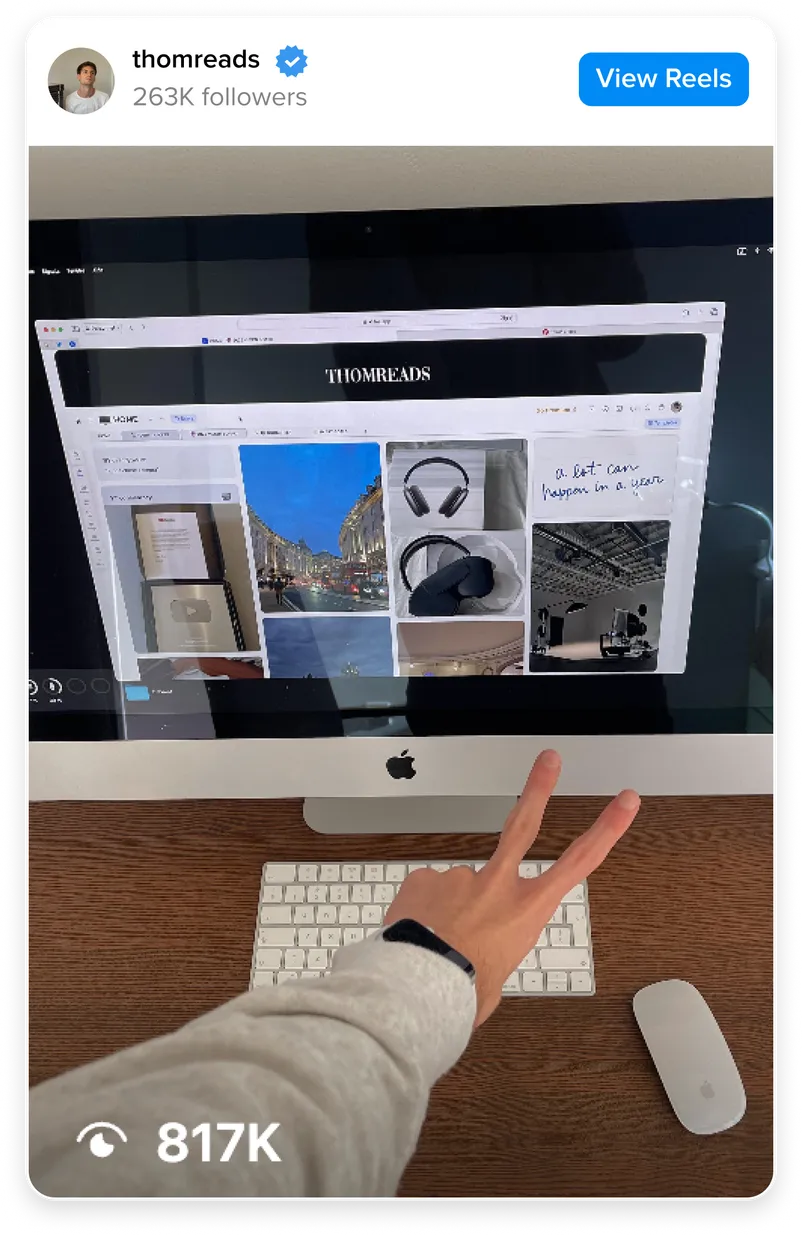
Instagram review of xTiles YouTube review: xtiles setup YouTube review of xTiles TikTok review of xTiles

FAQ

Can't find the answer here? Contact support

How do you switch xTiles to a dark mode like in Notion?

You can switch to a dark mode in xTiles with just two clicks. Find your avatar in the top right corner of the page and click on it. The drop-down menu will appear. Choose the option “Dark Mode” (it’s located directly above the “Sign out” button) and enjoy.

How to embed Google Calendar in xTiles?

xTiles offers native integration with Google Calendar for paid users. However, there’s no need to apply manual methods or use paid automation opportunities not affiliated with xTiles.

Just find the “Tasks” button in the menu bar to the left of your user picture (it looks like a checkmark), and click on it. At the bottom of the panel, you will see an “Allow calendar access” button. After you click on it, the Account Settings window will appear. Click the “Connect calendar” button, choose the needed Google account, and allow the access you want to provide to xTiles, then press “Continue”.

You can revoke the access anytime you want by finding it in the “Integrations”.

Are xTiles templates comparable to Notion's?

xTiles offers a wide range of templates, elements, and customization options, making it a versatile tool for various use cases, including project management, knowledge management, and personal organization. Flexibility and user-friendly features, the key aspects enhanced by the Gallery of ready-to-use templates, allow users to start their planning, note-taking, time and task management, etc., without having to go through long introductions and onboarding. The drag-and-drop interface allows you to manage and arrange your content easily and streamline your workflow.

How to download xTiles on a Mac?

You can download xTiles for your Mac from the xTiles website using this link: https://xtiles.app/en/desktop-apps/

How can you share an xTiles template for team collaboration?

Any of your documents can be shared with your colleagues in a few simple steps. The “Share” button is located near the name of your document. Press it, add the needed person’s email address, and choose the level of access you want to grant them. They will receive a notification in their menu bar. Additionally, you can share your documents with non-xTiles users by enabling the “Share to web” option at the bottom of the “Share” menu.

Does xTiles integrate well with other apps?

Yes, xTiles integrates with Google Calendar and can embed files from YouTube, audio files, rich content, PDF files, etc. The list of available integrations constantly grows. You can follow xTiles Roadmap to stay updated about integrations you look forward to using by following this link: xTiles Roadmap

Is the xTiles Web Clipper Included?

The xTiles Web Clipper is not included by default. You need to download it as an add-on for your browser. Once it’s on your device, you will be able to save websites, pages, and their parts straight to your xTiles Workspace with a click. You can download the xTiles Web Clipper using this link: https://xtiles.app/en/web-clipper/

Try us. Switch from Notion now and give xTiles a go!

You will love the xTiles experience

Get started - it's free