Why start a bullet journal in a digital workspace
A bullet journal is a simple system: one notebook, short bullets instead of long sentences, and a handful of pages that tie the days, months and year together. Its strength is flexibility. You draw the layout you need, not the one a printed planner gives you.
That flexibility is exactly what Bree, a web developer, was looking for when starting to bullet journal in xTiles:
"I found xTiles being able to, like, adjust and make different sections on a page really helpful for laying out my bullet journals."
Over time the journal grew: personal planning, workout motivation, habit tracking, a podcast and a gaming guild, all in the same place. A digital journal can grow like that because pages are never full and nothing needs to be rewritten by hand.
The four core pages of a bullet journal
- Index: a contents page that points to everything else.
- Future log: the year at a glance, with a box for each month to park events and plans that are further away.
- Monthly log: the month's calendar on one side and the month's tasks on the other.
- Daily log: where most of the journaling happens. Each day you write down tasks, events and notes as they come.
Everything else, like habit trackers, reading lists and project notes, is a collection: a page with one topic that you add when you need it.
How to set up a digital bullet journal in xTiles
1. Create a project called Bullet Journal
Pages in a project work like browser tabs. Add one page each for the Index, Future log and Monthly log. The project's first page can be the index, with links to the rest.
2. Build the future log
On the Future log page, add twelve tiles, one per month, and drop events and plans into them as they come up. Each tile can hold text, checklists and images, so a month can look as sparse or as decorated as you like.
3. Use My Planner for monthly and daily logs
My Planner has daily, weekly, monthly, quarterly and yearly pages organized by date. Use the monthly page as the monthly log and the daily page as the daily log. Pick a layout for each period from the Template icon in the left toolbar, so every new day starts with the same sections.
4. Add collections as you need them
A habit tracker, a reading list, gift ideas, notes for a side project: each gets its own page in the Bullet Journal project. Add a link to it on the index page.
Rapid logging and migration, digitally
Rapid logging is the habit of capturing things in short bullets of three kinds. In xTiles each kind has a natural home:
- Tasks become task blocks with a checkbox. Give a task a due date and it shows up on that day in My Planner, wherever you wrote it.
- Events go to a schedule tile, or come in from Google Calendar or Outlook if you connect them.
- Notes stay as plain bullets.
Migration is the bullet journal ritual of reviewing unfinished tasks and moving them forward. On paper that means rewriting them. Here you change the task's due date, and it moves to the new day. Do it once a week: anything you keep moving is a sign the task needs to be dropped or broken down.
Templates for everything you repeat
Bree pointed out what makes a digital journal different from paper: anything you lay out once can become a template. For the gaming guild, Bree keeps an interview form and creates a new copy of it for each new member, then shares the notes with the other organizer.
"I love the template feature because I can just create a new instance of that template for each new member."
The same works for a weekly review, a monthly reset or a page for each book you read: build it once, save it with Save as Template, and start each new copy from it. For habits specifically, see how to make a habit tracker that sticks. For reflection prompts, see digital journaling for self-discovery.
Free templates to start a digital bullet journal
All four are free in the xTiles template gallery. Use them as the starting point for the core pages, then make them yours.
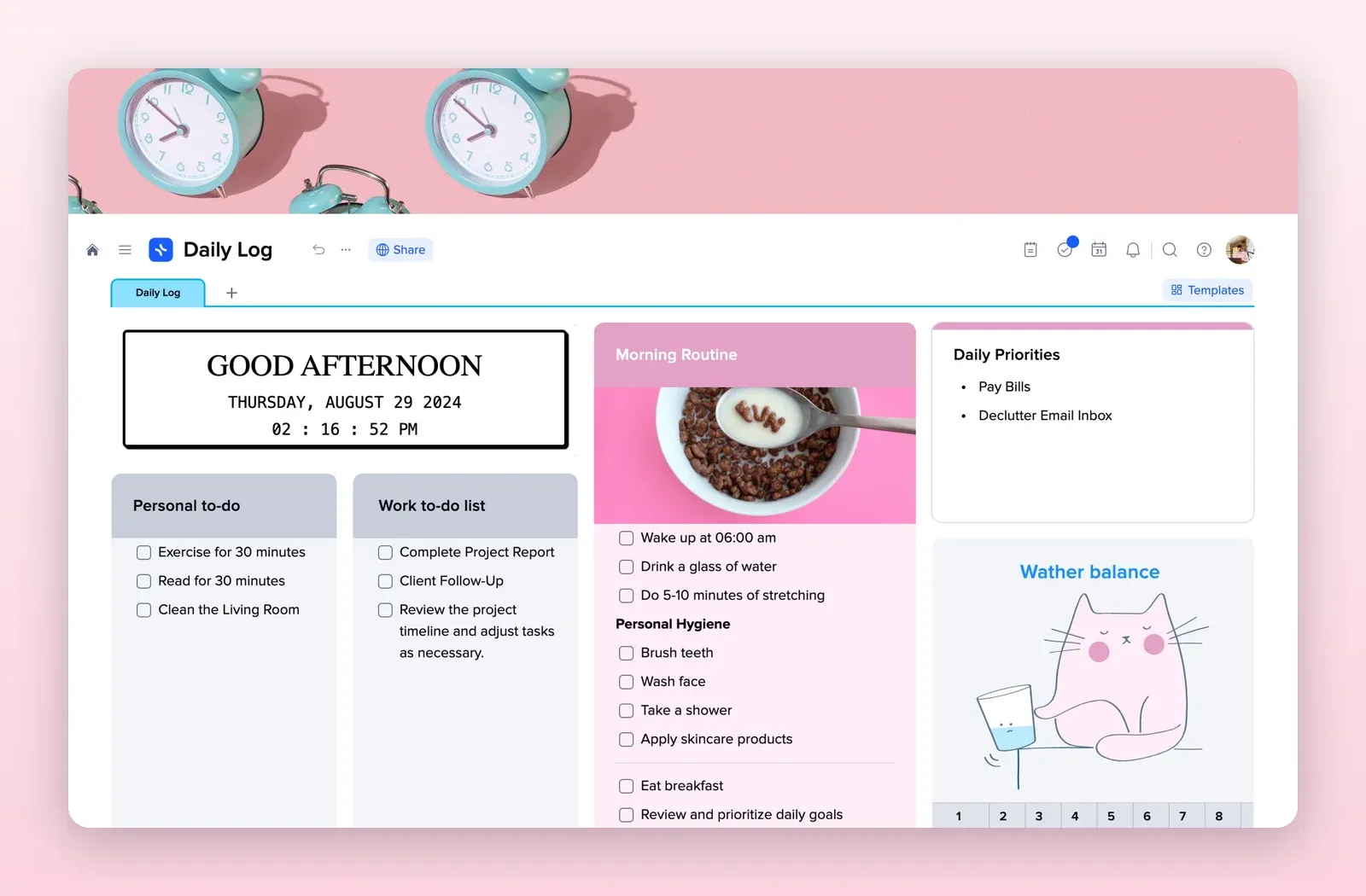
1. Daily Log: the page you open every day
Personal and work to-do lists, a morning routine checklist, daily priorities and a water tracker on one page. A ready daily log you can set as the template for daily pages. Open the Daily Log template.
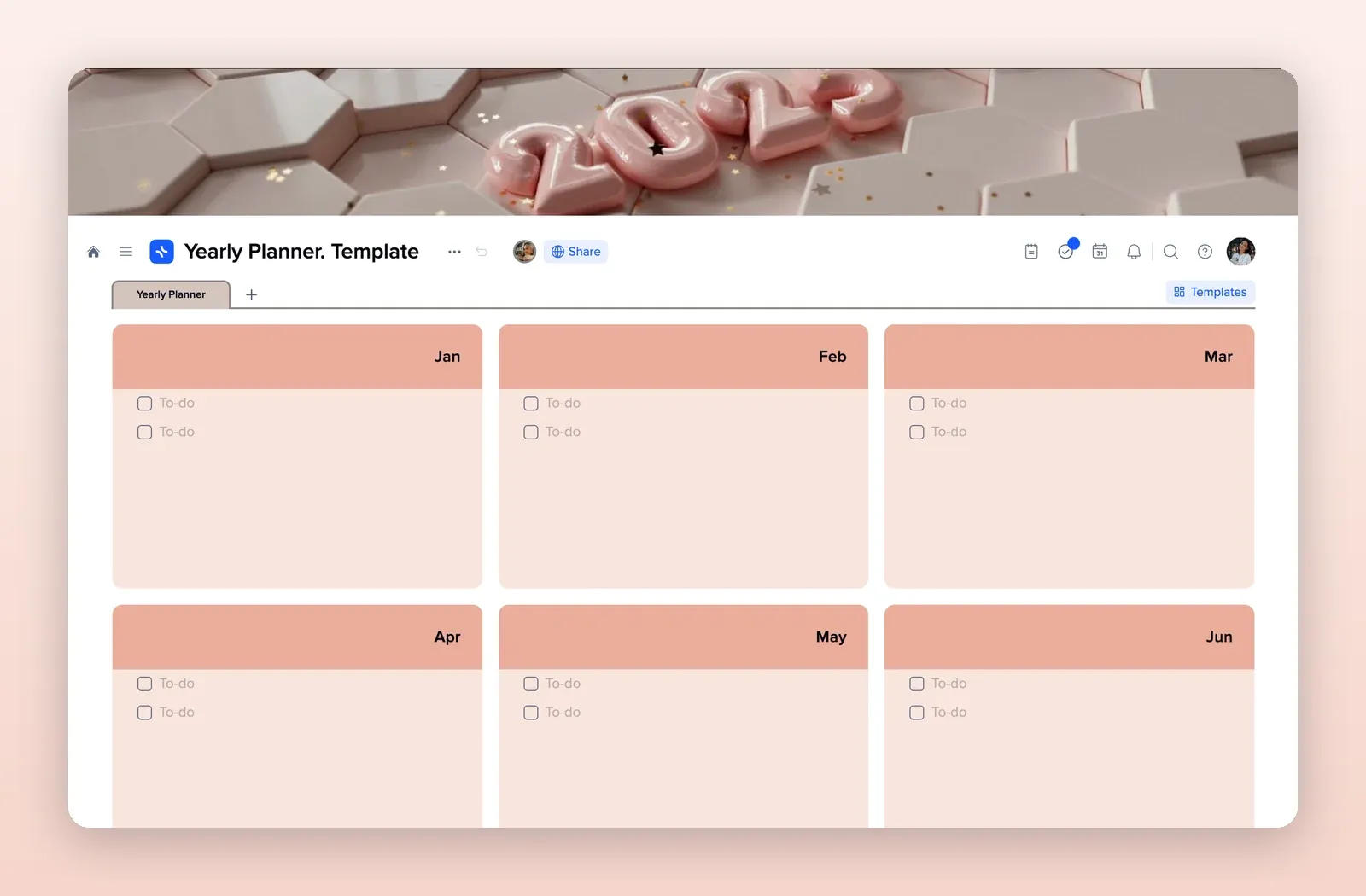
2. Yearly Planner: a future log
A tile for each month with a checklist inside. Exactly the shape of a bullet journal future log. Open the Yearly Planner template.
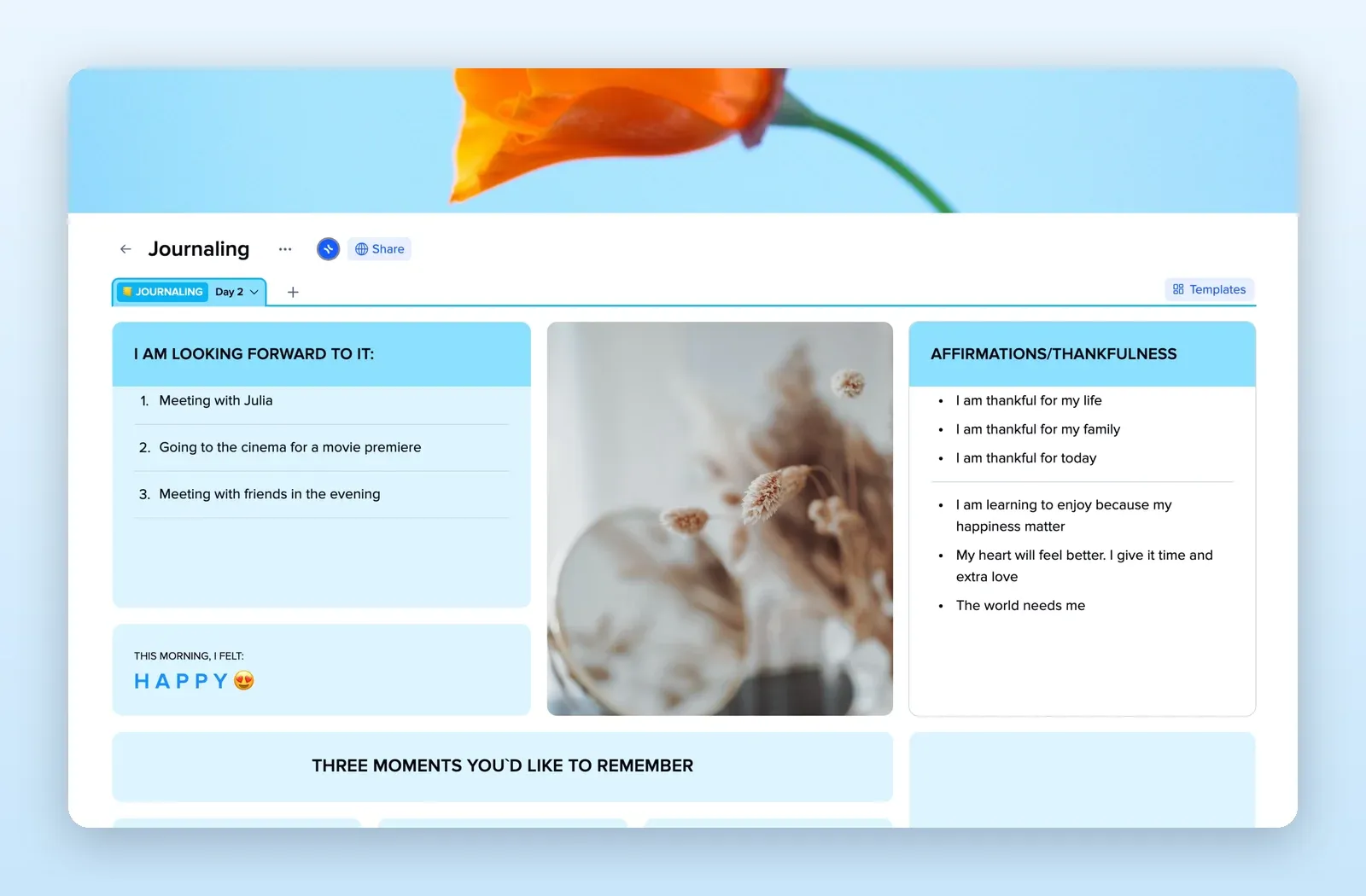
3. Journaling: reflection prompts
What you are looking forward to, how you felt this morning, gratitude and three moments to remember. Add it as a collection for the reflective side of the journal. Open the Journaling template.
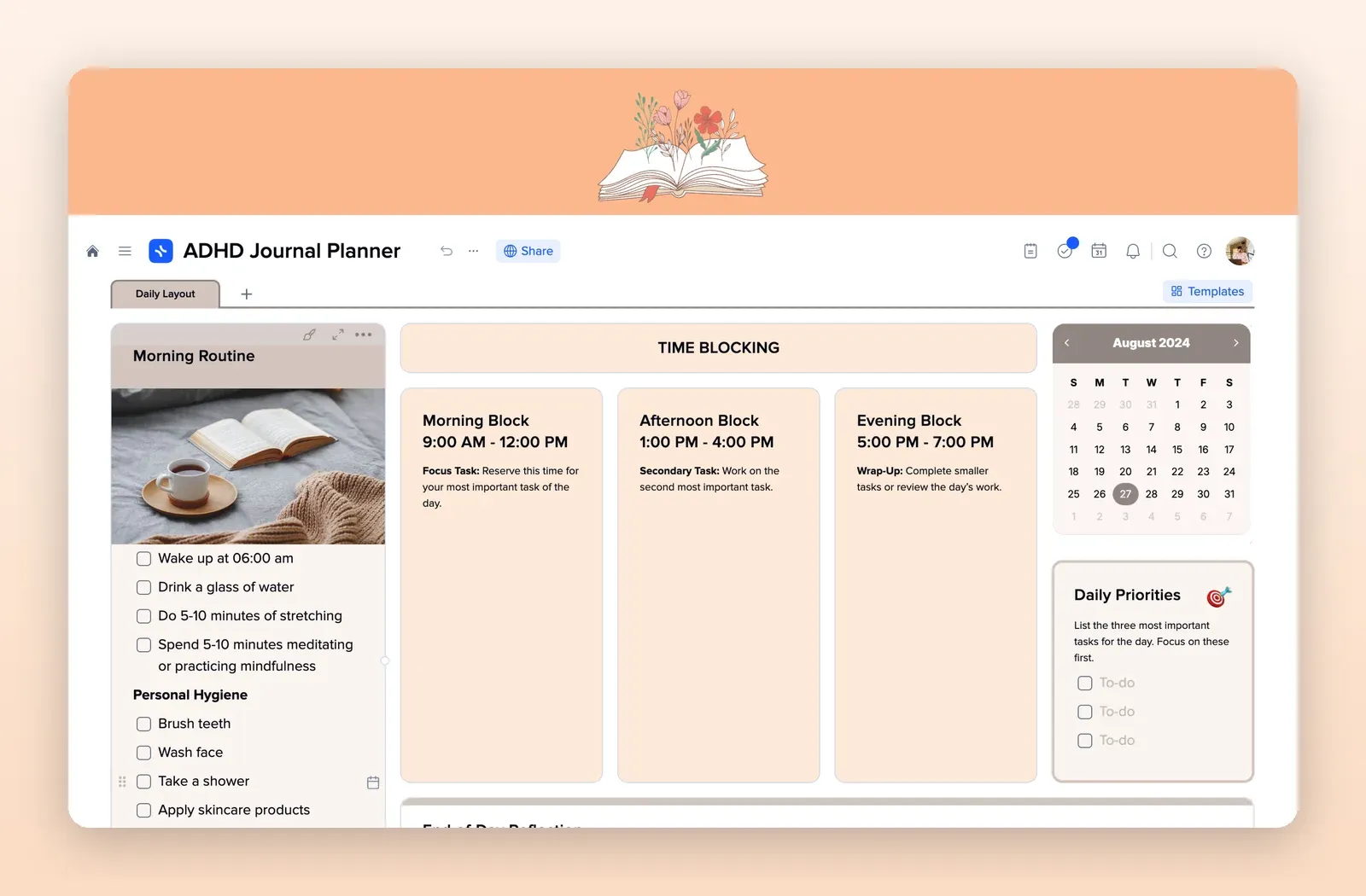
4. ADHD Journal Planner: a daily log with time blocks
A morning routine, morning, afternoon and evening blocks, a mini calendar, daily priorities and an end-of-day reflection. A good daily log if you plan by blocks of time. Open the ADHD Journal Planner template.