What a budget planner has to do
A budget planner answers three questions: what came in, what went out, and where it went. Everything else, like colours, covers and charts, is a bonus.
Frankie came to a call with us while deciding whether to move from Notion to xTiles. The setup to bring over was a bill tracker with categories and a monthly expense list with a view for each month, all on the same data. In Frankie's words:
"It's the same information. So if I change something here, it changes it there."
That is the core of a budget planner that works: one list of transactions, many ways of looking at it. In xTiles that list is a collection, the xTiles name for a database.
Step 1: create one collection for every expense
A simple table on a page is fine for a quick note, but it has few options. For a budget, create a collection with a table view instead. Then add these properties:
- Name: what the expense or bill is, for example "Rent" or "Groceries".
- Amount (Number): the sum.
- Category (Select): Housing, Food, Transport, Subscriptions, Personal and so on.
- Month (Select) or Date (Date): when it was paid or is due. A Date also lets you see bills on a calendar.
- Paid (Checkbox): for bills, so you see at a glance what is still open.
Keep income in a second collection with the same Amount and Month properties, or in the same one with a Type select (Income / Expense). The first is easier to read; the second keeps everything in one place.
Step 2: add totals by month and by category
1. Sum the Amount column
In the table view, open Calculate at the bottom of the Amount column and choose Sum. Average, Min and Max are there too.
2. Group by category
In the table view, group rows by the Category select, so bills sit in sections: all housing costs together, all food together.
3. Make a view for each month
Add a filter Month is January and use Save as new view. The Sum under Amount now shows January only. Repeat for each month you want to compare.
4. Make a view for a category you watch
The same trick works for categories: a view filtered to Subscriptions, with its own Sum, answers "how much do my subscriptions cost?" in one glance.
Every view reads the same rows. Add an expense once, and it shows up in the month view, the category view and the full list. Filters and sorts are explained in the help article on Filter & Sort.
Step 3: see the same budget as a board or a calendar
- Board. Columns come from a Select property. Pick Category, and each category becomes a column you can drag expenses between.
- Calendar. Uses a Date property. Bills with a due date appear on their day, which makes the month ahead easy to see.
- Gallery. Cards instead of rows, useful for things like a wish list or big planned purchases.
Switch between them with the view selector. The available views and what each one needs are in the help article on collection views.
If the budget is shared with a partner or the whole household, see how a mom of four runs family finances and chores in one xTiles space.
Moving a budget from Notion or a spreadsheet
You do not have to retype anything. Export the database from Notion, or the sheet from Excel or Google Sheets, as a CSV file. In xTiles, open your project's three-dot menu, choose Import, pick CSV and select the file. xTiles creates a collection from it.
Import the plain table and rebuild the views afterwards: board, calendar and the filtered month views take a minute each once the data is in. The details, including what to check in the file first, are in how to import a spreadsheet into an xTiles collection and the step-by-step guide to moving from Notion.
Optional: ask Claude to total a category
If you use Claude, connect it to xTiles and it can read your collections. Then you can ask questions in plain language instead of building a view for each one:
- "How much did I spend on Food in October?"
- "Which bills are still unpaid this month?"
- "Compare my Subscriptions total for September and October."
Check the first answers against the Sum in your views until you trust them.
Free budget planner templates to start from
All four are free in the xTiles template gallery.
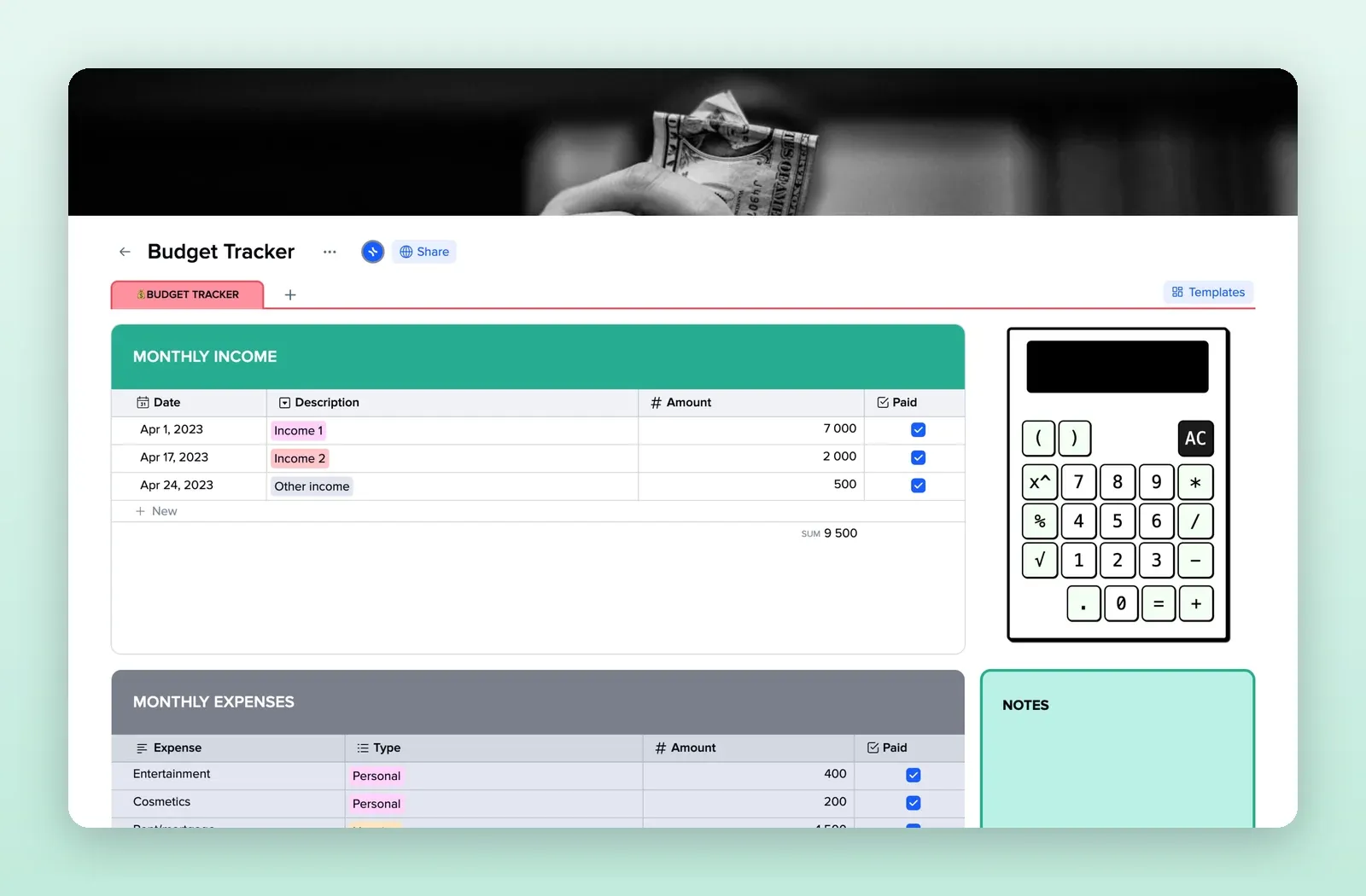
1. Budget Tracker: monthly income and expenses with totals
A monthly income table and a monthly expenses table with type, amount and a paid checkbox, each summed at the bottom, plus a notes tile. The quickest start. Open the Budget Tracker template.
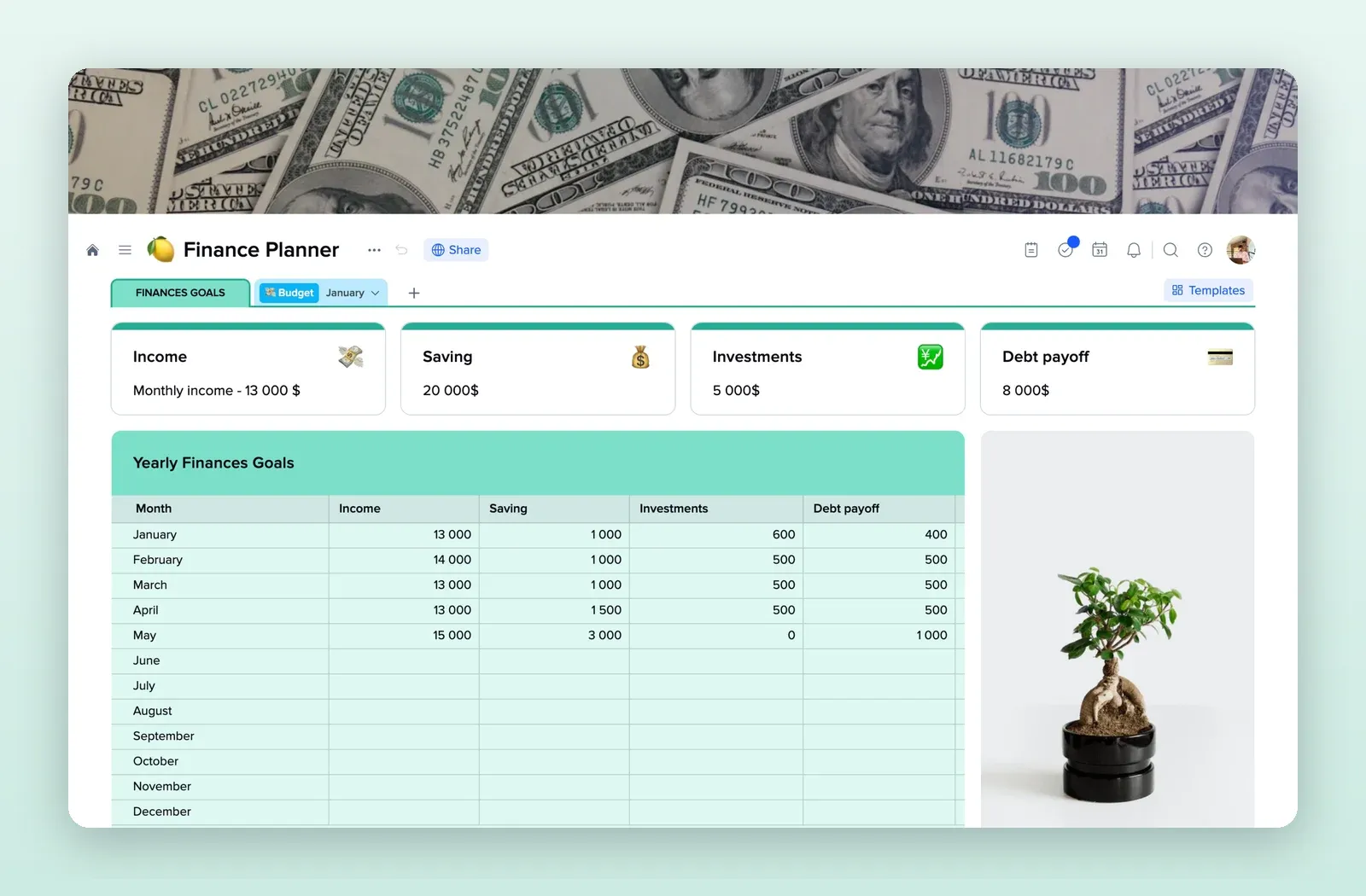
2. Finance Planner: a year of income, savings and debt
Income, saving, investment and debt payoff goals at the top, and a yearly table with a row per month and a sum under each column. Open the Finance Planner template.
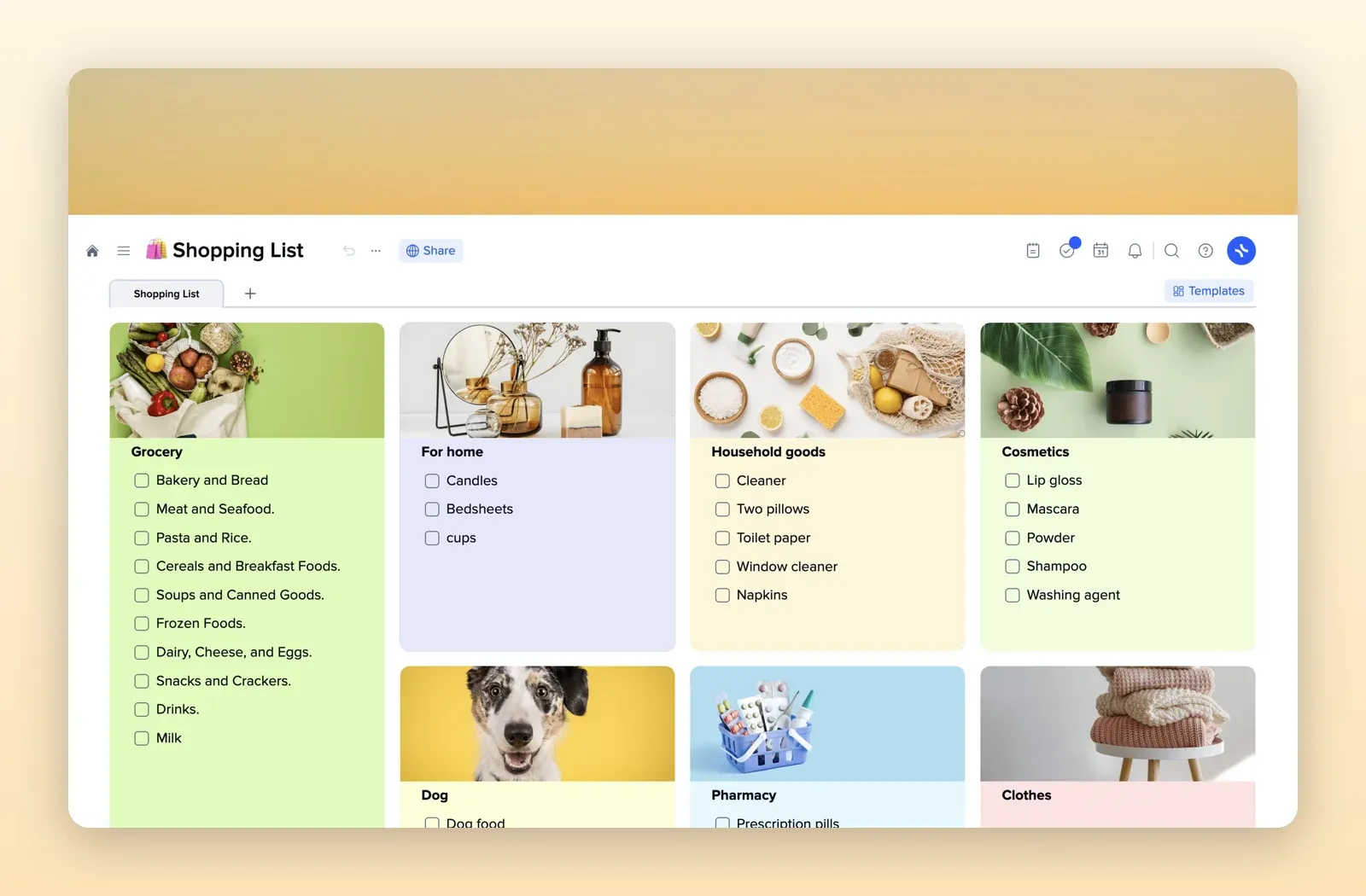
3. Shopping List: spending by category
A tile for each category, from groceries and household goods to the pharmacy and the pet. Handy next to a budget to plan purchases before they happen. Open the Shopping List template.
4. Reading List: the same idea for books
Frankie also kept a book library next to the budget. This template covers reading goals, what you are reading now, what is next and what you finished. Open the Reading List template.