Why most habit trackers stop after a week
A habit tracker is a simple grid: the things you want to do regularly on one side, the days on the other, and a check when it happened. The grid is easy. Keeping it going is the hard part.
Sammi, a graphic designer who had just started using xTiles, described the usual problem on a call with us. The plan was to add water tracking and medication to the weekly page, next to tasks and the schedule. The tables were already there. The missing piece was making the week come back:
"I've been playing around with tables. I'm playing around with all that stuff. Didn't know how to get to repeat each week."
Rebuilding the same layout every Monday is exactly the kind of friction that makes people stop.
So the fix is less about motivation and more about setup. A tracker sticks when three things are true:
- It lives where you already plan your day, not in a separate app you have to remember to open.
- It tracks a short list: a few habits you actually care about, not twenty.
- It repeats on its own, so next week is ready before you think about it.
Step 1: build one week that has everything
Open a weekly page in My Planner and lay out the week once. A layout that works for most people:
- A water tile. Seven checkboxes, one per glass, or one line per day if you only want to note "enough today".
- A medication tile. One checklist item per day, or per dose, so you can see at a glance whether it was taken. In Sammi's words, the point is that it "reminds me that I took my meds that day." Treat it as a record only; what and when to take is between you and your doctor.
- A habits table. Habits in rows, days in columns, a checkbox in each cell. Three to five rows is plenty.
- Day tiles. Your usual tasks for each day, so the tracker sits next to the plan instead of somewhere else.
Keep the tiles small and the labels short. A tracker you can read in two seconds is a tracker you will actually tick.
Step 2: make the week repeat
This is the step that makes the tracker stick. On the call with Sammi, we saved the finished week as a template so new weeks start with the same layout:
1. Save the week as a template
When the weekly page looks right, scroll to the very end of the page and click Save as Template. Clear the checkmarks first, so the template starts empty.
2. Set it as the template for weekly pages
In My Planner, click the Template icon in the left toolbar and choose your template for the weekly period. It applies to future weekly pages.
3. Do the same for days or months if you need to
Templates work per period, so a daily page with a morning checklist or a monthly page with a habit review can repeat the same way.
From now on, each new week opens with water, medication and habits already in place. All you do is tick.
Step 3 (optional): add the Habit Tracker widget for a challenge
For one to three habits you want to build over a set period, xTiles has a free Habit Tracker widget:
- On a blank (creative) page, open Widgets in the left toolbar and choose Habit Tracker. It appears as a tile.
- Click Add first habit, name it and pick a period: 7, 21 or 30 days, or a custom length of up to 99 days. Click Start.
- Add up to three habits in one widget. Check-ins sync with your daily pages in My Planner, so you can mark a habit from the day's page without opening the tile.
A habit cannot be edited after it is created: to change one, delete it and add it again. When the period ends, you can continue the same habits or start a new challenge. Full details are in the help article on the Habit Tracker widget.
On the call with Sammi, we set one up as a medication tracker: one item, seven days, with check-ins from the daily page.
The two approaches work together: the weekly layout holds the everyday things like water and medication, and the widget holds the one to three habits you are actively building.
How to use a habit tracker so it actually sticks
- Start with three. Add a fourth habit only when the first three feel automatic.
- Tick the moment it happens, not at the end of the day from memory.
- Count good weeks, not streaks. Four days out of seven is a good week. A missed day is data, not failure.
- Review once a week. Before the new week starts, look at the grid for a minute: drop the habit you never tick, keep the ones that worked.
- Change the template, not the habit list in your head. If the review changes the list, update the template so the next week reflects it.
If streaks and perfect grids are the thing that makes you quit, read why habit trackers don't work with ADHD and how to fix them, a different approach built around reward instead of discipline.
Free habit tracker templates to start from
All four are free in the xTiles template gallery. Pick one, adjust it to your habits and save it as your weekly template.
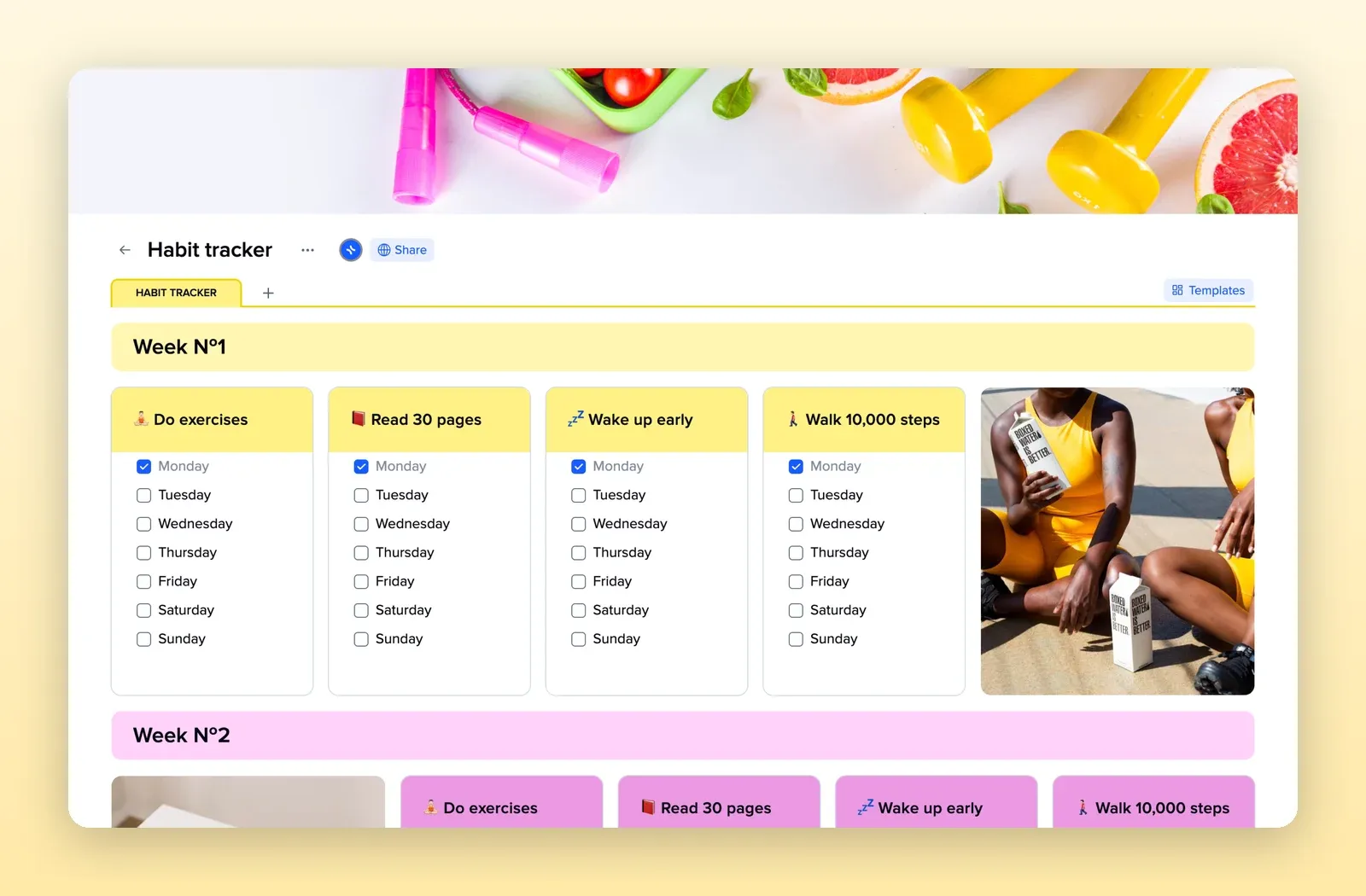
1. Habit Tracker: one tile per habit, one checkbox per day
Weeks stacked on one page, with a tile for each habit and a Monday-to-Sunday checklist inside. The simplest way to see a week of habits at once. Open the Habit Tracker template.
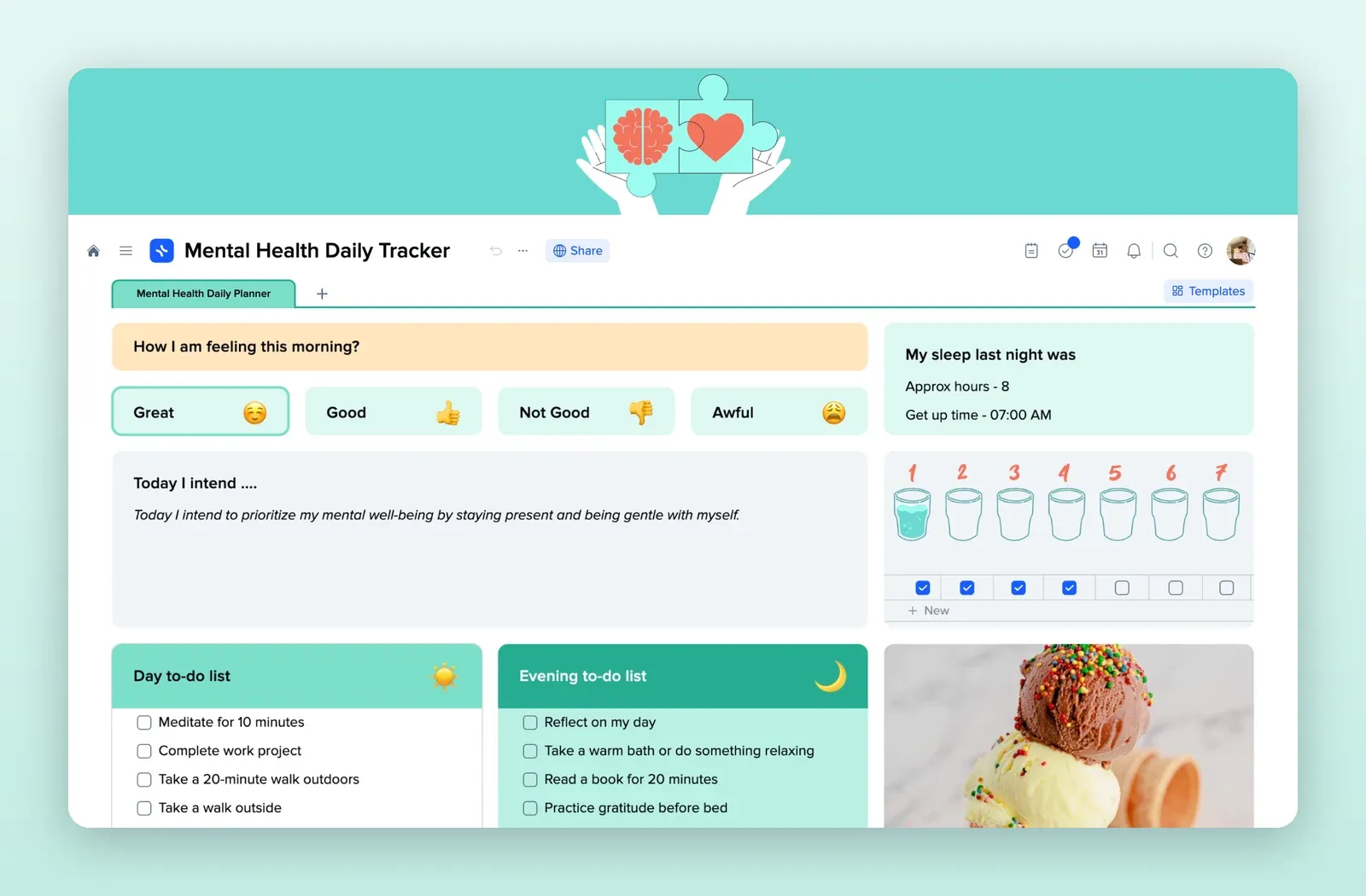
2. Mental Health Daily Tracker: water, mood and intentions
A morning check-in, an intention for the day, sleep, a row of water glasses with checkboxes and day and evening to-do lists. A good base for water and wellbeing tracking. Open the Mental Health Daily Tracker template.
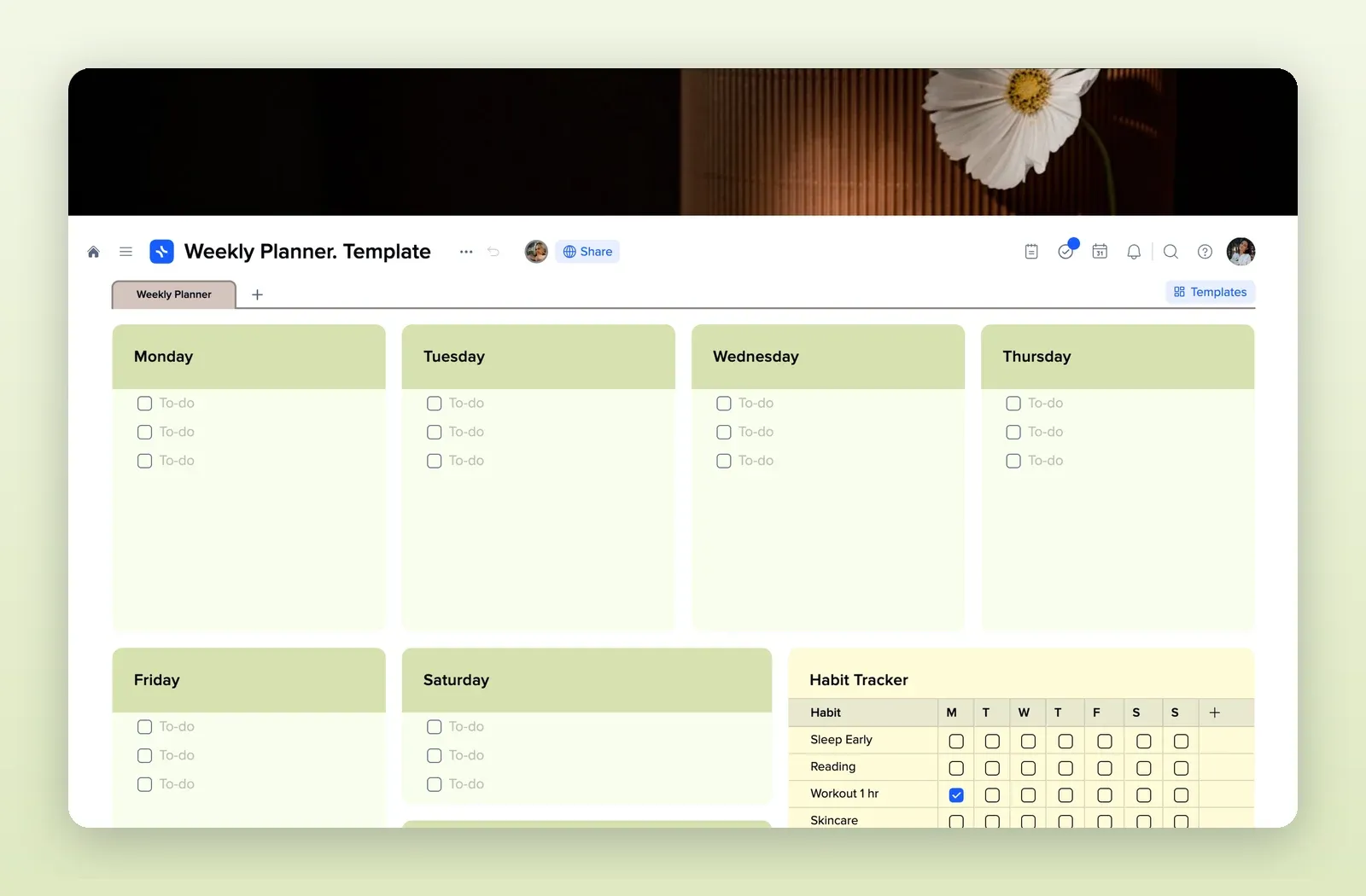
3. Weekly Schedule: a week with a habit table
A tile for each day plus a habit tracker table with habits in rows and days in columns. Closest to the weekly layout in Step 1. Open the Weekly Schedule template.
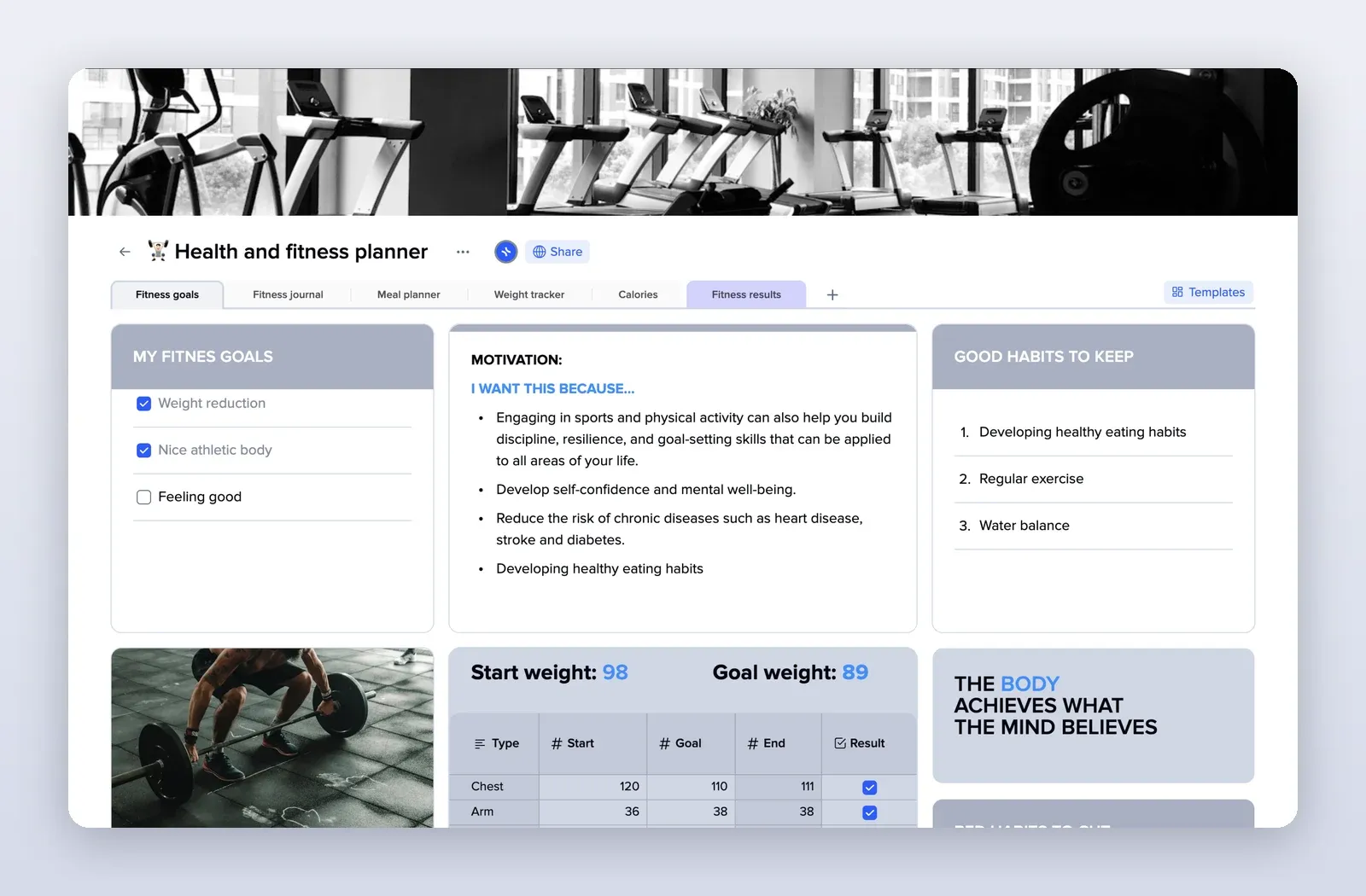
4. Health and Fitness Planner: habits next to your goals
Fitness goals, motivation, good habits to keep and bad habits to cut, with tabs for a journal, meals and a weight tracker. Open the Health and Fitness Planner template.