What a social media content calendar is for
A social media content calendar is one list of every post, video and episode you plan to publish, with a date, a channel and a status. It answers three questions at a glance: what goes out this week, where, and what still needs work before it can.
Monique runs a podcast and several YouTube channels solo, and found ClickUp "a little bit too much". What Monique needed was simpler than a project-management suite and more structured than a notes app: separate dates for recording and publishing, tasks for each episode, and goals for each channel. That is a good checklist for any creator, so the steps below follow it.
How to create a social media content calendar in 7 steps
1. List your channels
Write down every place you publish: podcast, each YouTube channel, Instagram, TikTok, newsletter. If a channel hasn't had a post in two months, decide now whether it stays on the list.
2. Set one goal per channel
A number you can check monthly: two episodes a month, one long video a week, three short clips a week. The calendar exists to hit these, so they come first.
3. Decide your content types
Episode, long video, short, carousel, story, newsletter. Each becomes a value in a content-type column, so you can see the mix at a glance.
4. Choose your columns
At minimum: title, channel, content type, status, record date and publish date. Separate dates matter for anything you produce in batches: you record on Tuesday, but it goes live two weeks later.
5. Set a simple status pipeline
Idea → Scripted → Recorded → Edited → Scheduled → Published. Fewer statuses are better; each one should mean a real handoff or step.
6. Add tasks inside each post
A status tells you where a post is; tasks make sure it moves. Inside each episode or video, add the steps with dates: write outline, record, edit, thumbnail, publish.
7. Review weekly
Every week, look at what is due in the next 14 days, move anything that slipped, and check the month against your channel goals.
Building it in xTiles: one collection, several views
The part Monique got stuck on was the difference between a table on a page and a collection. A table is a simple grid. A collection works like a database, and that is what a content calendar needs: the same posts shown as a table, a board, a calendar or a timeline.
- Start from the Social Media Calendar template. It is already a collection with sample posts, platforms, dates and statuses. Replace the samples with your own and add a second date column, so each post has a record date and a publish date.
- Add views with + New view. A calendar by publish date for the month, a board grouped by status for the pipeline, and a table for the full list. All of them show the same posts, so moving a card on the board updates the calendar too.
- One view per channel. The template already has views filtered by platform, such as Instagram, TikTok and YouTube. Add one for your podcast and one per YouTube channel.
- Tasks inside each post. Open an episode and add its production tasks with dates. Any task with a date appears in My Planner on that day, so recording and editing sit next to the rest of your week.
- A timeline for big projects. Collections also have a timeline view, handy for a series or a launch that runs over several weeks.
"There's a lot in ClickUp that I don't need."
If you plan content with a marketer or an assistant rather than alone, the team version adds review steps and handoffs: see how to run a social media calendar with a marketer and an assistant.
Content calendar example: one podcast, two YouTube channels
Goals: podcast 4 episodes · main YouTube 4 long videos · second YouTube 8 shorts
Week 1: record episodes 1 and 2 (Tue) · publish episode 1 (Thu) · long video 1 live (Sat)
Week 2: edit episode 2 · cut 4 shorts from episode 1 · publish episode 2 (Thu)
Week 3: record episodes 3 and 4 · long video 2 and 3 live · shorts on the second channel
Week 4: publish episodes 3 and 4 · long video 4 · review the month against goals
Recording in batches and publishing weekly is exactly why the two dates matter: the calendar view by publish date shows the audience's schedule, and the tasks inside each episode show yours.
Free templates for your content calendar
All four are free in the xTiles template gallery. The first is the calendar itself; the others cover production, the pipeline and goals.
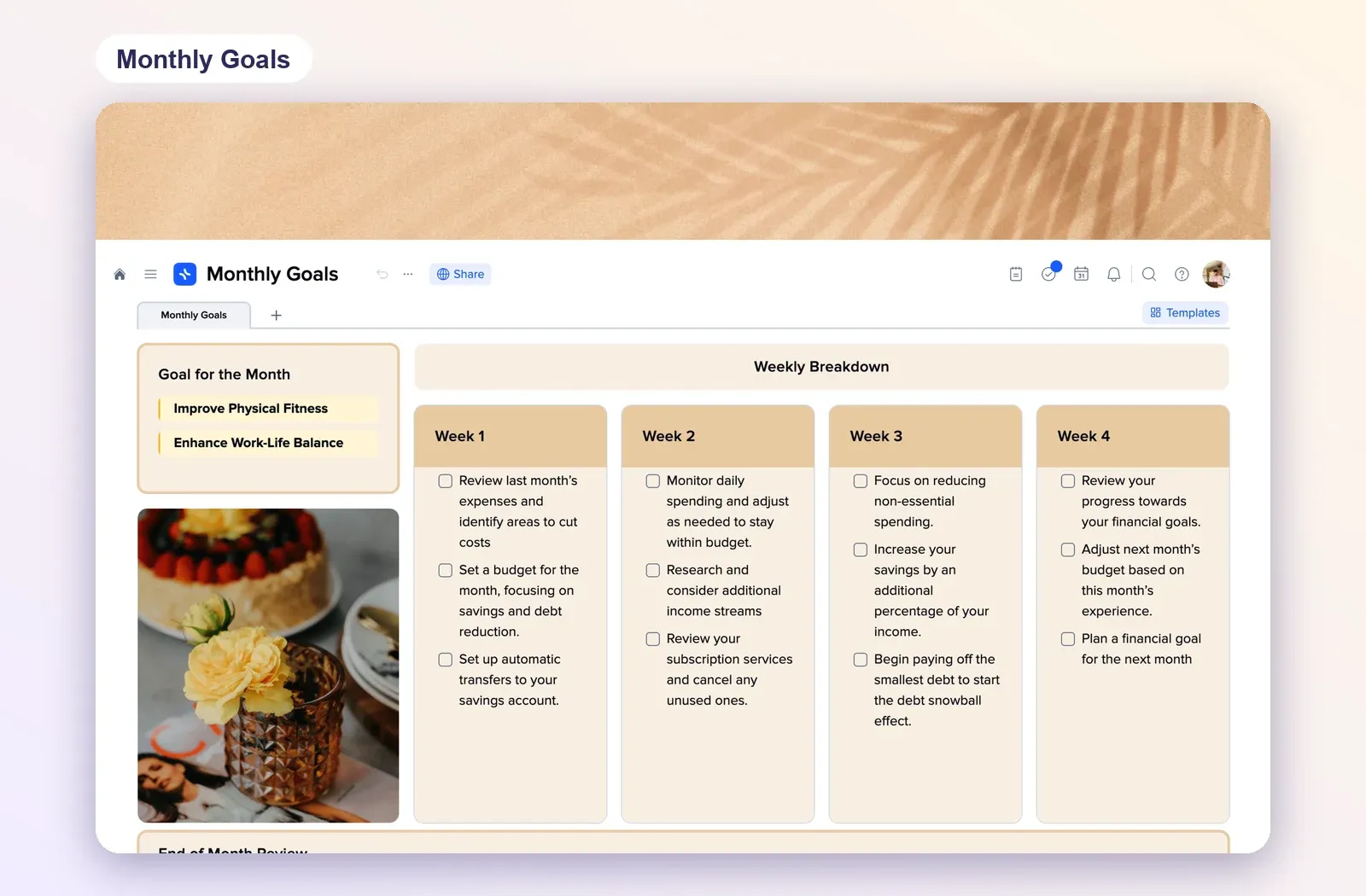
1. Social Media Calendar: the calendar itself
A collection with a calendar view, a view with all posts and one view per platform, with times and statuses on each post. Open the Social Media Calendar template.
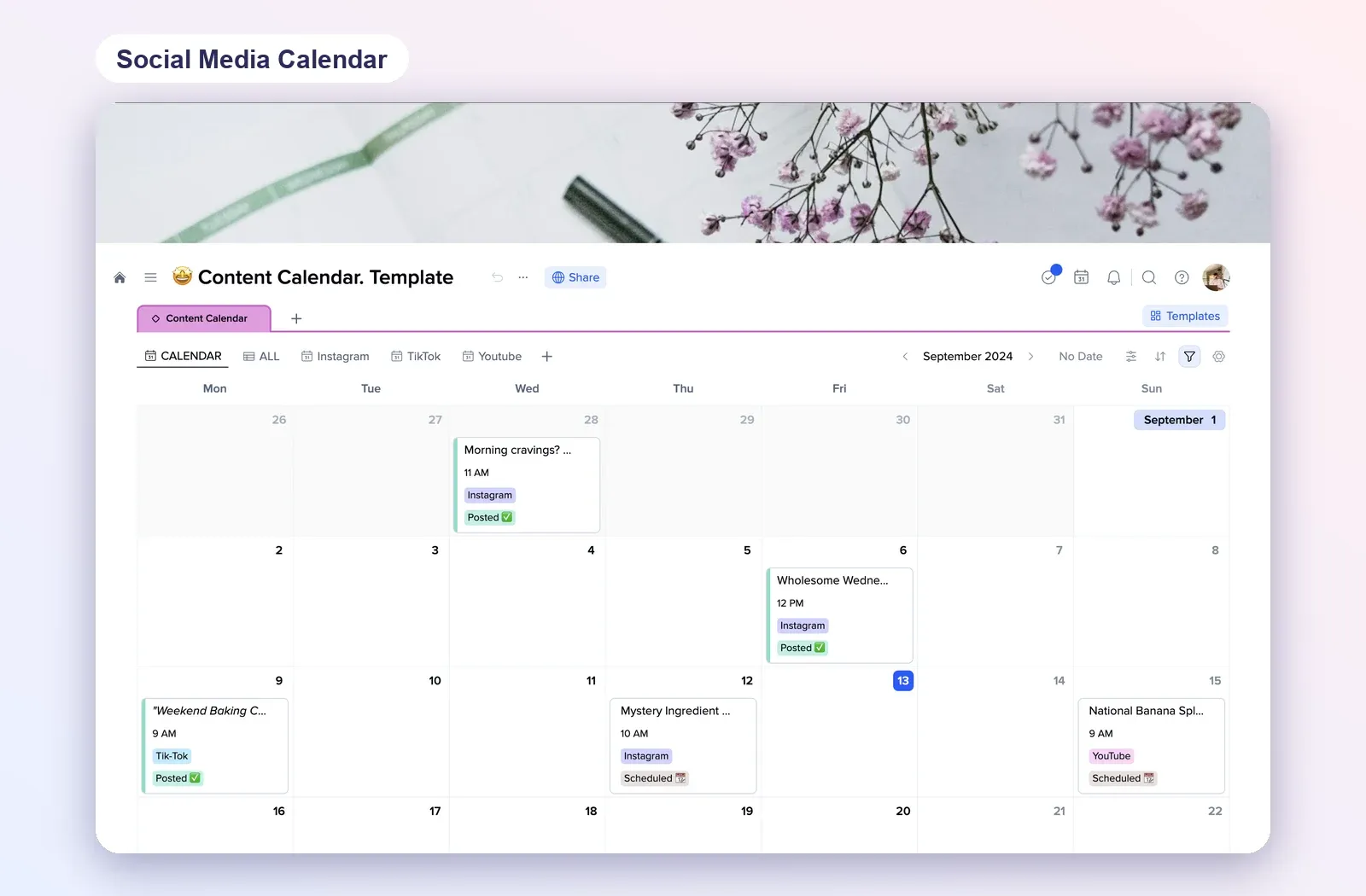
2. Video Production Agency: a production hub
Links to the projects board, scripts, budget and task manager, plus the current projects and the last meeting's action plan. Rename it for your channel and keep scripts and references in one place. Open the Video Production Agency template.
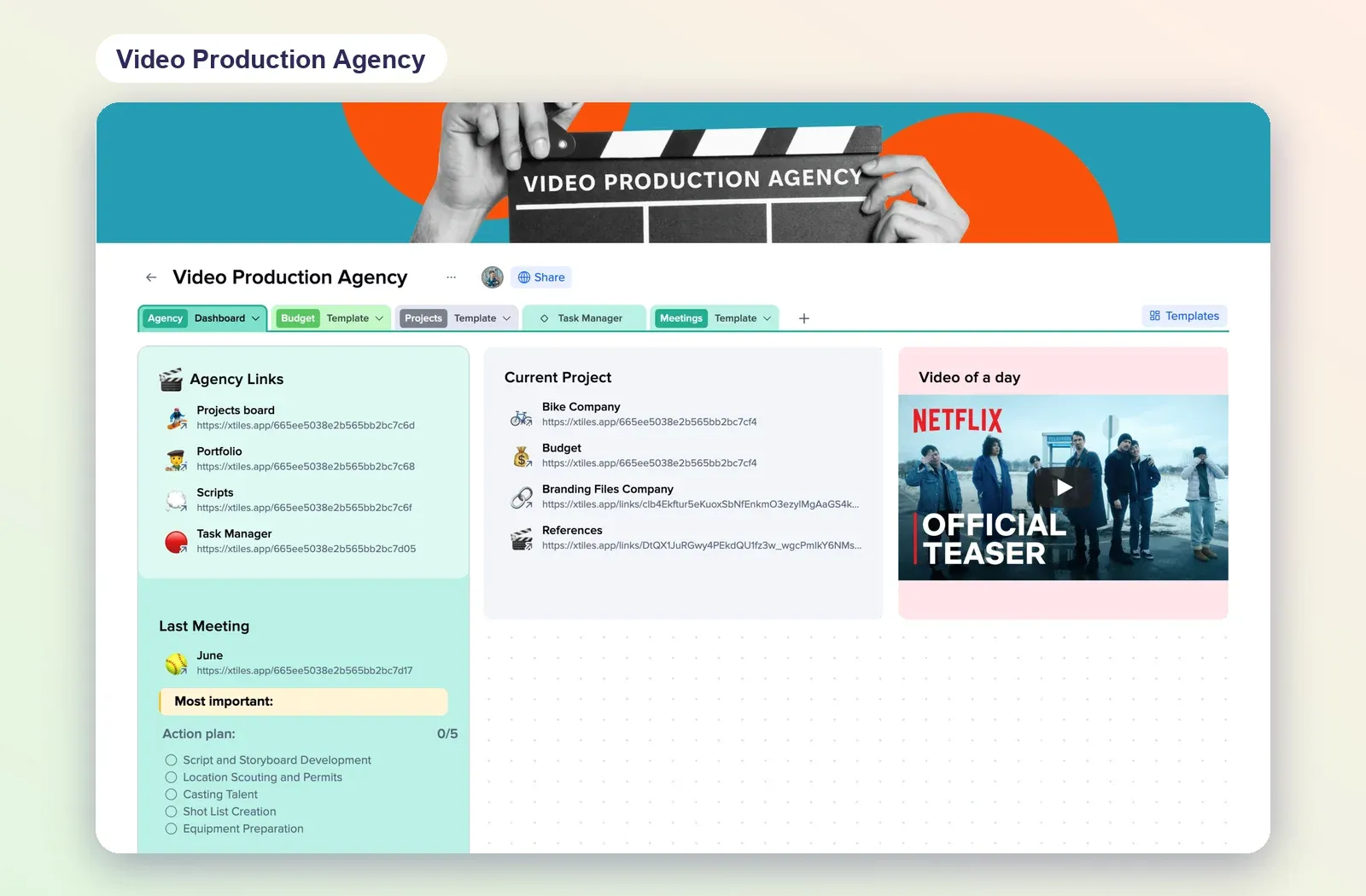
3. Projects Tracker: the pipeline as a board
A board with columns by stage, cards with dates and priority, and extra views including a timeline. Use it for series or bigger launches. Open the Projects Tracker.
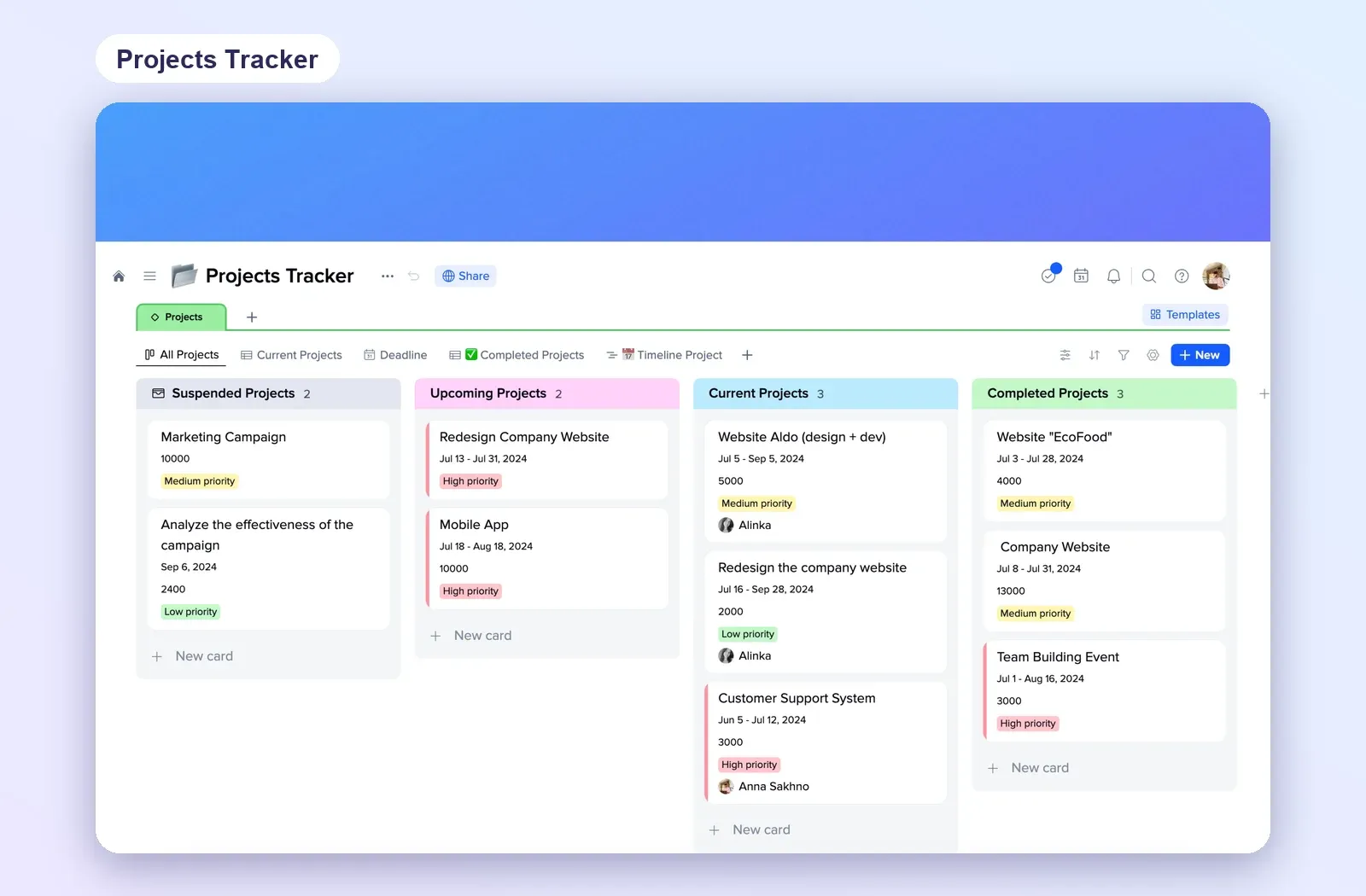
4. Monthly Goals: goals per channel
Goals for the month, a breakdown by week and an end-of-month review. Write one goal per channel and check it in your weekly review. Open Monthly Goals.