The short answer
Open Account Settings, go to Language & Region and set First day of week to Sunday or Monday. The choice belongs to your account, so you set it once rather than in every project.
This is one of the most common questions we get from people in the US and other countries where the week starts on Sunday. The rest of this guide shows what the setting changes today and how to make your own weekly pages start on the day you want.
Change the first day of the week in Account Settings
1. Open Account Settings
Open your account settings in the xTiles web app.
2. Go to Language & Region
This tab holds the interface language, the time format and the first day of the week.
3. Choose Sunday or Monday
Set First day of week to the day you want. Your choice is saved to your account.
The same tab has the time format. If you start the week on Sunday, you may also prefer the 12-hour clock.
Or change it from the Calendar
If you are already in the Calendar, you do not have to leave it. Click the settings icon (⚙) in the top-right corner of the Calendar, find Start of the Week under View Options and pick Monday or Sunday.
The same panel has the other view options: switch between list and time-blocking view, hide weekends, show or hide tasks, and hide completed tasks. Details are in the help center article on the Task Calendar.
What the setting changes
- Calendar. The weekly and monthly views start on the day you chose, so a Sunday-first week shows Sunday in the first column.
- Connected calendars. Events from Google Calendar or Outlook Calendar appear in the same Calendar views, so they follow the same week. Setup is in the help article on Google Calendar integration.
- My Planner weekly pages. For now, weekly pages in My Planner still run Monday to Sunday, whatever you choose in Account Settings.
If your weekly page is the place where you plan, the next section shows how to make it start on Sunday with a few drags.
Make your weekly page start on Sunday
A weekly page in xTiles is a canvas of tiles, one tile per day plus anything else you need. Tiles move freely, so the order of the days is up to you:
- Start from a weekly template from the gallery, or build a page with one tile per day.
- Drag the Sunday tile to the first position, and move the other days after it. Many templates group Saturday and Sunday in one Weekends tile: split it into two tiles or rename it.
- Save the page as a template from the page tab's three-dot menu, so every new week starts with Sunday first.
Tasks with a due date still appear on the right day in My Planner and in the Calendar, whatever order the tiles are in.
Weekly and monthly templates to start from
All four are free in the xTiles template gallery.
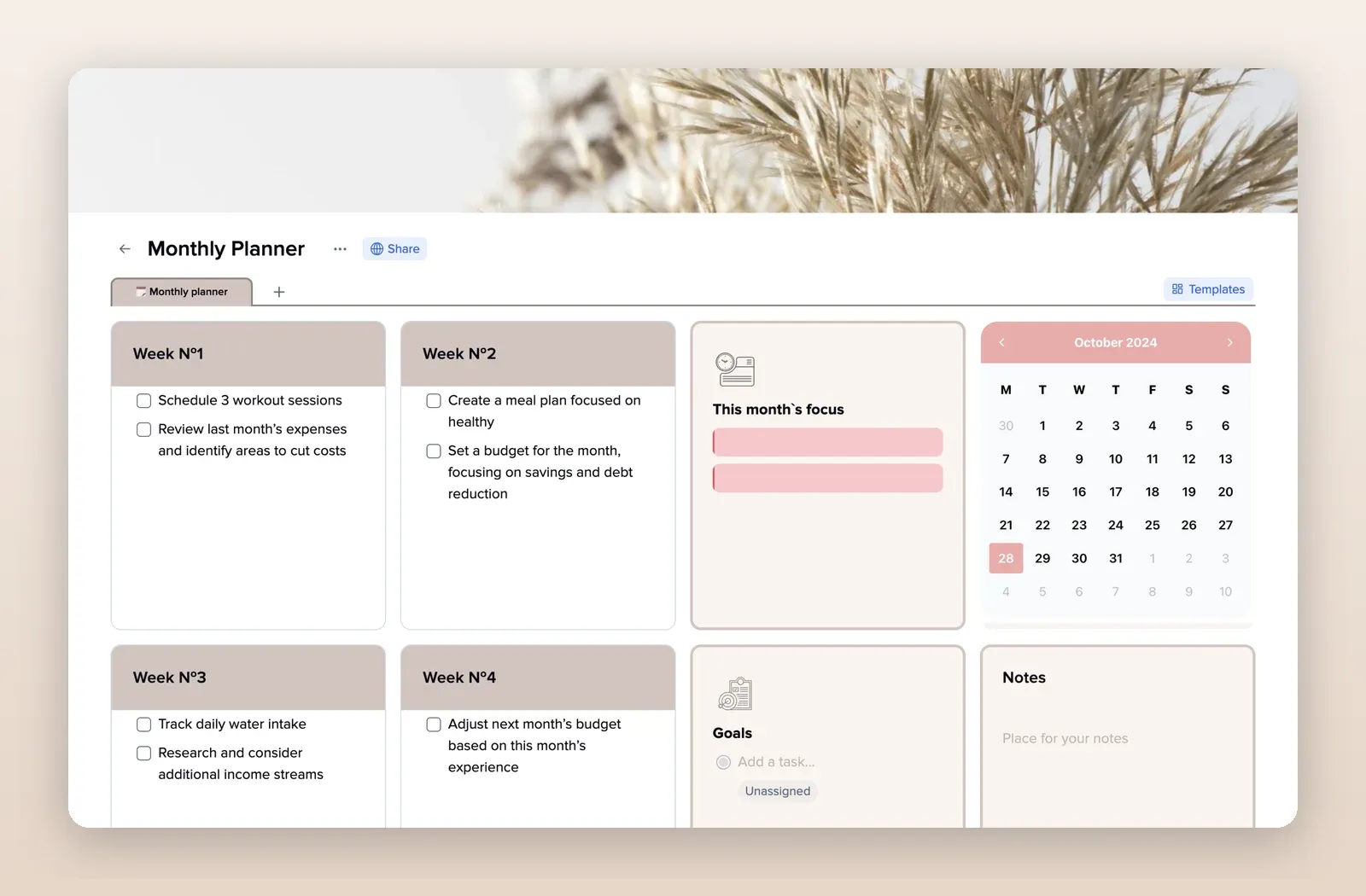
1. Work Weekly Planner: a Sunday-first mini calendar
A month calendar that starts on Sunday, a schedule with a tile per day, top three priorities and separate work and personal to-do lists. Open the Work Weekly Planner template.
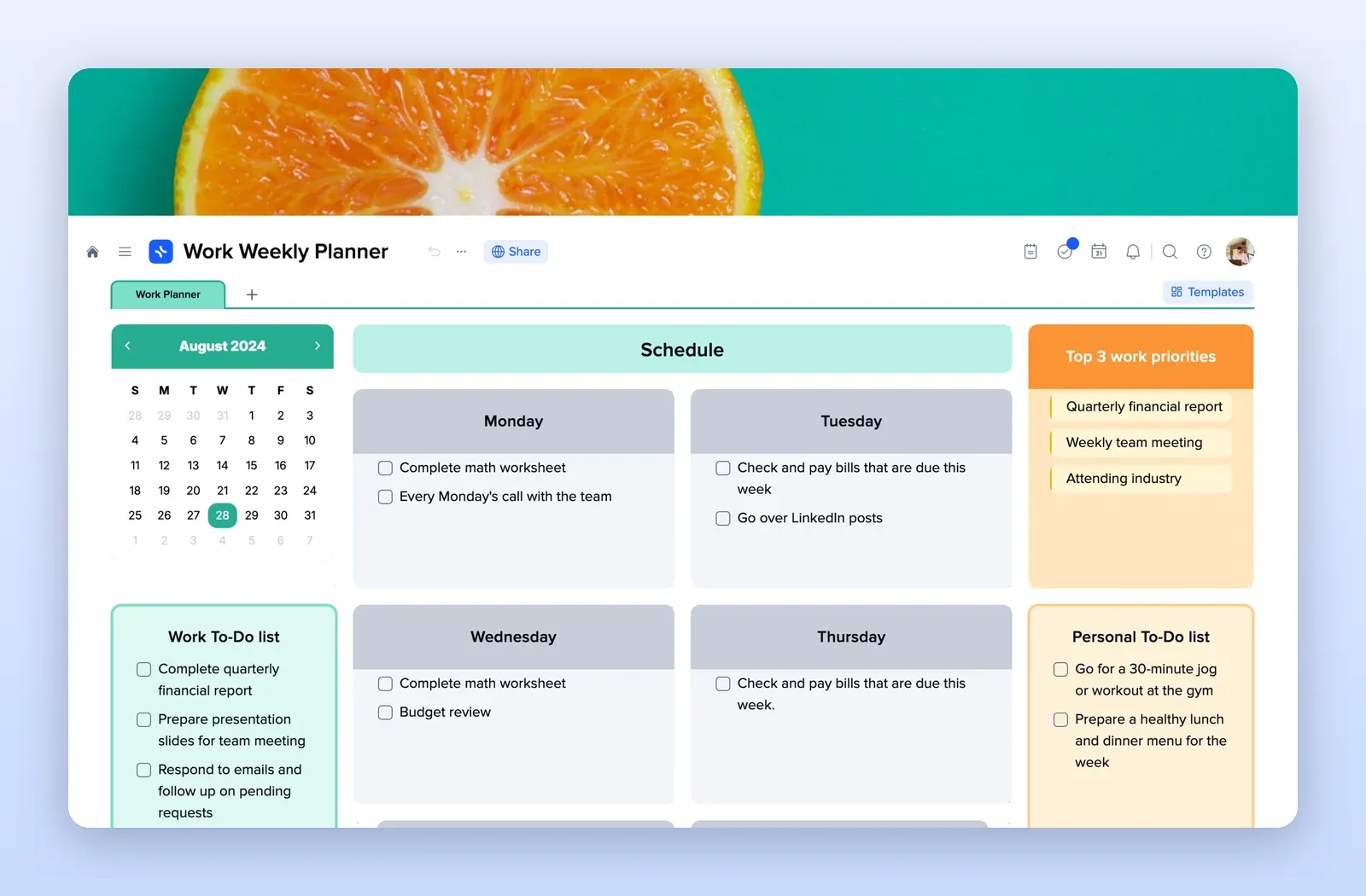
2. Weekly Planner Motivation: a tile per day with a focus
Each day has a short intention and a checklist, with a Weekends tile at the end. Split Weekends and move Sunday to the front for a Sunday-first week. Open the Weekly Planner Motivation template.
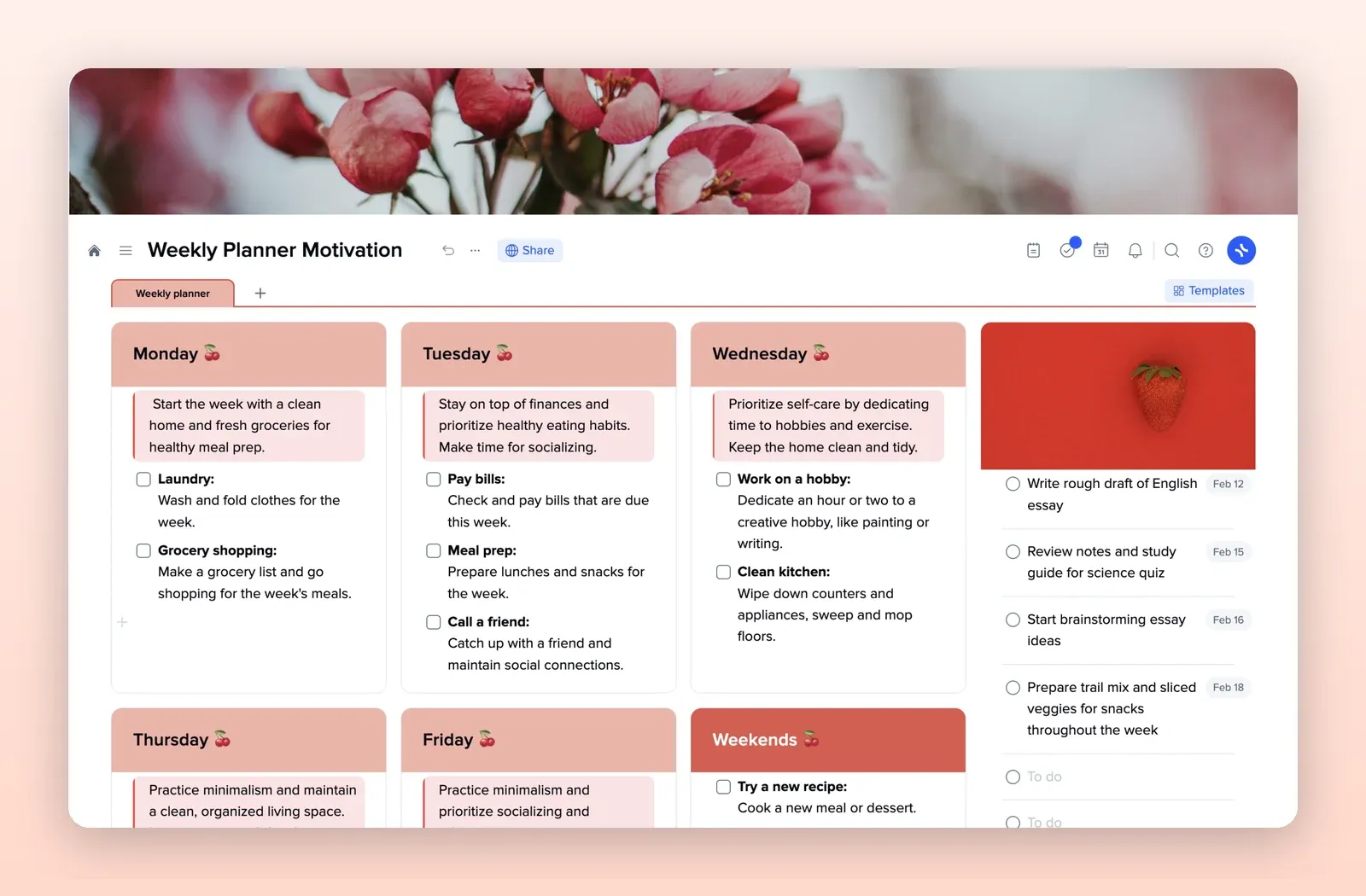
3. Weekly Schedule: days, priorities and a habit tracker
Day tiles with assigned tasks, month priorities and a habit tracker on one page. Open the Weekly Schedule template.
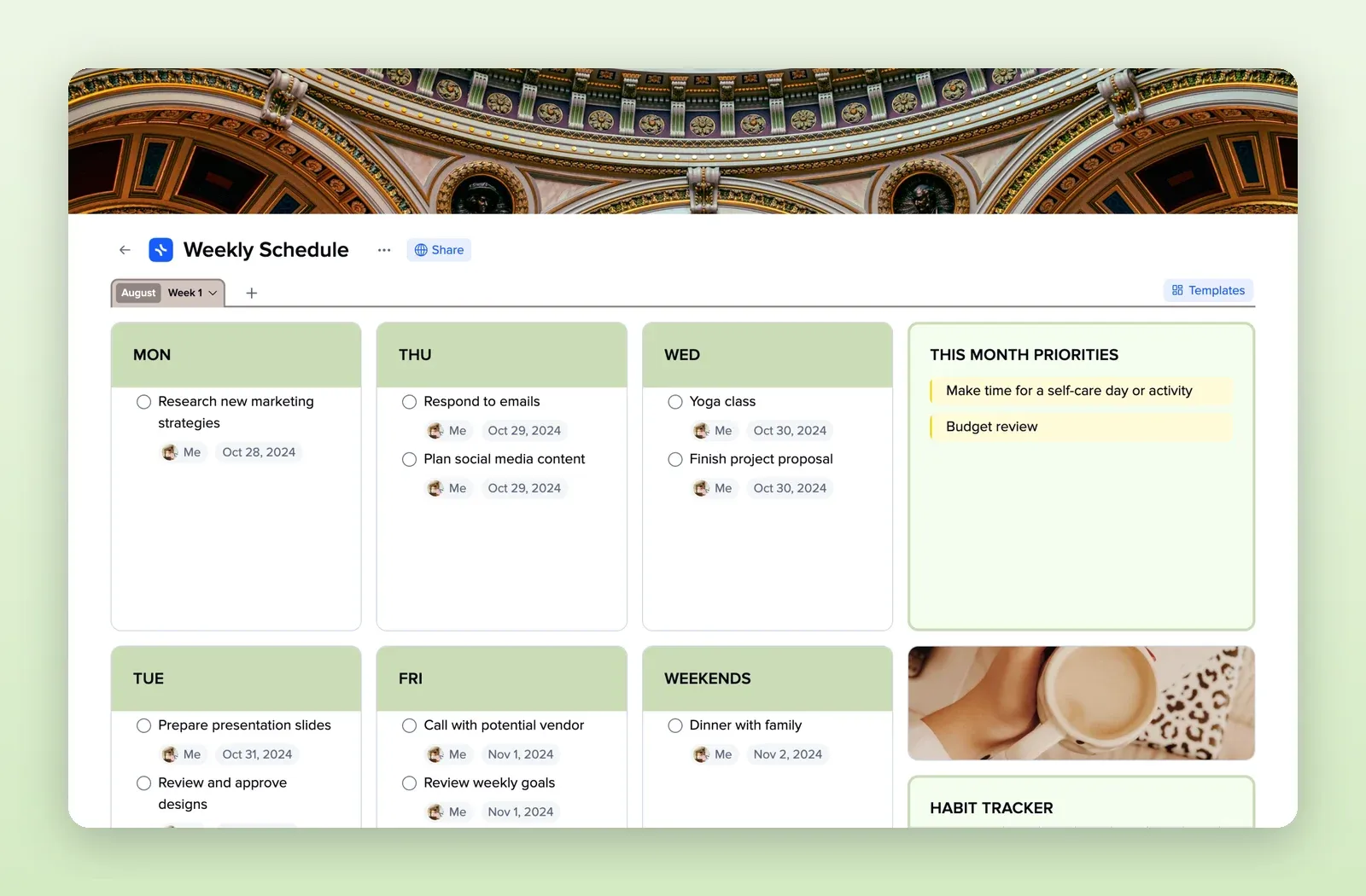
4. Monthly Planner: four weeks on one page
Week 1 to Week 4 tiles, a month calendar, this month's focus, goals and notes. Use it if you plan by the month rather than the day. Open the Monthly Planner template.