The Notion trap: more workspaces, more chaos
Bhavana came to xTiles with what she called "an embarrassing number of Notion workspaces." Over the years, she had tried to organize her work as a researcher, her Substack writing, and her personal life inside Notion — tweaking, restructuring, starting fresh. Each attempt made sense at the time. But the accumulated complexity became the problem.
This is a pattern that repeats with Notion power users. The tool is flexible enough to build anything, which means it is also flexible enough to build something too complicated to maintain. When the system requires more upkeep than the actual work it is supposed to support, people stop using it — not because they lack discipline, but because the friction is too high.
Before her call with us, Bhavana had already done something practical: she pulled everything out of Notion into a single Google Doc. Nine pages of tasks, projects, and lists — work, personal errands, creative projects, side work. A complete inventory of her life. It was overwhelming to look at, but it was also honest. "If I now have it all in one place, I can just start to move it."
Step 1: Build your Spaces and Projects in xTiles
xTiles uses a three-level hierarchy: Spaces, Projects, and Pages. This maps naturally to how most people organize their lives — and it is simpler than Notion's nested database-in-a-page-in-a-database model.
- Spaces are the top-level containers — one per major area of your life. Work, Personal, a specific creative project, a side business. Spaces stay separate from each other.
- Projects live inside Spaces. Each Project is a collection of related Pages. Think of it as a folder inside a folder: Work Space → Research Project → Meeting notes, reading list, task tracker.
- Pages are the actual canvases where content lives — tile-based layouts you can fill with tasks, notes, databases, links, or images.
Start by creating one Space per area of life you identified in your inventory. Do not create sub-spaces or try to perfectly mirror your Notion structure. The goal is a fresh, flat structure that is easier to maintain. For most people, three to five Spaces is enough.
Create Projects inside your Spaces — not inside My Planner. Keeping Projects in Spaces makes them easier to find, share, and manage with templates.
My Planner is where you plan your days and weeks. Spaces are where your actual project content lives. The two connect automatically through tasks.
Step 2: Move your tasks into xTiles
With your Spaces and Projects ready, it's time to move the tasks. You do not need to copy-paste them one by one.
Bulk-convert text into tasks
Open a Project Page and paste a list of tasks as text. Select all the lines, and xTiles will offer to convert them into tasks in bulk. Alternatively, use the AI tile to paste your full list and let it organize items into structured tasks automatically.
Assign due dates — not just labels
xTiles connects tasks to My Planner through due dates, not through custom labels. A task tagged "Today" or "This Week" is just a label — it will not appear automatically in the right day of your Planner. Give every task an actual due date so it surfaces in the right place.
Use Monday as a default for undated tasks
If you do not know when you will do something, assign it to Monday of the current week. Once you are in My Planner's weekly view, you can see all your Monday tasks and drag them to whichever day works. This avoids the trap of tasks with no dates that never get scheduled.
Step 3: Make My Planner your daily home base
Once your tasks are in place, My Planner becomes the tool you open every morning — not your Projects, not your Spaces. Everything you need to plan your day is already there.
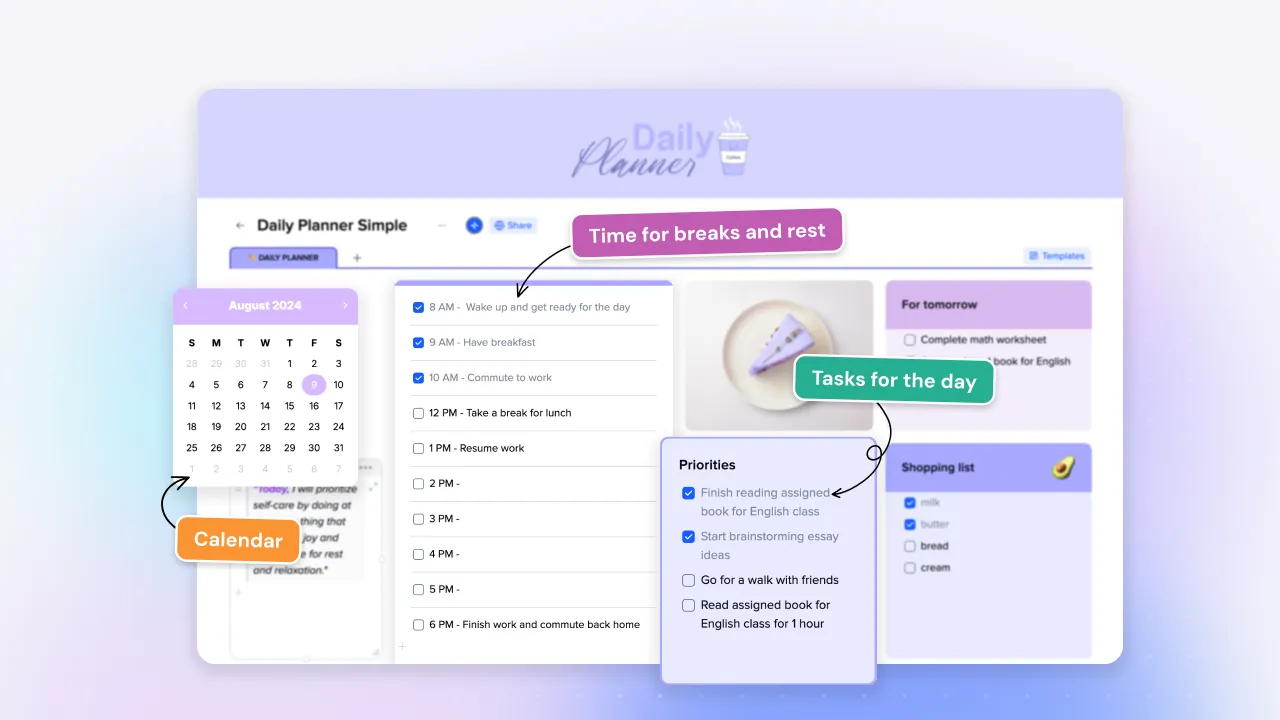
The daily view combines three things on one screen: your Google or Outlook calendar events, all tasks due that day pulled from every Space and Project automatically, and any tiles you have added — notes, reminders, saved links, project shortcuts.
The weekly view is where most people do their planning. You see the whole week at once, and you can drag tasks between days to balance your workload. If Bhavana assigns 12 tasks to Monday and nothing to Thursday, the weekly view makes that problem obvious before Monday arrives.
The calendar is also accessible from anywhere in xTiles — click the calendar icon in the top-right corner and it takes you directly to your schedule without losing your place.
Step 4: Replace your Notion inbox with the Web Clipper
One of the most common Notion use cases is capturing content from the web — articles, videos, research links — and storing them for later. xTiles handles this through the Web Clipper browser extension.
The extension lets you save any web page to your Planner as a task, a bookmark, or an AI-generated summary. If you are reading an article you want to act on, open the Clipper, add a due date, and save it. When you open xTiles later, the task is there with a link back to the source.
Everything you clip shows up in the Captured tile in your daily Planner view — a running list of what you saved that day, ready to review and act on. Your clips also accumulate in the Library inside My Planner, organized by type. Instead of hunting through dated daily pages, you have one place where all your saved links live. No manual filing required.