Why a paper planner stops working once life splits in two
Eboni loved paper planners: stickers, colours, a page for everyone and everything. It worked for years. Then the problem every full-time worker knows showed up:
"When I'm at work, I remember things that I need to do at home."
The planner was at home. Post-it notes got written and never looked at again. Phone reminders piled up until they stopped making sense: "what does that reminder mean?" What was missing was not more discipline but one planner that goes everywhere: to work, home and the phone in between.
One planner for work and home, on phone and desktop
Eboni found xTiles on YouTube and kept it for two reasons: it is easy and it is colourful. The same planner opens on the phone at work and on the computer at home, so a home task remembered at the office goes in right away, and tomorrow's meetings are visible the evening before.
- Work meetings for the week, added once a week so the whole week is visible in one place.
- Home tasks next to them, so nothing waits on a Post-it.
- A business idea with its own page for notes and next steps.
- Health goals tracked alongside the rest of the week.
If your work calendar can be connected, Google Calendar and Outlook Calendar both show events in My Planner. If it cannot, a weekly ten-minute copy of your meetings works too: it doubles as a moment to look at the week ahead.
Why My Planner won over a custom setup
Eboni first built everything as custom pages and was against using My Planner, because a planner should look the way you want. That changed after trying it:
- Every task lands on its day. A task with a due date, written anywhere in xTiles, appears in My Planner on that day.
- You pick the zoom level. Eboni rarely uses the daily view and plans by week and month, plus quarter and year for longer goals and quarterly reporting.
- It still looks like yours. Each period can have its own template, with your colours, images and layout.
The result is the part of a paper planner people love, the ritual of opening it and seeing your week, without the parts that break, like rewriting pages and forgetting the notebook at home.
Keep restyling it, the way you did on paper
Part of the joy of a paper planner is redecorating it. That does not have to go away:
"The other thing about me is that I like to change how it looks all the time. So I'm able to do that well in here."
- Change tile colours with the palette icon on each tile: warm tones for autumn, cool ones for winter.
- Add your own pictures to tiles and covers, the digital version of stickers.
- Save a new look as a template for the weekly or monthly period, and the next pages start with it.
For a student's version of the same move, see switching from a paper planner to a digital one before college.
Free planner templates for work and home
All four are free in the xTiles template gallery, and all of them can be restyled.
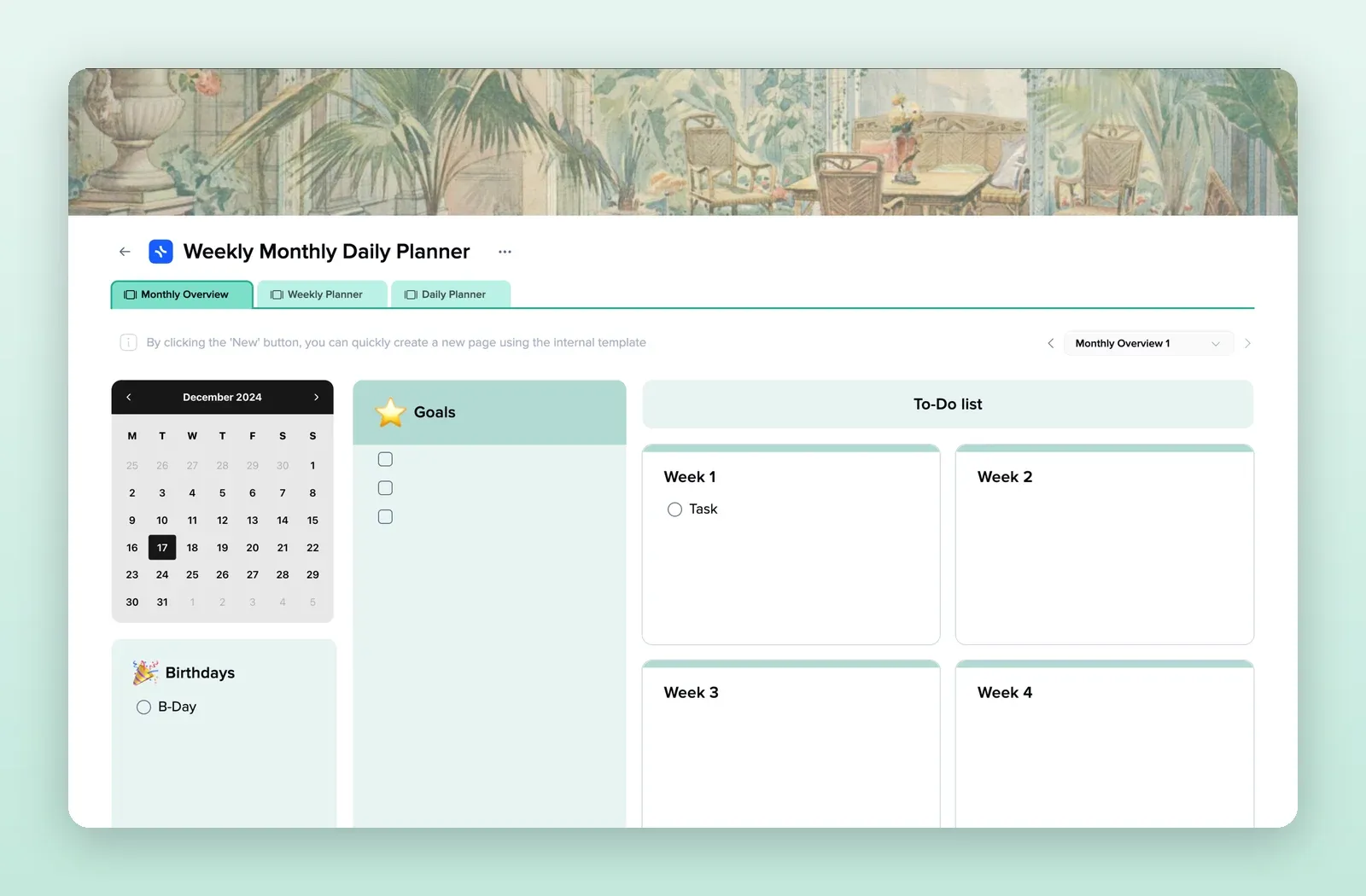
1. Weekly Monthly Daily Planner: all three views in one project
A monthly overview with a mini calendar, goals, birthdays and weekly to-do lists, plus weekly and daily tabs. Open the Weekly Monthly Daily Planner template.
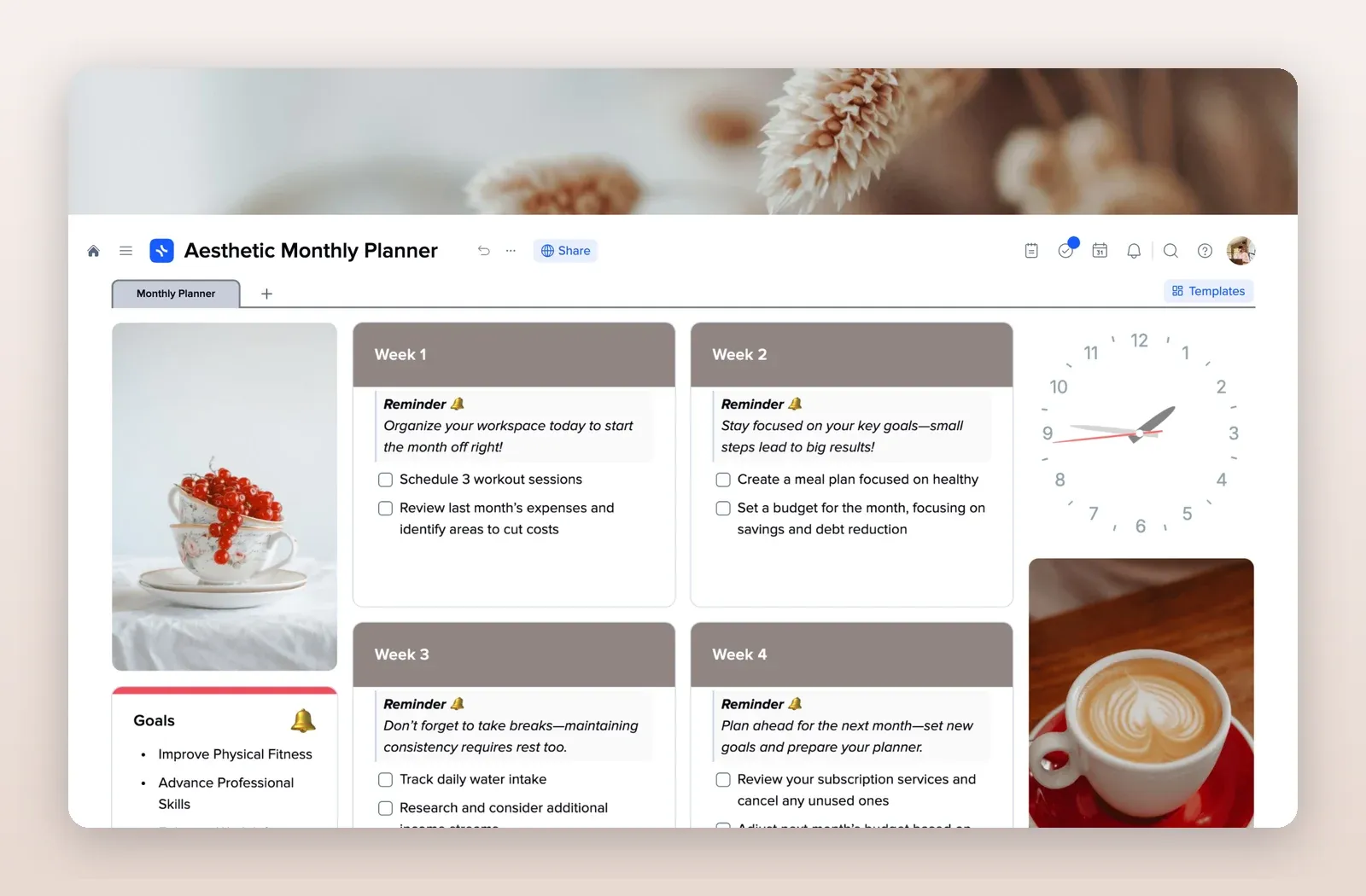
2. Aesthetic Monthly Planner: a month that looks like paper
Photos, a clock, monthly goals and week tiles with a reminder and a checklist each. The closest to a decorated paper spread. Open the Aesthetic Monthly Planner template.
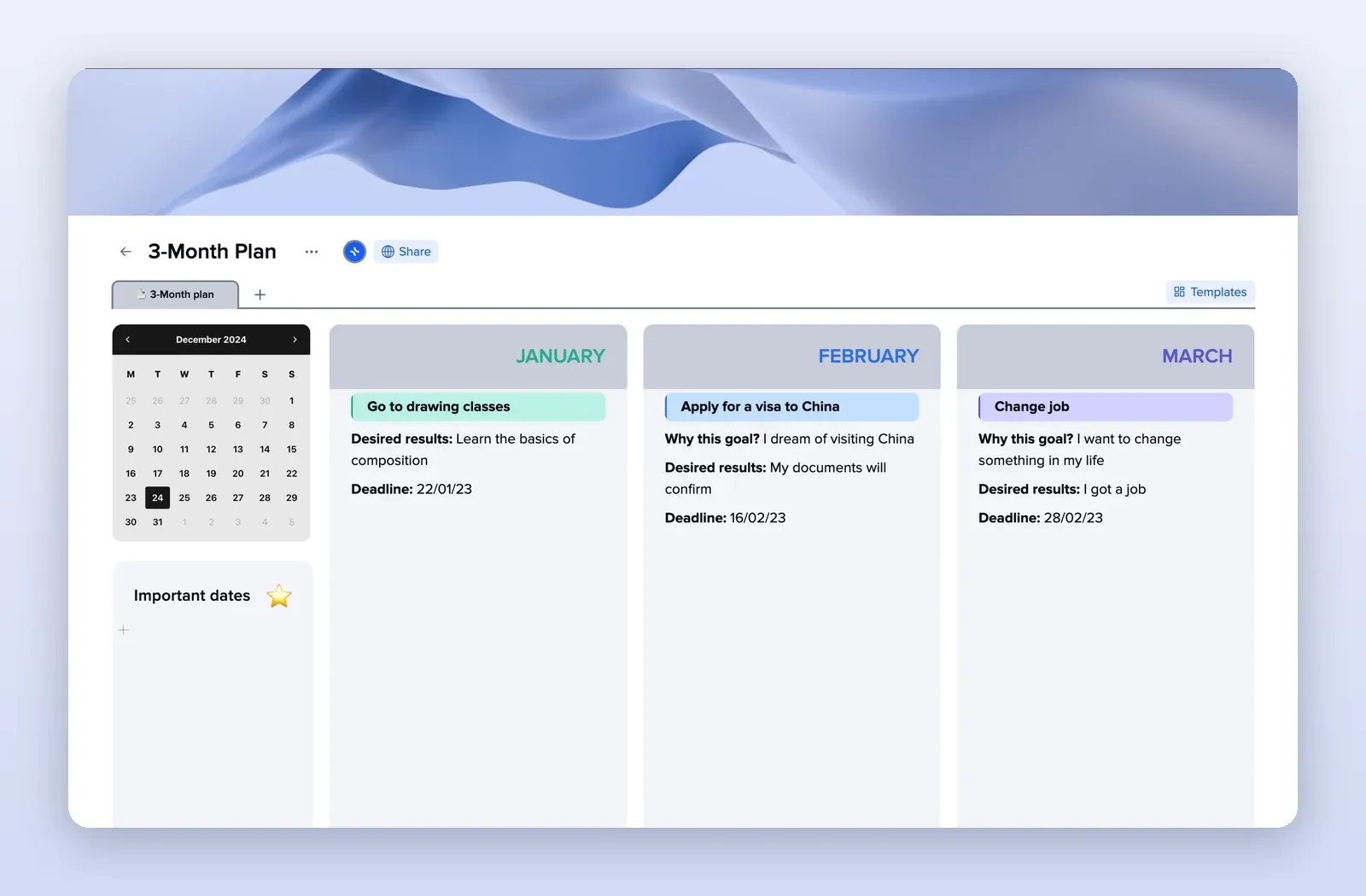
3. 3-Month Plan: one quarter on one page
A column per month with goals, the reason behind each, desired results and deadlines, plus important dates. Good for quarterly goals at work or at home. Open the 3-Month Plan template.
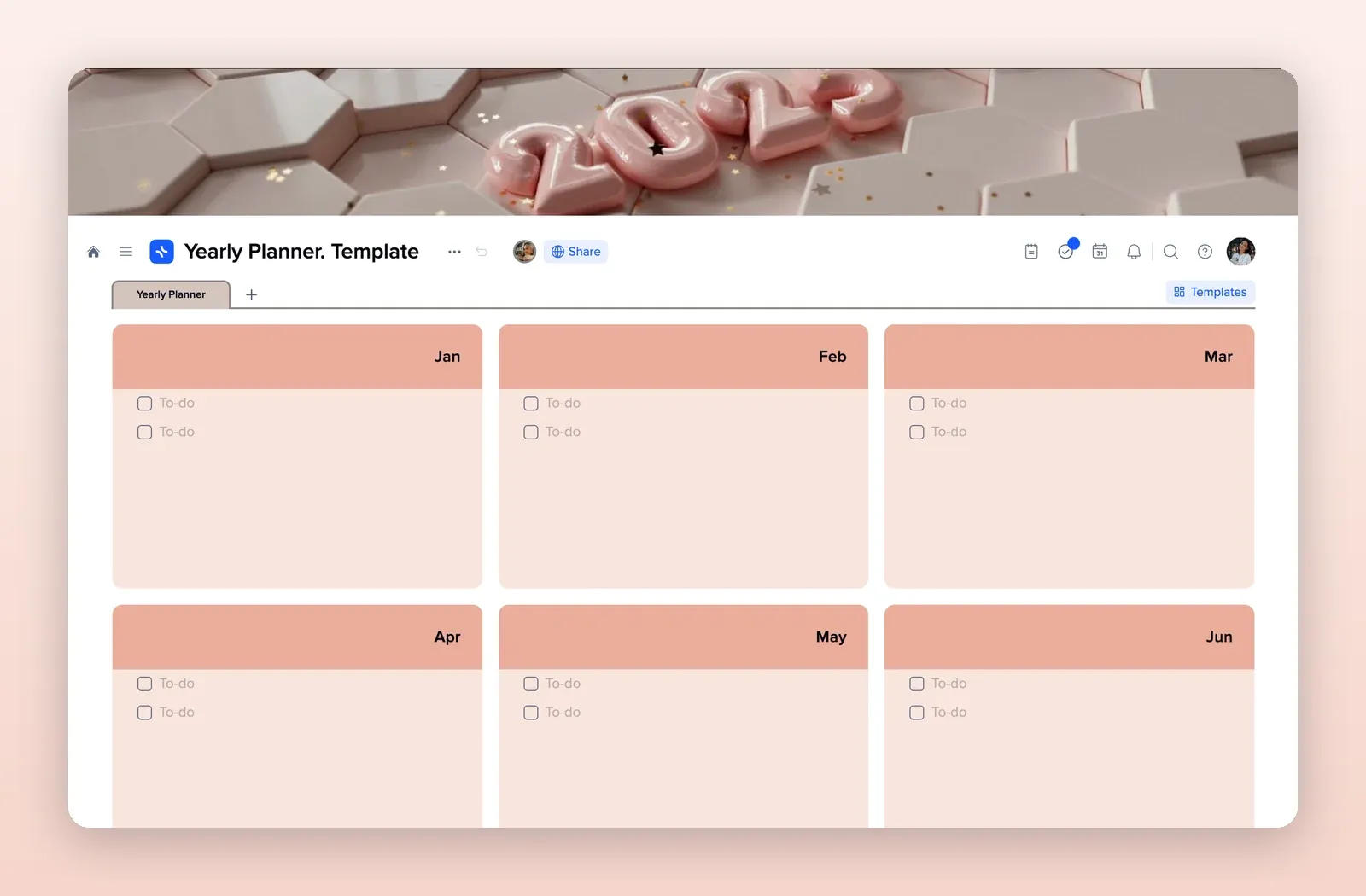
4. Yearly Planner: the year at a glance
A tile for each month with a checklist. Use it for the big dates and goals of the year. Open the Yearly Planner template.