Where this setup comes from
An IP law firm ran an IP audit for xTiles itself, and did the work inside xTiles. The team collected the data, structured it by each intellectual property object and recorded who had transferred each piece of IP and how. A partner at the firm described the process as convenient, and because the firm had seen similar requests before, the idea of a reusable IP-audit template came out of it.
This article walks through that setup so another firm can reuse it. It describes how to organize the work, not what the legal analysis should conclude: the substance of an IP audit stays with the lawyers.
What an IP audit has to collect
Whatever the client's industry, the work produces the same kinds of information, and most of it has to come from the client:
- An inventory of IP objects: trademarks, software and code, designs, content, domains and any registered rights.
- Who created each object: employees, contractors, founders or outside agencies.
- How rights were transferred: which agreements cover each object and whether a transfer is documented at all.
- Gaps and risks: objects without a clear owner or a missing document, with the action that fixes each one.
- Findings for the client: a short summary the founders or the board can read.
Spread across email threads and folders, this is hard to follow for both sides. In one shared workspace, the client sees what is still missing and the firm sees every object in one place.
Setting up the audit in xTiles
1. One project per client audit
Create a project for the audit. Its first page is the overview: scope, key dates, the people involved on both sides and links to documents.
2. An IP register page
Add a page with a table: one row per IP object, with columns for type, creator, the agreement that covers it and status. This is the page the firm and the client fill in together.
3. A transfers page
Record who transferred what and how, object by object, with the agreement attached or marked as missing.
4. Gaps, actions and findings
One page for open gaps, each turned into a task with an assignee and a due date, and one page for the summary of findings at the end.
5. Invite the client
Invite the client's team to the project and choose the access level: can view, can comment or can edit. Clients who fill in the register need edit access; people who only follow progress can view.
A client portal from one prompt
Building the structure by hand used to take time. On a follow-up call, we showed the same firm a client portal for a fictional client, created by Claude in xTiles from a single prompt in about two minutes. Claude read the client's website and laid out the project: progress, statuses, milestones and decisions.
For an audit, that means the firm can describe the engagement once and get a working project, then refine it. The value for the client is the same as in any portal: seeing what was done together, where things stand now, and later, why each decision was made.
The partner singled out the speed of creating and connecting everything as the advantage, and said the firm had not seen a similar product among the tools it works with on client requests.
To try it, connect Claude to xTiles, describe the audit and ask for a project with the pages above. For a portal set up by hand, see how an agency builds a client portal in xTiles.
Templates to start an IP audit project
There is no dedicated IP-audit template in the gallery yet, but these four free templates cover the pages above.
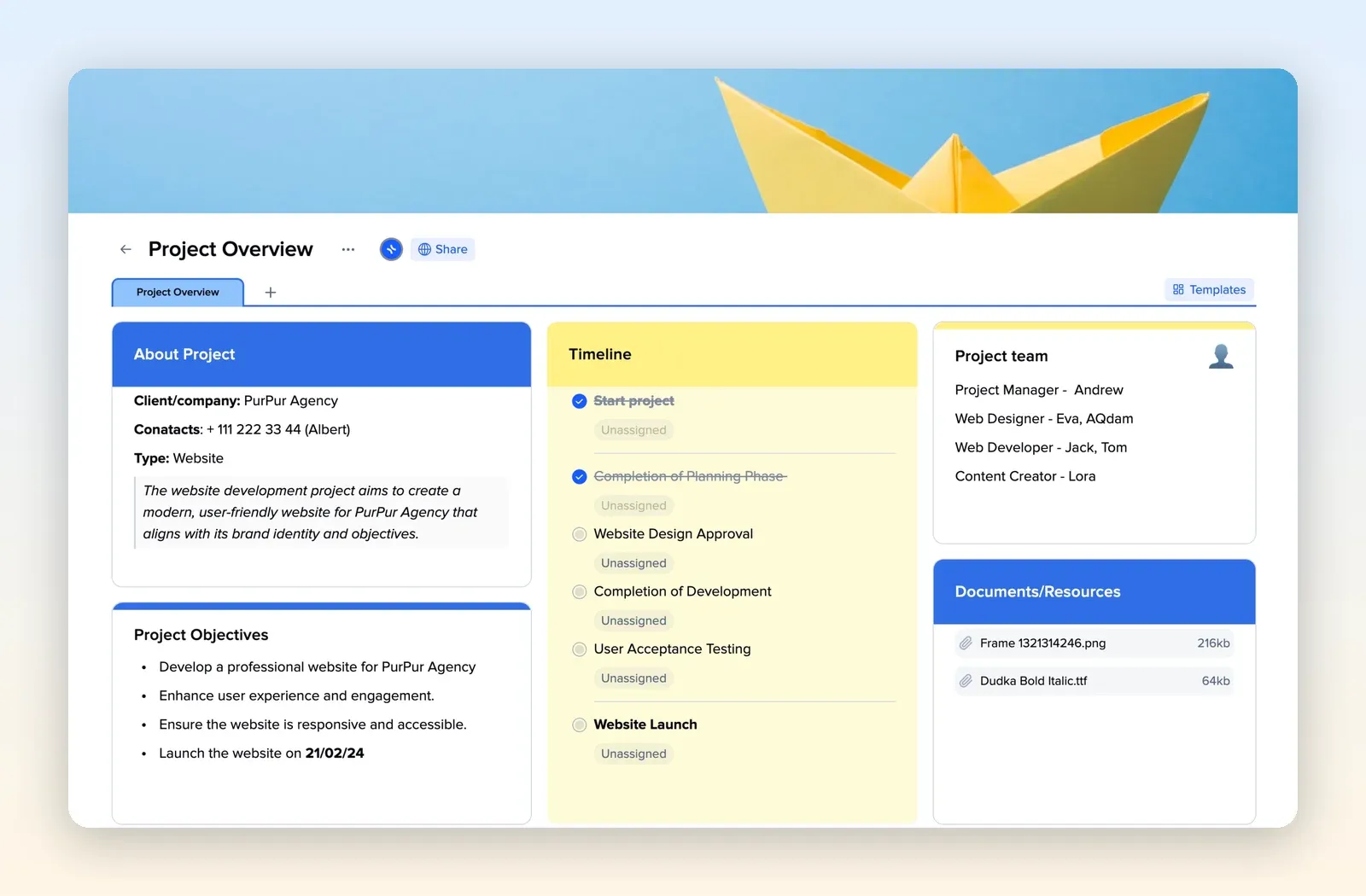
1. Project Overview: the audit home page
Client and contacts, objectives, a timeline with checkpoints, the team and a documents tile. Rename the timeline steps to the audit stages. Open the Project Overview template.
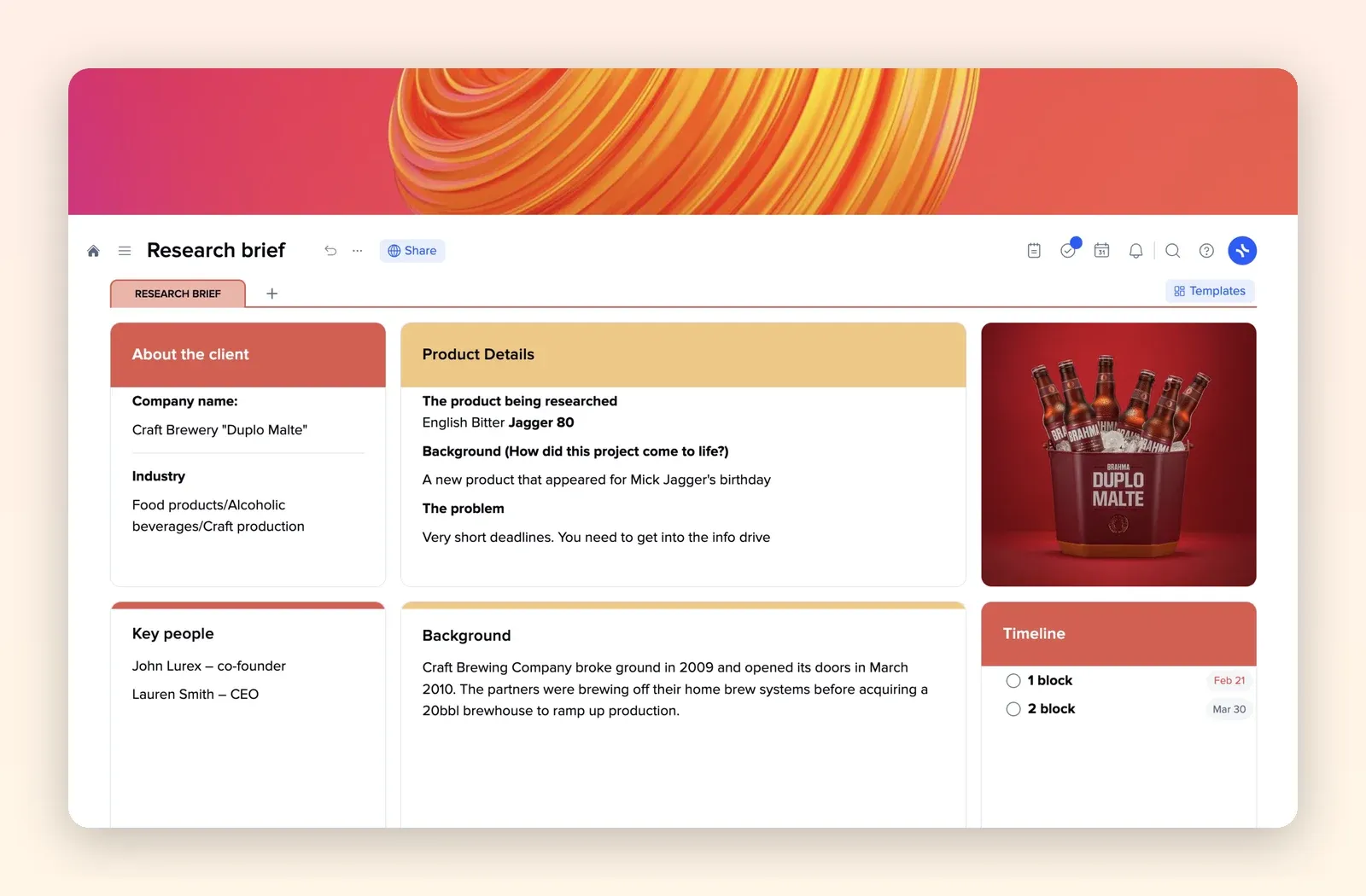
2. Research Brief: scoping the client
About the client, key people, background, the problem and a timeline. Use it to record what the client asked for and who you work with. Open the Research Brief template.
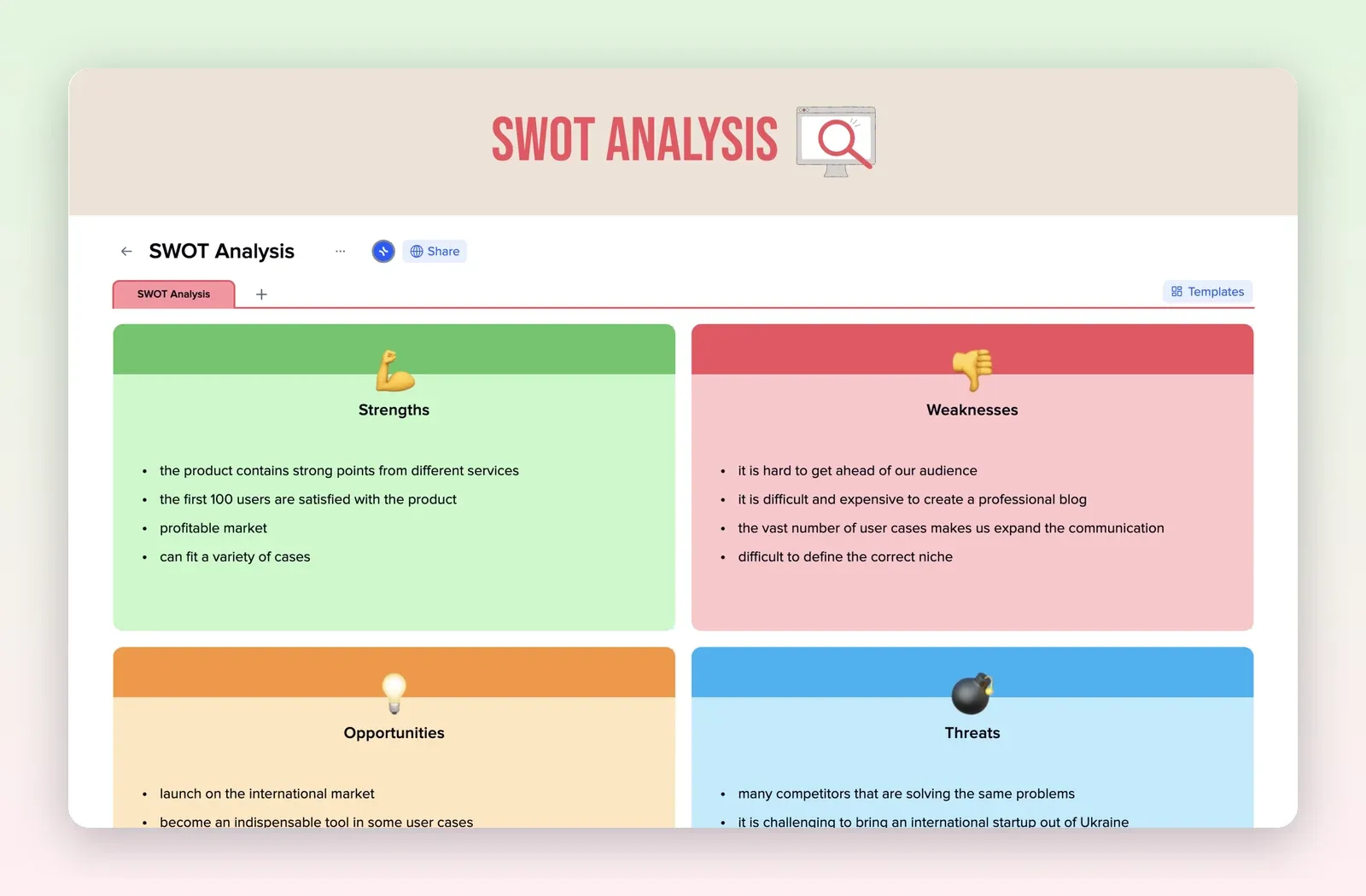
3. SWOT Analysis: strengths and risks of the IP portfolio
Four tiles for strengths, weaknesses, opportunities and threats. A simple way to frame the portfolio before the detailed findings. Open the SWOT Analysis template.
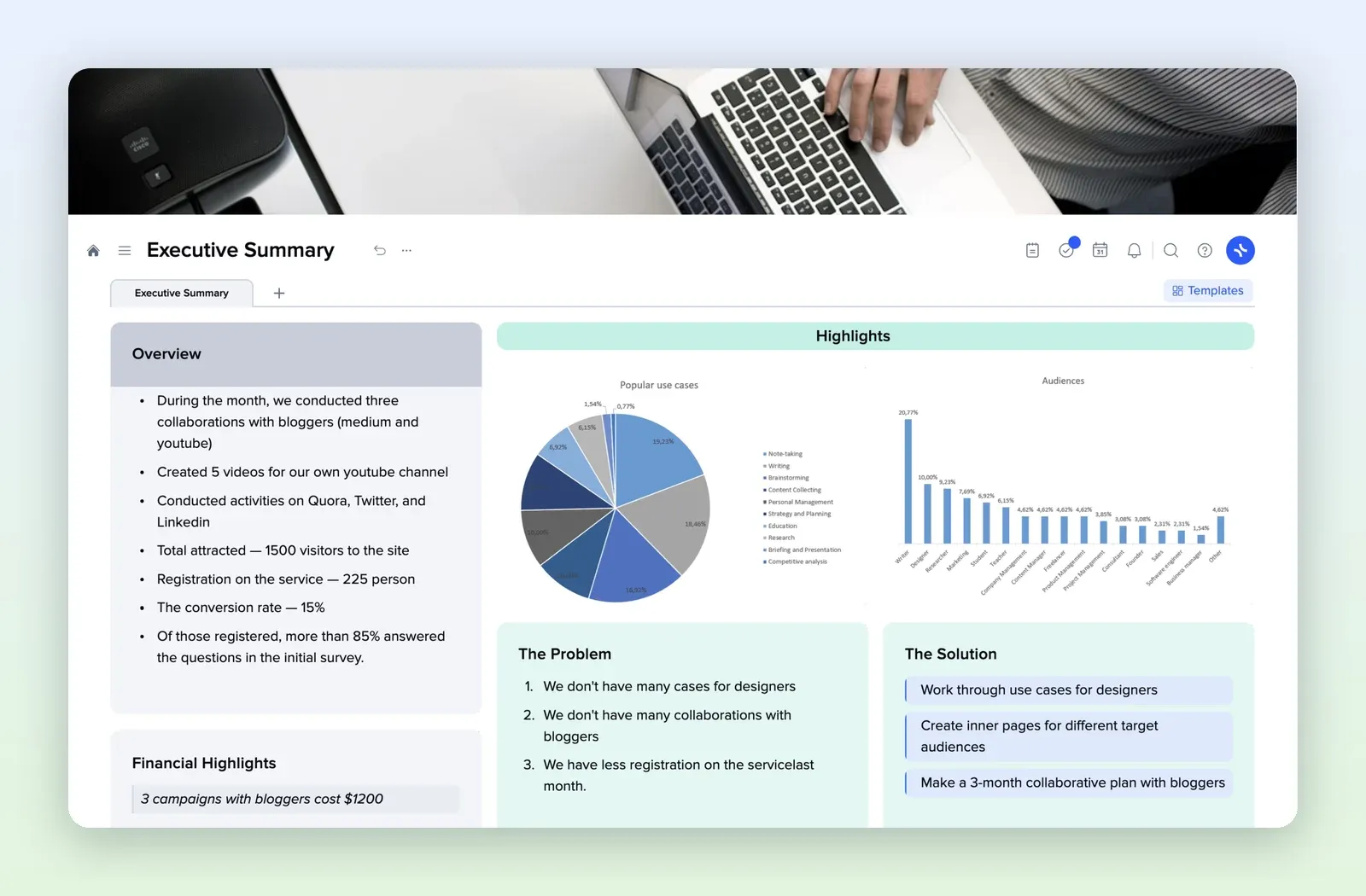
4. Executive Summary: the findings for the client
Overview, highlights, the problem and the solution on one page. Use it for the summary the client reads at the end. Open the Executive Summary template.