Everyone else already knows their way around
Anne coordinates many projects at a UK university. When she joined her team's work in xTiles, her colleagues were already comfortable with it. Anne was not: "I really don't know my way about it at all."
What she wanted was not a long training session. She wanted the basic map, a few resources, and time to explore: "I'd like to play about a bit more with it first, and then I'll come back to you with questions." This guide is that map, split into a few short steps for your first week.
Step 1: learn the three words your colleagues use
- Spaces are like folders on Google Drive or your computer. You have a personal space, and your team has shared spaces you were invited to.
- Projects live inside spaces. A project is a set of pages, usually one per piece of work: a grant, an event, a lab project.
- Tiles are the blocks on a page, a bit like digital sticky notes. A tile can hold text, tasks, images, links and tables.
Once you know these three words, most of what colleagues say makes sense: "it's in the shared space", "check the project", "I added a tile for that".
Step 2: find your tasks in the planner, not in every project
When you coordinate several projects, the hardest part is knowing what is yours today. You do not need to open each project to find out. The planner collects every task you have across xTiles, from all spaces and projects, personal and shared, and shows them by day and by week.
- Open the planner from the left side of the screen, or from your daily page.
- Look at today and this week. Tasks colleagues assigned to you show up here with their dates.
- Move what will not fit. If you have no time for a task today, move it to tomorrow.
- Open the day to see the day's tasks, notes and calendar events on one daily page.
Step 3: explore the shared space before you change anything
Your colleagues built the shared space around how the team works, so look first and change things later:
- Open each project once and note which pages you will actually use.
- Keep a questions list on a page in your personal space. When something is unclear, write it down and keep exploring.
- Ask in one go. After a few days, take the list to a colleague or send it to support. The questions that are still open by then are the ones worth asking.
For a fuller walkthrough of the basics, see the xTiles tutorial.
Optional: a ChatGPT snapshot of your day
Anne already uses ChatGPT. xTiles connects to it: click your profile icon, open AI integrations and connect ChatGPT. Then one small habit helps when you are juggling many projects. At the end of the day, ask ChatGPT:
- "Look at my xTiles planner for today. Add a short snapshot to today's daily page: what I finished, what moved, and what I need to prepare for tomorrow."
The next morning, you open the daily page and the snapshot is already there. Start with this one habit and add more only if it helps.
Free templates for joining a team in xTiles
All four are free in the xTiles template gallery. The first one is for the person who welcomes you, so it is worth sending to your team lead.
1. Onboarding: a welcome page for new team members
About the team, projects, links and who to ask, on one page. Teams can fill it once and share it with everyone who joins. Open the Onboarding template.

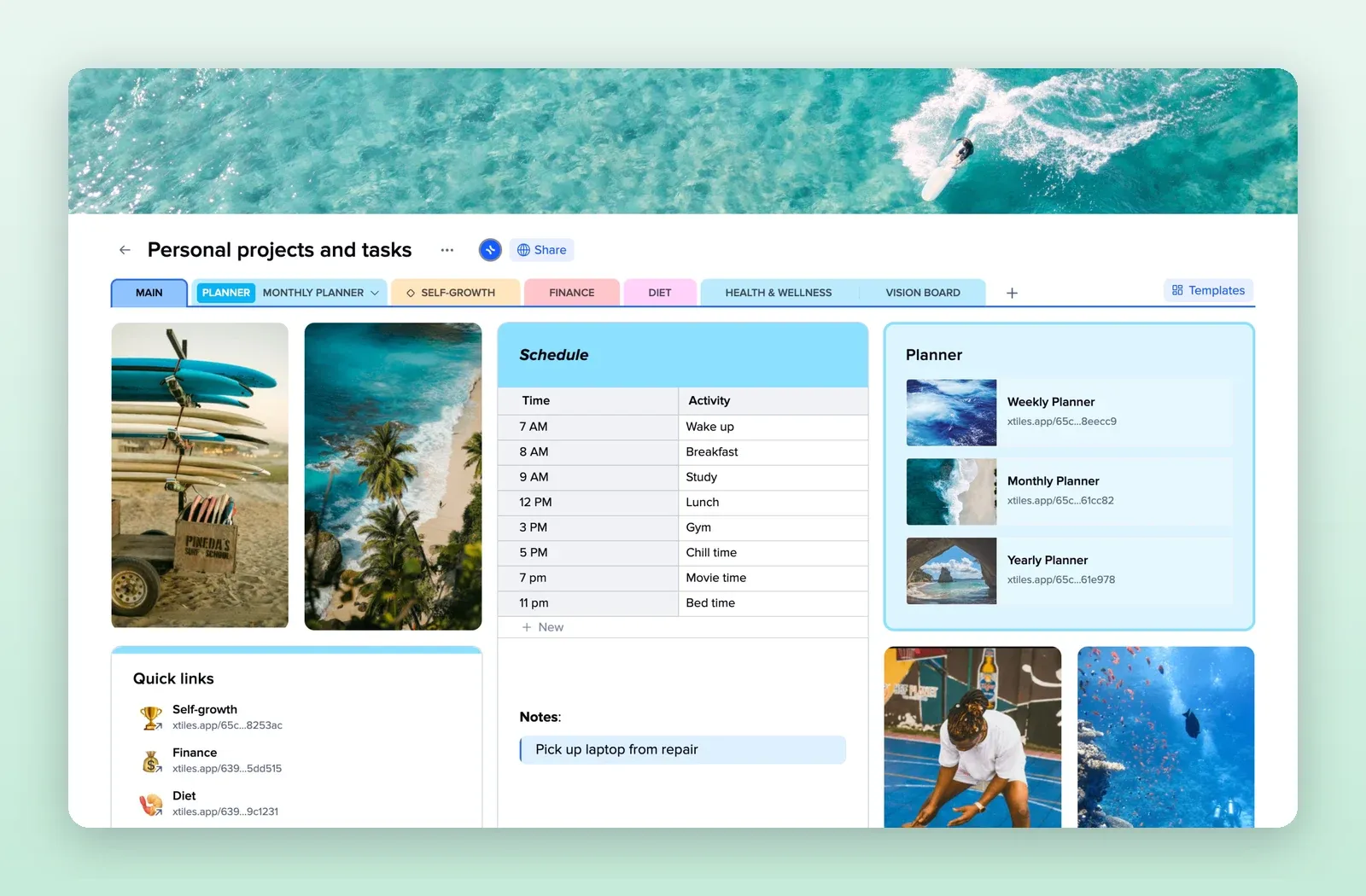
2. Personal Workspace: your own home base
A schedule, quick links and planner links in your personal space. A good place for your questions list. Open the Personal Workspace template.
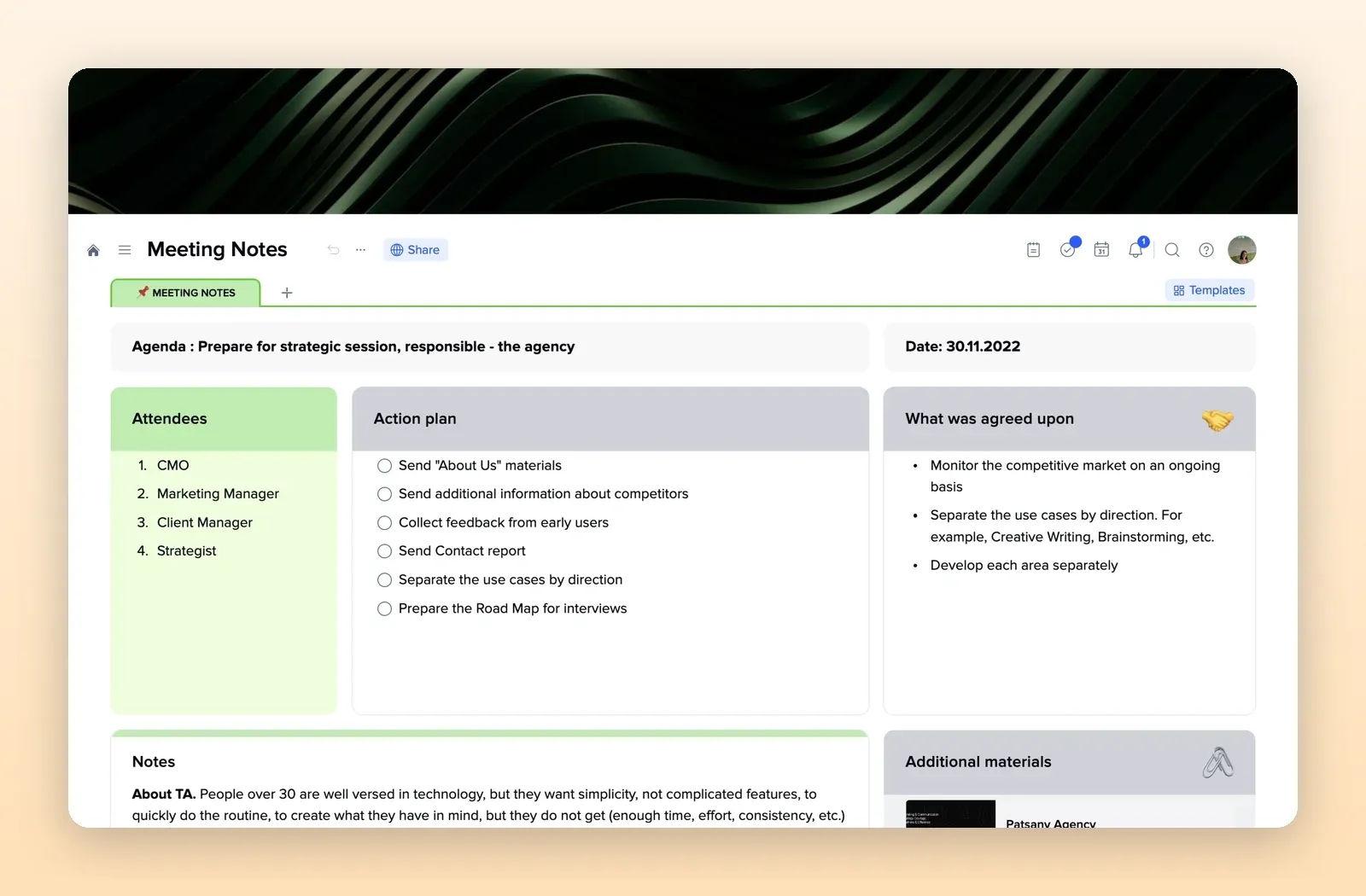
3. Meeting Notes: catch up after each meeting
Agenda, attendees, action items and notes. Useful while you are still learning who does what. Open the Meeting Notes template.
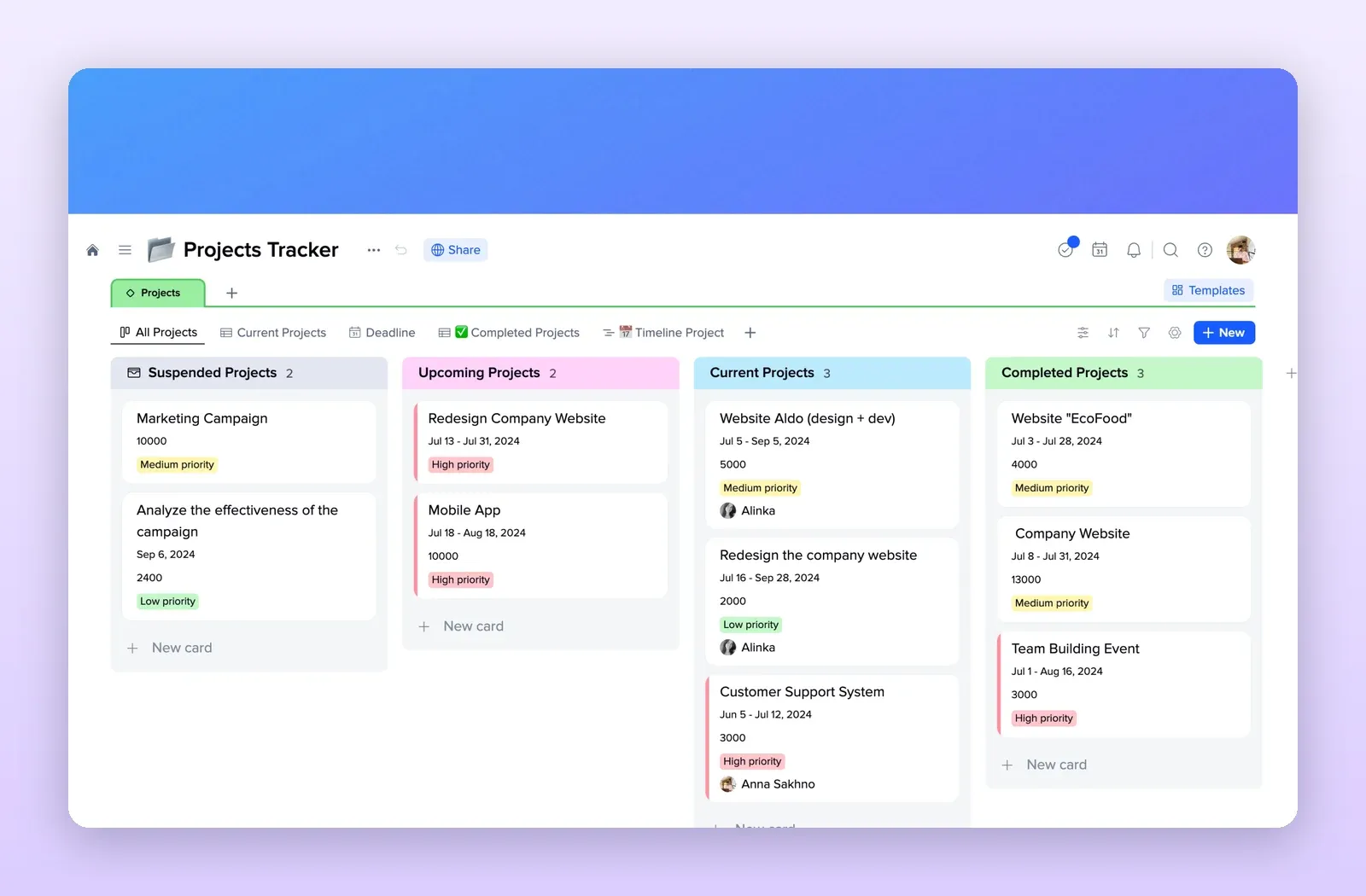
4. Projects Tracker: all projects on one board
Upcoming, current, suspended and completed projects with dates, priority and owner. Helpful when you coordinate many projects at once. Open the Projects Tracker template.