Long lists, and no idea which one has the note
David works in film and television. For years his notes lived in Apple Notes: lists of things to do, lists of project ideas, reminders. The lists kept growing, and finding one note meant guessing which list it was in.
On paper he does something different: he writes everything on one big sheet "so I can see everything simultaneously." That is what he wanted from an app too: one place where his world is visible at a glance. He moved to xTiles and, by his own estimate, went from two out of ten to three and a half. The steps below are how to get further.
Step 1: one hub page with colored tiles
Start where David started: one page in your workspace that works as the hub. Instead of one long list, split notes into tiles, each a different color, like sticky notes on a wall.
- One tile per type of note: to do, ideas, reminders, people to call.
- One color per type, so you find a tile by color before you read it.
- Short tiles: if a tile needs scrolling, it is probably two tiles.
The whole page fits on one screen, so it works like the big sheet of paper: you see everything at once.
Step 2: a separate page for each brainstorm
A few days in, David found the move that made the biggest difference: "I'll have another page for each one of these brainstorming projects." A project idea gets its own page instead of a few lines in a long list.
- Create a page per project idea and give it the project's working title.
- Inside, use tiles for the parts: the idea, references, people, open questions.
- Link each page from the hub, so the hub stays the one place you start from.
When a note could belong to several projects, search instead of guessing: it finds the text across all your pages and shows where it is.
Step 3: when you are ready, add the planner and your calendar
Tiles and pages cover notes and ideas. When the hub also needs to show what to do and when, xTiles has a few more pieces. Add them one at a time:
- Planner: give a to-do a date and it appears in the planner, together with dated tasks from all your other pages. The daily page shows the day's tasks, notes and calendar events, and you can drag a task to another day.
- Calendar: connect Google Calendar or Outlook in your profile under integrations, so meetings and shoot days show up next to your notes.
- Web clipper: save an article or video from the browser to a page or to today in the planner, instead of keeping the tab open.
- Library: links, media files and PDFs saved to your daily pages are collected in one library.
None of these is required. The hub page and a page per project already solve the "which list was it in" problem.
Optional: let Claude or ChatGPT sort your inbox into the hub
If you connect Claude or ChatGPT to xTiles (profile, AI integrations) and to your email, the assistant can do the first pass on your inbox and put the result on your daily page. For example:
- "Go through my inbox from the last 24 hours. On today's daily page in xTiles, add three tiles: Needs attention, Can wait, and Newsletters. Put each email in one tile with a one-line summary and a link. Summarize the newsletters in a few lines."
Start with one run, check what landed where, and adjust the buckets before you make it a daily habit.
Free templates for a visual notes hub
All four are free in the xTiles template gallery.
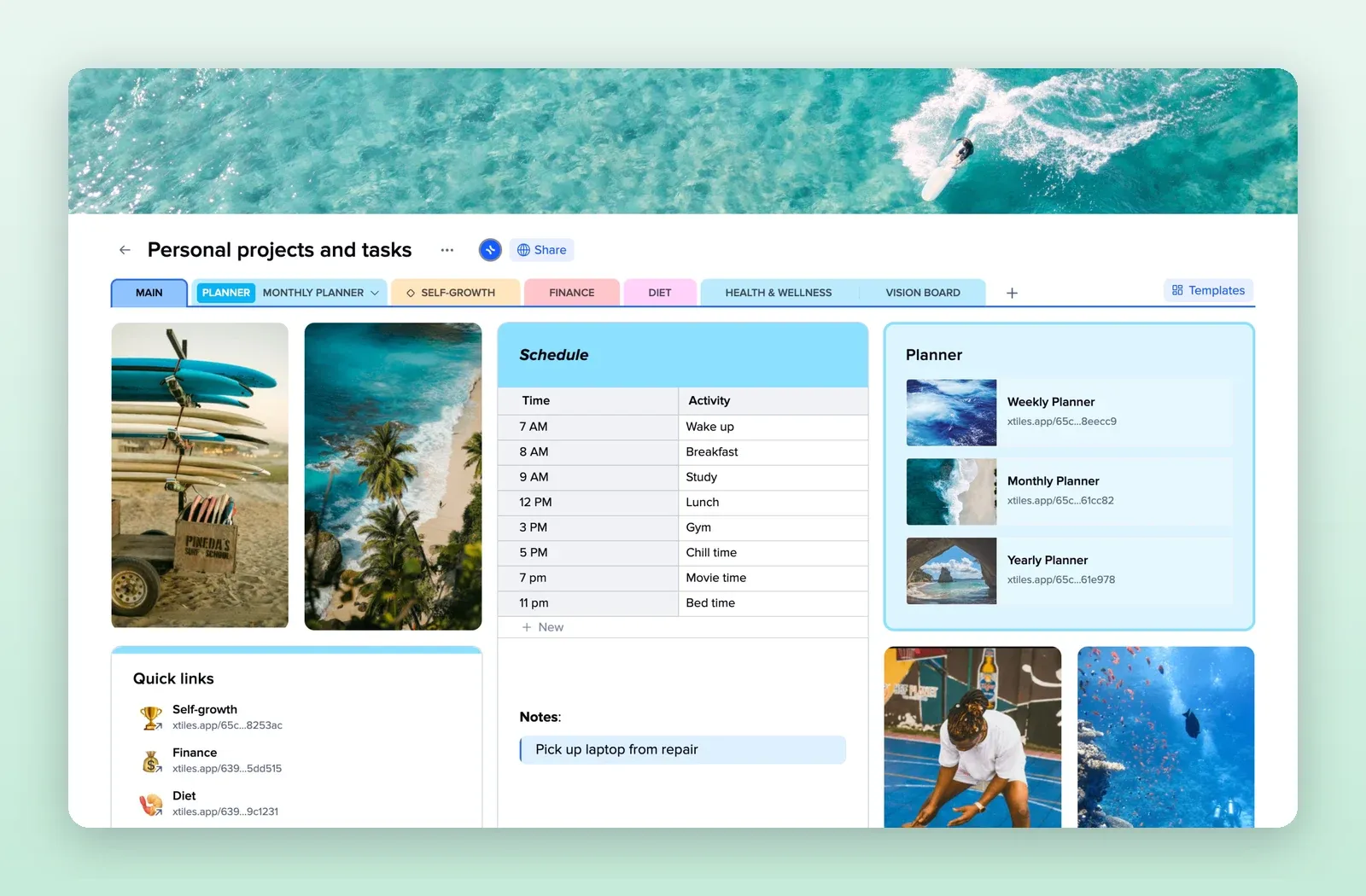
1. Personal Workspace: the hub page
A schedule, quick links and links to your planners on one page. Replace the sections with your own colored tiles. Open the Personal Workspace template.
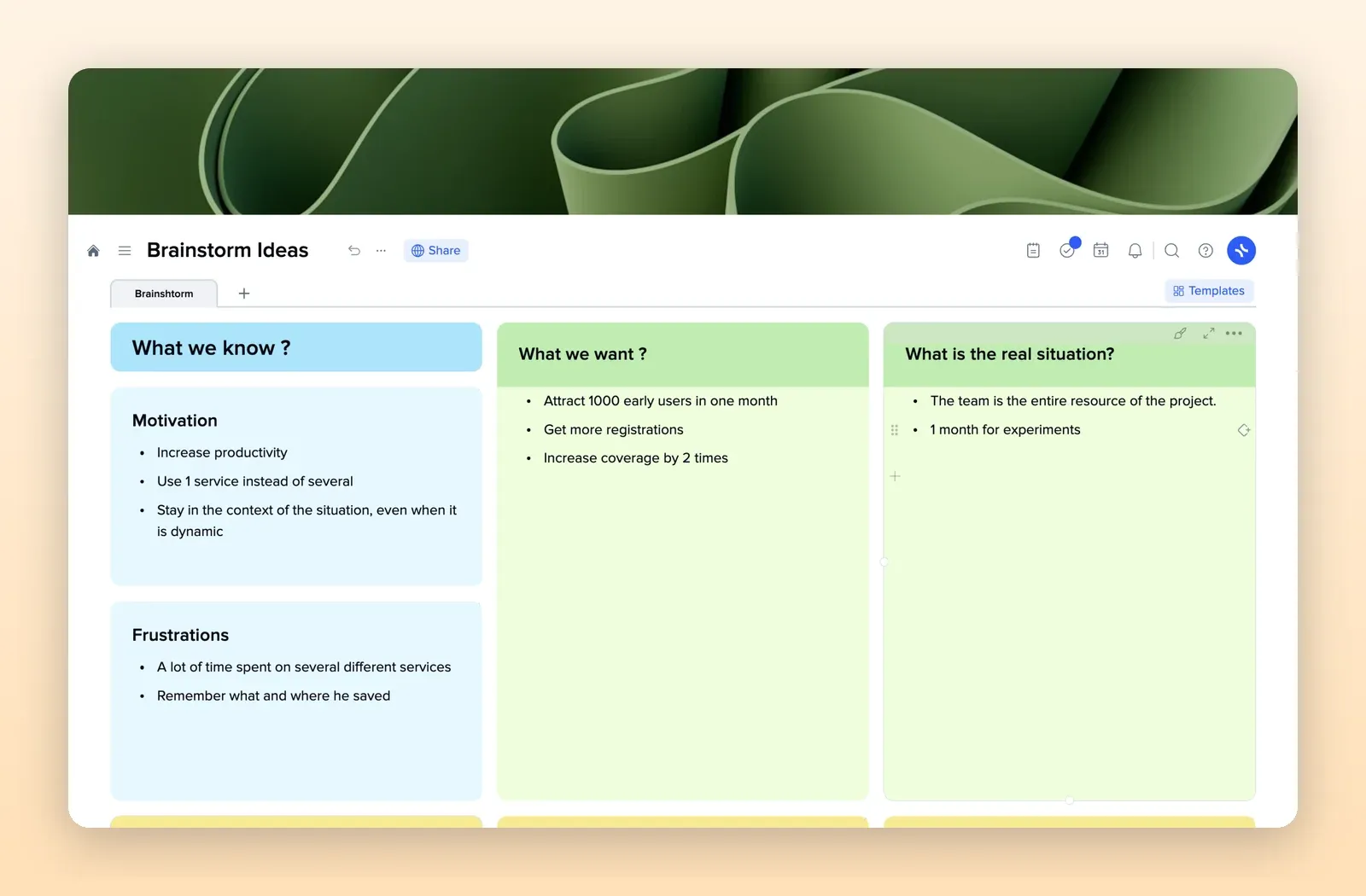
2. Brainstorming: one page per idea
What we know, what we want, what the real situation is, motivation and frustrations, in colored tiles. Duplicate it for each project idea. Open the Brainstorming template.
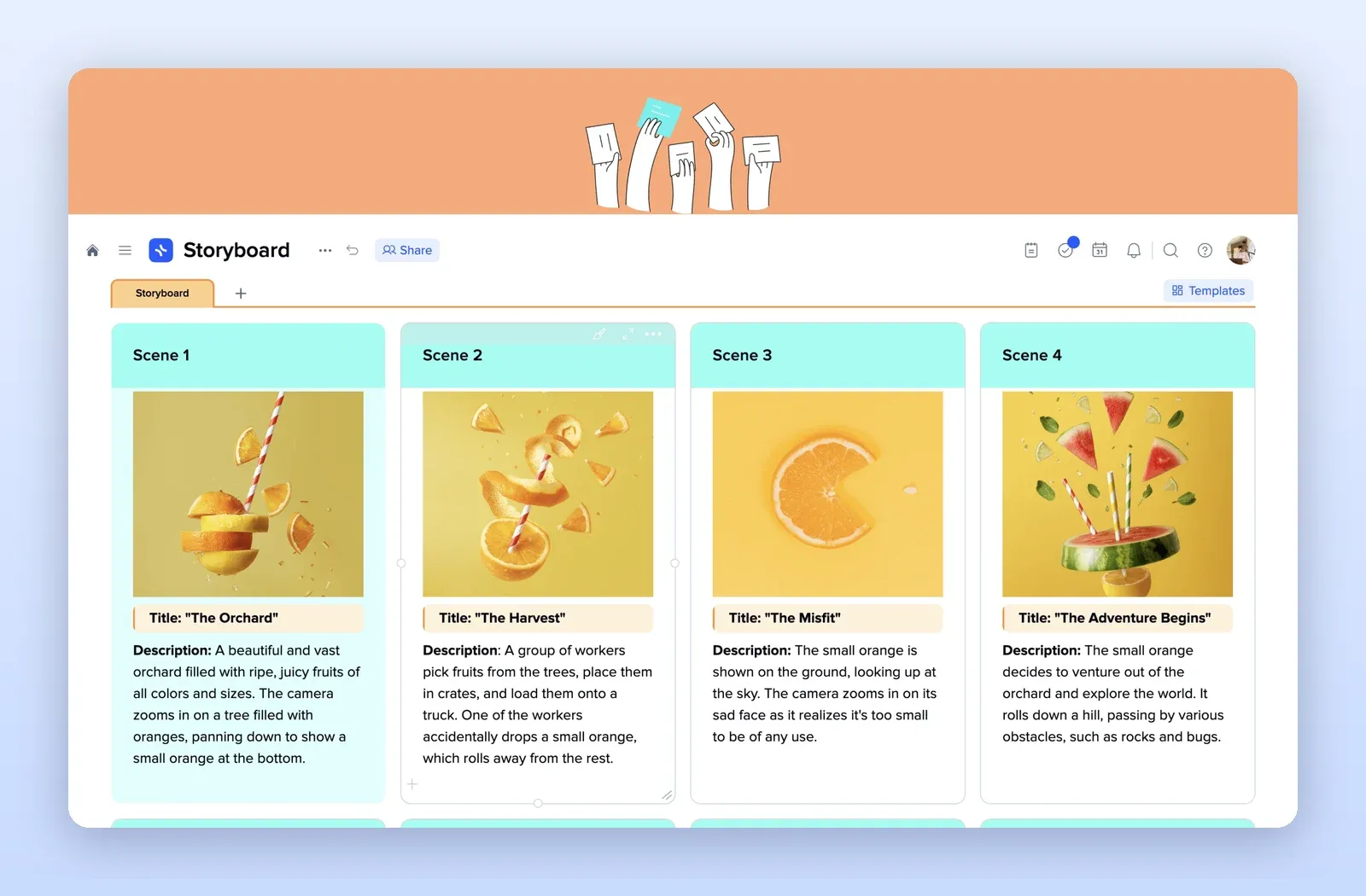
3. Storyboard: scenes as tiles
A tile per scene with an image, a title and a description. Useful once an idea turns into a script. Open the Storyboard template.
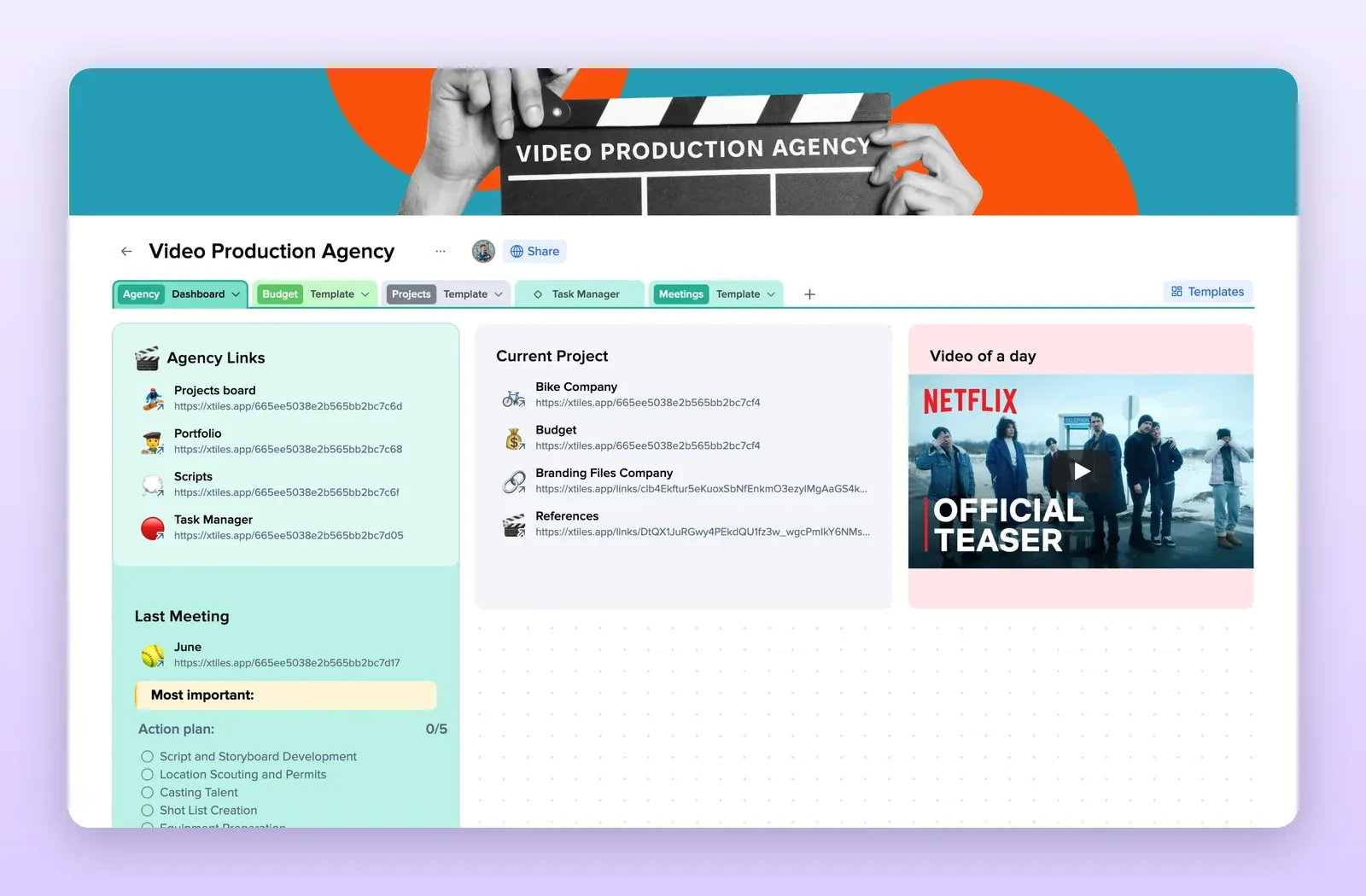
4. Video Production Agency: projects, scripts and meetings
A dashboard with links to projects, scripts and a task manager, plus budget and meeting tabs. A good structure when one idea becomes a production. Open the Video Production Agency template.