When connecting your inbox is not an option
Most AI planning advice starts with "connect your email and calendar". For a lot of people that is the one step they will not take. An inbox holds other people's information: clients, students, partners. You cannot stop people from sending you things, and you may be responsible for what they sent.
Trina teaches at post-secondary schools and organizes startup events. She uses AI, and she has never connected her email or calendar to it:
"There's so much information in those things that I'm not 1,000% comfortable with."
Her worry is not only her own data. As she put it, everyone is "hooking up everything to everything right now", and most people do not know what they agreed to. If that sounds like you, you can still get most of the planning value from AI. You just move the text yourself, and you decide what goes in.
The copy-paste loop: four steps, no connectors
1. Dump everything into your planner first
Open today's page in your planner and write every task, errand and worry in your own words. This page stays in your planner. It is the full version, with names and details.
2. Copy a clean version into the chat
Copy only what the AI needs to help: short task names, rough durations, fixed times. Replace names with roles ("client A", "the dean") and leave out anything someone else sent you.
3. Ask for one specific output
A ranked list, a time-blocked day or a plan for the week. One request per chat keeps the answer short enough to check.
4. Paste the answer back and turn it into tasks
Paste the plan into today's page, then turn the items you will actually do into tasks with a date. Dated tasks show up in My Planner on that day, next to everything else.
The planner holds the real details. The chat only ever sees a stripped-down list. It takes two or three minutes more than an automated setup, and nothing in your inbox is involved.
What is safe to paste, and what never is
A simple rule: paste your own words about your own work. Do not paste anything that came from someone else.
- Usually fine: your to-do list, rough time estimates, meeting times without attendee names, general project names, your goals for the week.
- Strip first: client and student names, company names, anything that identifies a person. Use roles or letters instead.
- Never paste: emails or messages other people sent you, account or card numbers, passwords, health details, grades, contracts.
Also check the data settings of the AI app you use, for example whether chats can be used to train models, and set them the way you are comfortable with.
Three prompts that work on pasted text
Plan today
"Here are my tasks for today with rough durations, and my fixed meetings: [list]. I have about [hours] of free time. Put the tasks in an order that fits around the meetings, hardest first, and tell me which two to move to tomorrow if the day runs out."
Plan the week
"These are my priorities and deadlines for the week: [list]. Spread them over Monday to Friday, keep Friday afternoon free, and flag anything that does not fit."
Untangle a brain dump
"Here is a brain dump: [text]. Group it into tasks, ideas and things to wait on. For each task, suggest a next action of one sentence."
Your calendar without connecting it
If the calendar stays disconnected too, take one minute each morning to add the day's fixed meetings to today's page as a short list with times. That list is what you paste into the "plan today" prompt, so it does double duty.
If you later decide to connect an AI assistant to your planner, but not to your inbox, read how the permission model works when Claude is connected to xTiles. It covers what the assistant can read and how to keep client-sensitive work in a separate project.
Free templates for planning with AI by hand
All four are free in the xTiles template gallery.
1. Daily Planner: today on one page
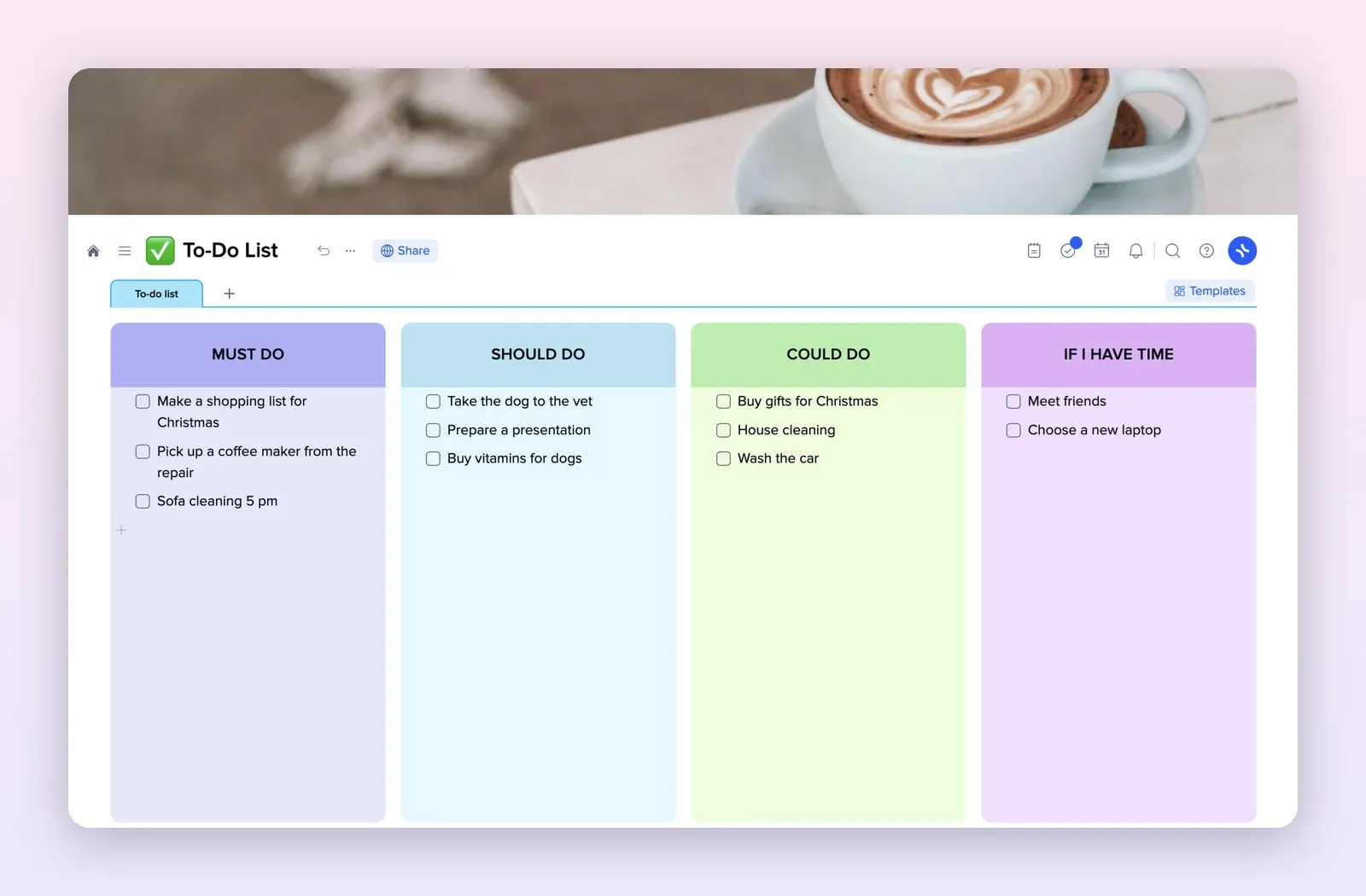
Daily tasks split into morning and afternoon, a "don't forget" tile, a "move to tomorrow" list and notes. The page for steps 1 and 4 of the loop. Open the Daily Planner template.
2. Brain Dump: everything out of your head
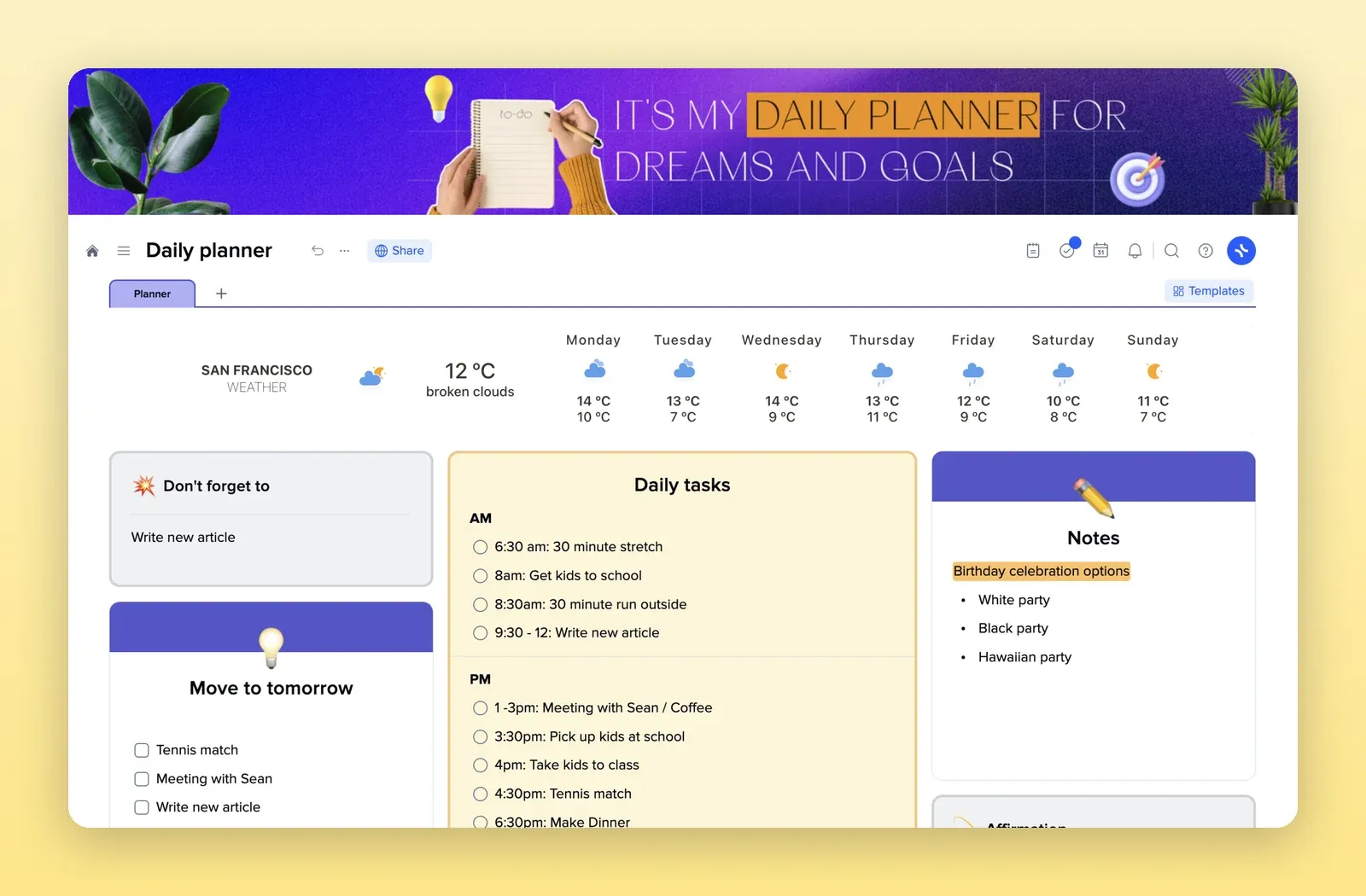
Tiles for to-dos, research, calls, emails, meals and random thoughts. Fill it first, then copy a clean version into the chat. Open the Brain Dump template.
3. Weekly Planner Classic: the week at a glance
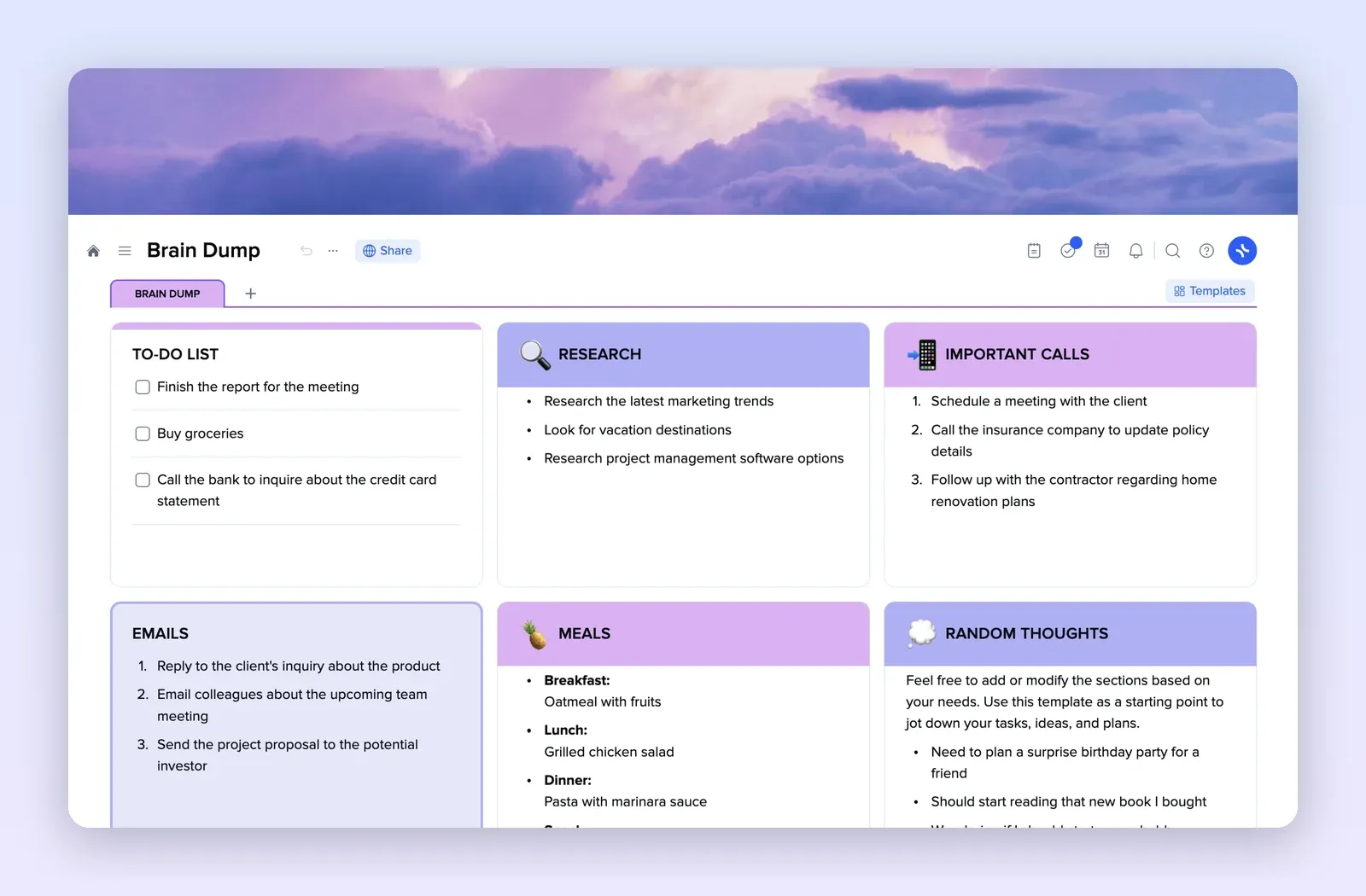
A tile per day plus a priorities list. Paste the result of the "plan the week" prompt here. Open the Weekly Planner Classic template.
4. To-Do List: sorted by must, should and could
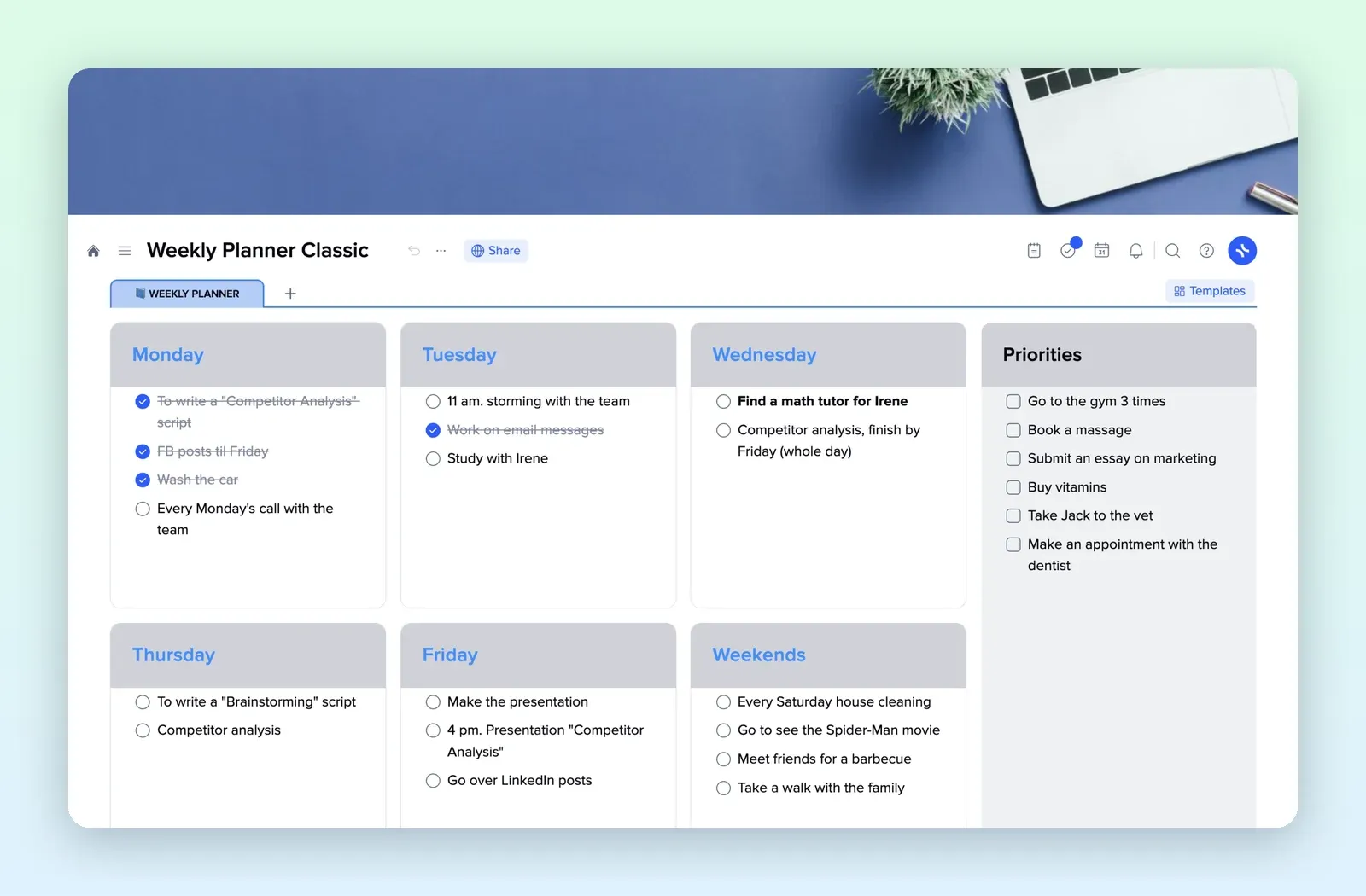
Four columns from must do to if I have time. A good place for the ranked list the AI gives back. Open the To-Do List template.