What a teacher planner needs to hold
A paper teacher planner is a calendar with lesson boxes. A digital teacher planner can do more, but only if it holds the right things in one place. Before you pick a template, check that it covers these five:
- Lesson plans: topic, objectives, structure, activities and materials for each lesson.
- A weekly view: which class gets which lesson on which day.
- Units or programs: several lessons on one topic, kept together so you can reuse them next year.
- Resources: handouts, worksheets, slides and links next to the lesson that uses them.
- A way to share: co-teachers, assistants or substitutes need to read the same plan you do.
The last point is the one paper planners can't do, and it's the reason the teacher in the example below moved online.
Featured example: shared lesson plans for team teaching
Sarah teaches English in Japan and team-teaches with Japanese staff, from preschool all the way to ninth grade. Sarah is the native English speaker; the co-teachers are native Japanese speakers. Before xTiles, the team passed lesson plans around on sticky notes.
"When we were sharing lesson plans, it was just not enough to share it verbally."
Written plans solved it. Co-teachers who are less confident in spoken English follow a lesson much better when they can read it, so each plan now lives on an xTiles page. For colleagues who prefer paper, Sarah prints the page and hands it over. About a month before our conversation, Sarah shared the plans with every co-teacher by email, so everyone opens the same page instead of waiting for a copy.
Sarah had tried Evernote and GoodNotes first. Both were hard for the co-teachers to pick up. xTiles stuck because the layout felt familiar: a page of tiles works like a board of sticky notes, and everyone understood it from day one.
"I really like how easy it was to understand from the get go."
How to set up a digital teacher planner in xTiles
- Create one project for the school year. It becomes the planner. Add a page for each grade or class, so preschool and ninth grade never end up on the same page.
- Start each page from a lesson plan. Open the Lesson Plan template and fill in day, unit, topic, objectives and lesson structure. Keep the fields the same in every plan, so a co-teacher always knows where to look.
- Write it short and concrete. If a colleague reads English as a second language, one action per line beats a paragraph. "Warm-up: colors song, 5 min" is easier to follow than a description.
- Color by grade or class. Give each grade its own tile color. When a plan is printed in color or opened by a colleague, the color tells everyone which class it is for.
- Share the project with co-teachers by email. Invite each colleague, so the plan everyone reads is always the current one.
- Put lesson prep on the calendar. Add a task with a date for each prep step. Any task with a date, from any project, appears in My Planner on that day, next to your notes and schedule.
Free teacher planner templates to start from
Instead of building from a blank page, start from a template and adapt it to your classes. All four are in the xTiles template gallery.
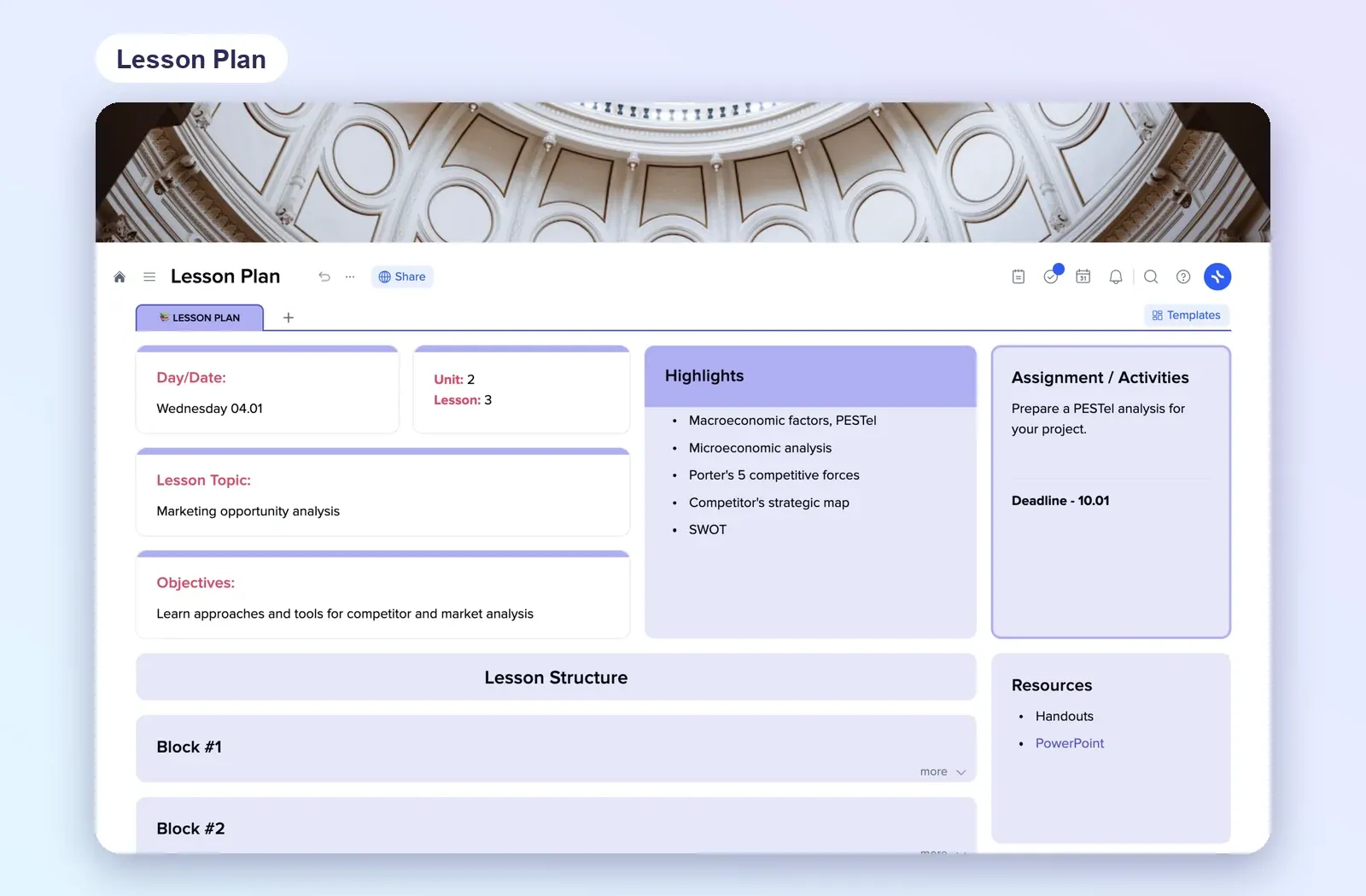
1. Lesson Plan: one lesson on one page
Day and date, unit and lesson number, topic, objectives, highlights, a lesson structure in blocks, assignments with a deadline and a resources tile. The best starting point for a shared plan. Open the Lesson Plan template.
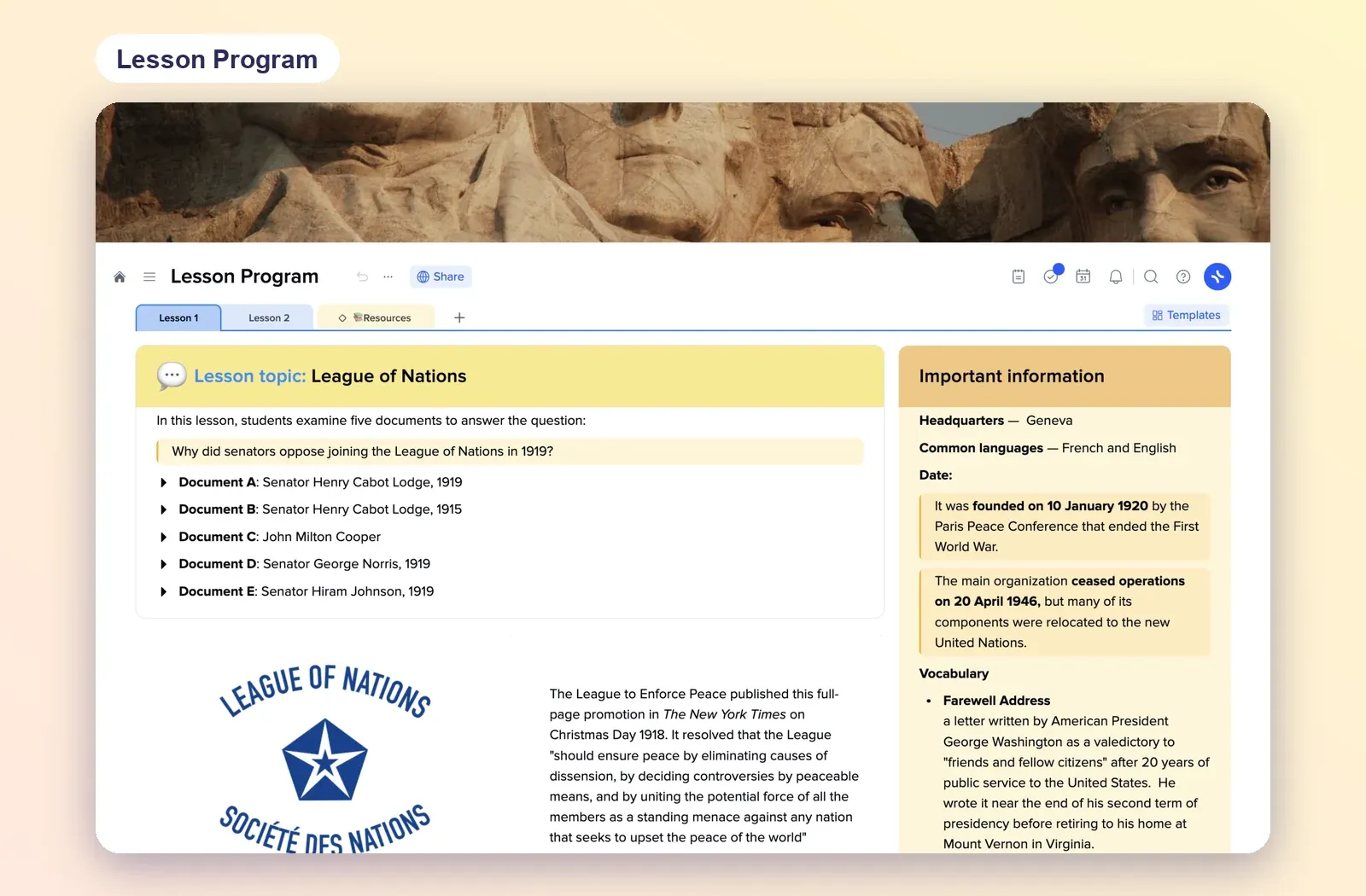
2. Lesson Program: a unit across several tabs
One tab per lesson plus a resources tab, with the topic, source documents and key vocabulary side by side. Good for a unit you will teach again next year. Open the Lesson Program template.
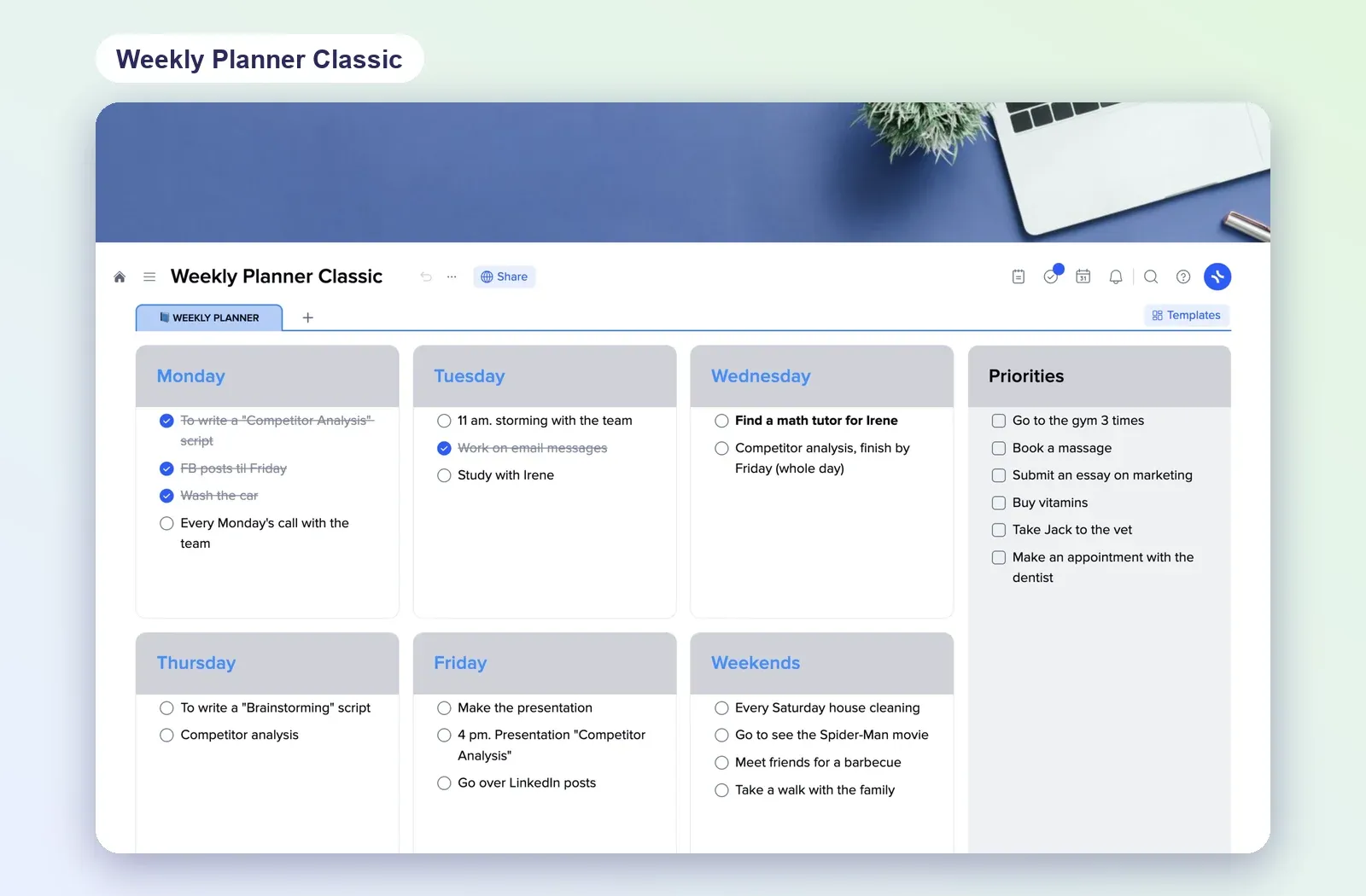
3. Weekly Planner Classic: the week at a glance
A tile for each weekday and the weekend, with checklists and a priorities column. Use it to see which class gets which lesson, and what still needs preparing. Open the Weekly Planner.
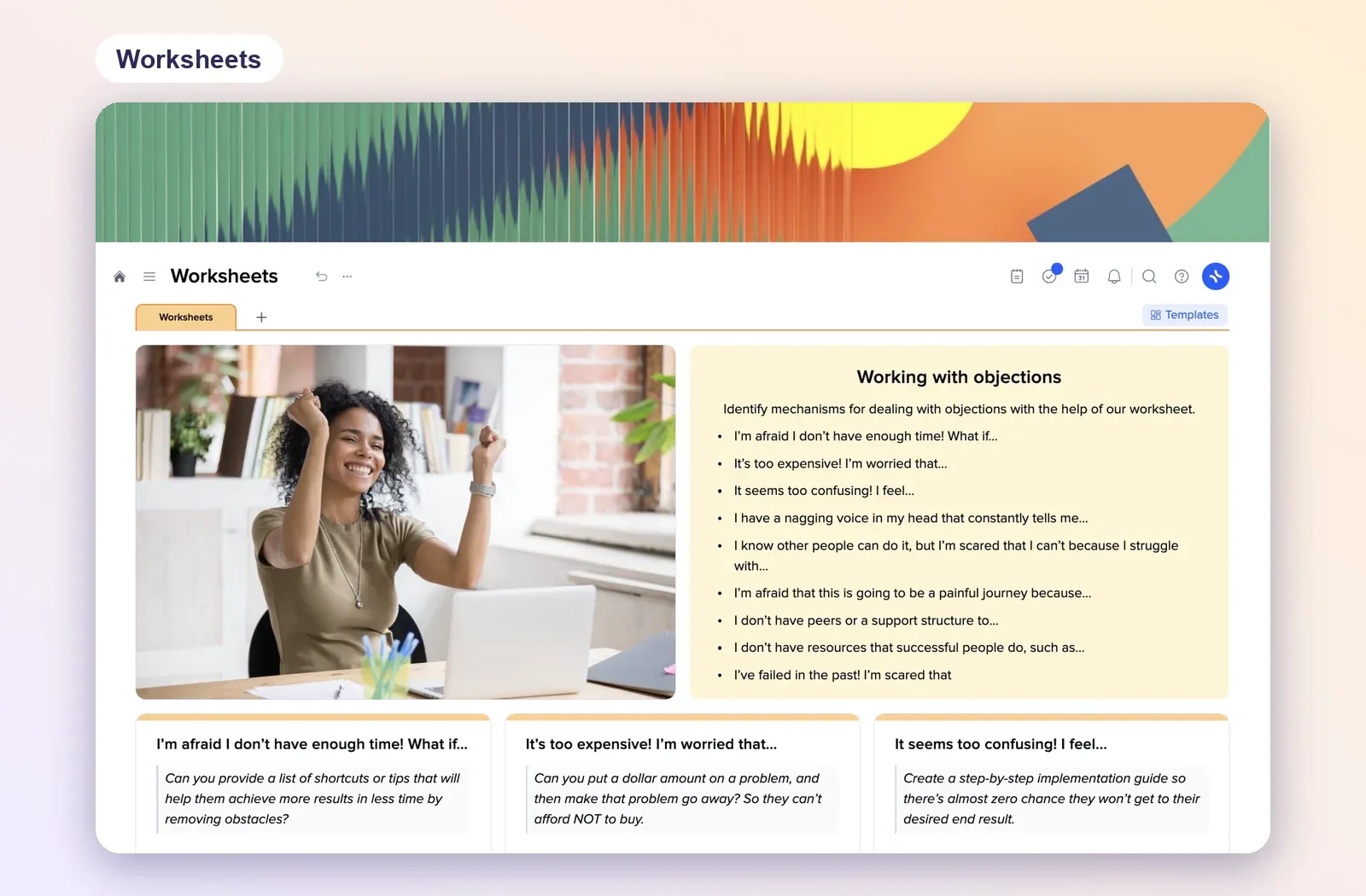
4. Worksheets: activities to go with the lesson
An image, a set of prompts and answer tiles on one page. Build the activity for a lesson and keep it next to the plan that uses it. Open the Worksheets template.
Planning lessons across many grades
Teaching every grade from preschool to ninth means a lot of plans running in parallel. Sarah's next step is to attach each lesson plan to a day and a class. A simple way to do that:
- One page per grade, with the current lesson plan at the top and past plans below it.
- One weekly page that lists, for each day, the class and the lesson topic and which grade page to open.
- Dated prep tasks for anything you need to print, copy or find, so they show up in My Planner on the right day.
- Reuse, don't rewrite. When a lesson works, copy the plan into next year's grade page instead of starting again.
Beyond the classroom
Once the planner works for school, the same project style works for life outside it. Sarah also keeps a travel packing list in xTiles and likes ticking items off. If that's useful to you too, the Packing List template has checklists for documents, clothing, toiletries and tech.