When the task list gets so long you lose the bottom of it
The user in this story makes a lot of calls for work and runs a busy personal life on the side. On a call with xTiles, they opened with: "I clearly need xTiles more than I thought I did."
Their system already had good ideas: an inbox, tasks sorted by size, separate lists for work and home. The problem was length. One list had grown so long that the bottom of it simply disappeared from view. Getting started had been hard too: "I was playing around and I wasn't getting it, so I put it into Claude. And I think I told Claude to set it up."
Below is the setup that keeps those ideas and fixes the length: short lists side by side, a date on everything you plan to do, and a today view that shows only today.
Step 1: one space, two projects, a few tabs
- Two projects: Work and Personal, in the same space. The planner sits above all your spaces and projects, so tasks from both show up in one daily view anyway.
- A few tabs in each project: Inbox, Tasks, and one tab for each recurring list, such as Calls or Errands. Tabs keep each list short enough to see in full.
- Tiles side by side: several short lists on one tab, instead of one long list you have to scroll.
If you later want help from a colleague or an assistant, you can share one project with them from the Share button. Your personal space stays private.
Step 2: an inbox with two columns
Capture comes first. On the Inbox tab, keep two tiles next to each other:
- Important: things that clearly need doing.
- Random dump: anything you just want out of your head, sorted later.
Once a day, go through both. Move what matters to the Tasks tab, give it a date, or delete it. Notes work the same way: if a line in a notes page turns out to be a to-do, turn it into a task where it is.
Step 3: big, medium and small tasks in three columns
On the Tasks tab, use three tiles: Big, Medium and Small. Size tells you what fits into the time you have, which a long numbered list never does. A short gap between meetings is for a small task; a free morning is for a big one.
- Mark importance with priority, not with a numbering system. Each task has a priority field, so the column says how big it is and the priority says how much it matters.
- Break big tasks down inside the task. Open a task to add checkboxes, notes and links in its own space, so the column stays short.
Step 4: send a task to today and see only today
This is the part the user wanted most. Click a task's date and choose today, tomorrow, next week or a specific day. The task stays in its column, and it also appears in the planner on that day.
- Open the planner's day view to see only the tasks for today, from Work and Personal together, without the rest of the backlog.
- Check tasks off there. Completed tasks move to the end of the day's list.
- Keep the columns tidy: in the project settings you can hide completed tasks, so the Tasks tab shows only what is left.
Step 5: a weekly call list without a CRM
The user also wanted a simple way to work through people to call: "I have 25 people on my list that I want to possibly call, and I could mark three of them as, like, a task for this week." You do not need a CRM for that.
- Add a Calls tab with one task per person and no date. Put a phone number or a note in the task itself.
- Every Monday, pick three and give them a day this week. They appear in the planner on those days.
- After the call, check it off, or move the date if you need to call again.
The list of 25 stays in one place, and only the calls you planned show up in your day.
Optional: let Claude set it up for you
Like the user in this story, you can skip the manual setup. Connect Claude to xTiles in your profile under AI integrations, then ask:
- "In my xTiles space, create two projects, Work and Personal. In each, add an Inbox tab with two tiles, Important and Random dump, and a Tasks tab with three tiles, Big, Medium and Small. In Work, add a Calls tab. Then move these tasks into the right tiles: [paste your list]."
Look through the result and rename or move anything that does not fit. From then on, the daily routine is yours: capture, sort, date, and work from today.
Free task list templates
All four are free in the xTiles template gallery.
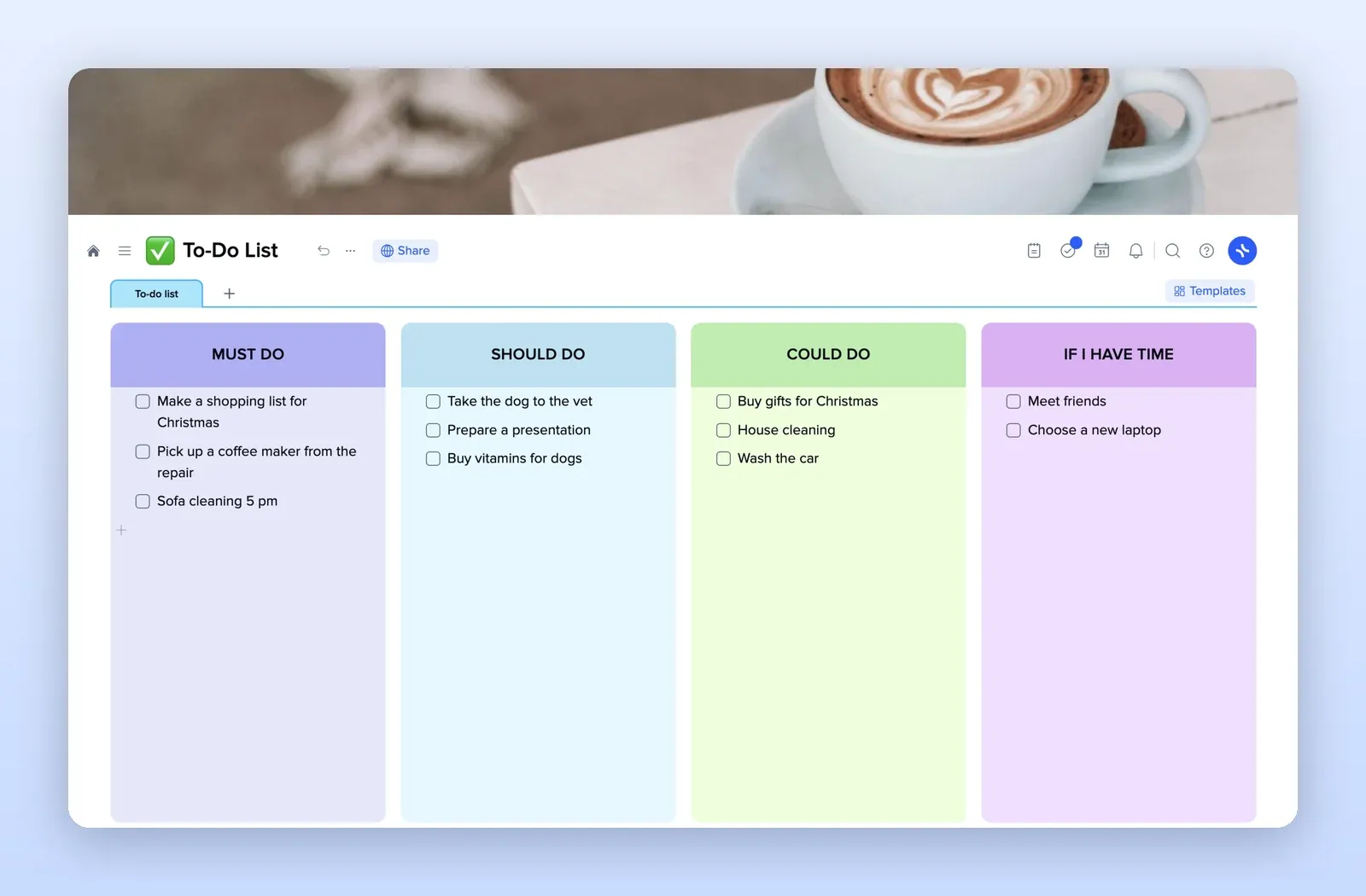
1. To-Do List: columns side by side
Must do, should do, could do and if I have time, as four columns on one page. Rename them Big, Medium, Small and Inbox to match the setup above. Open the To-Do List template.
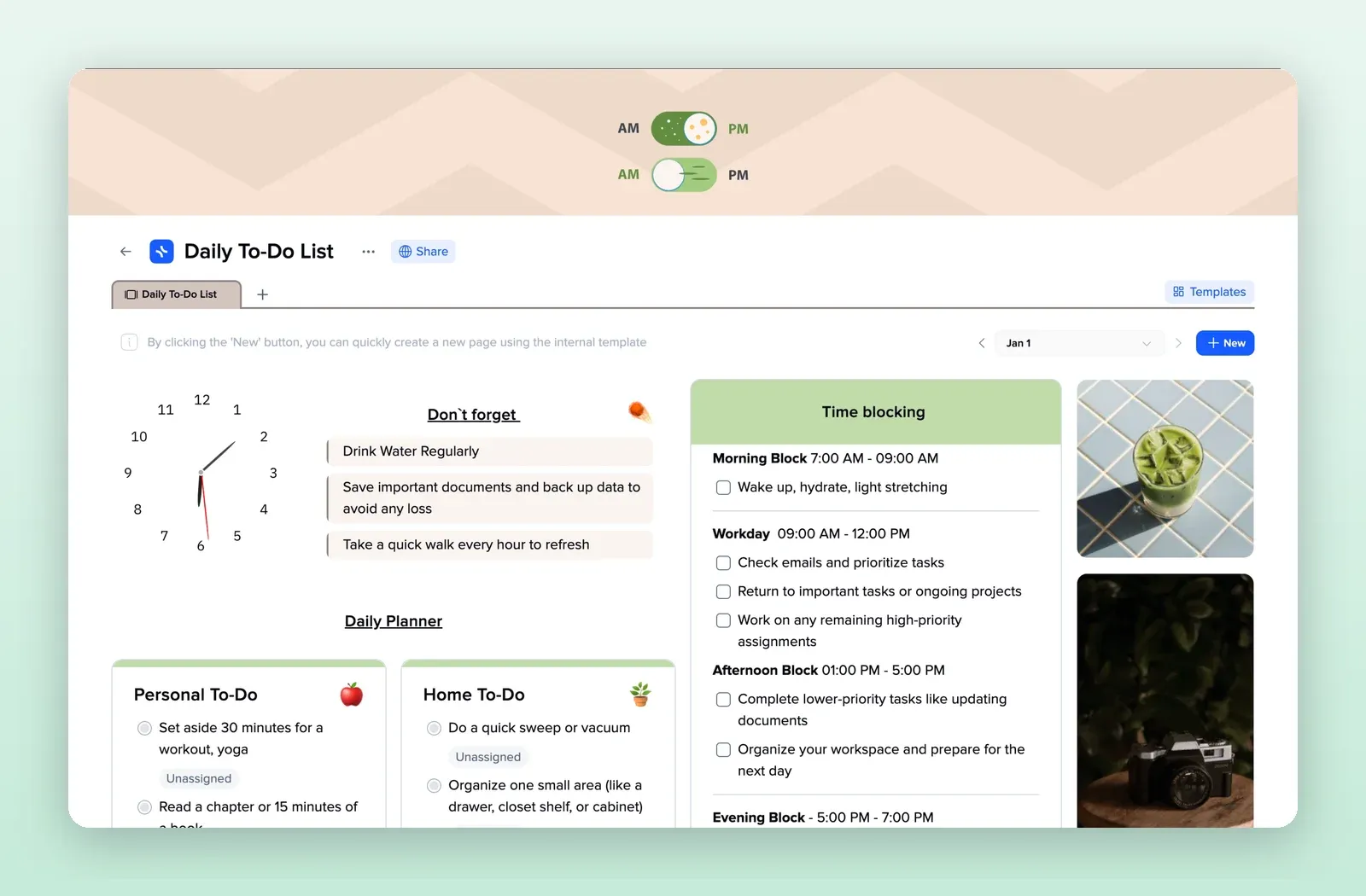
2. Daily To-Do List: today in one view
Personal and home to-dos, time blocks and a don't-forget list for a single day. Open the Daily To-Do List template.
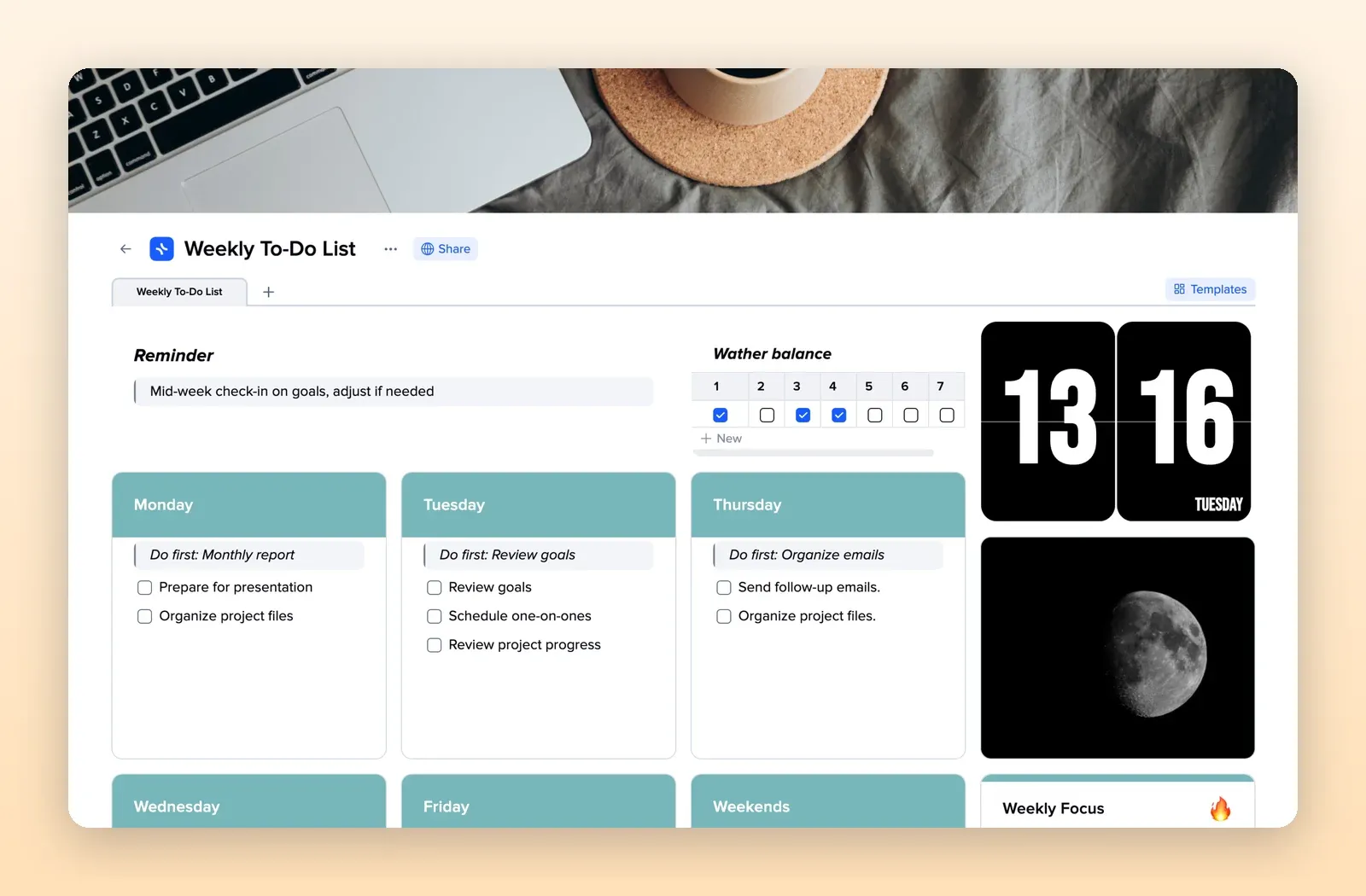
3. Weekly To-Do List: the week, one day per tile
A tile per weekday with a do-first line, plus a weekly focus. Good for planning which calls go on which day. Open the Weekly To-Do List template.
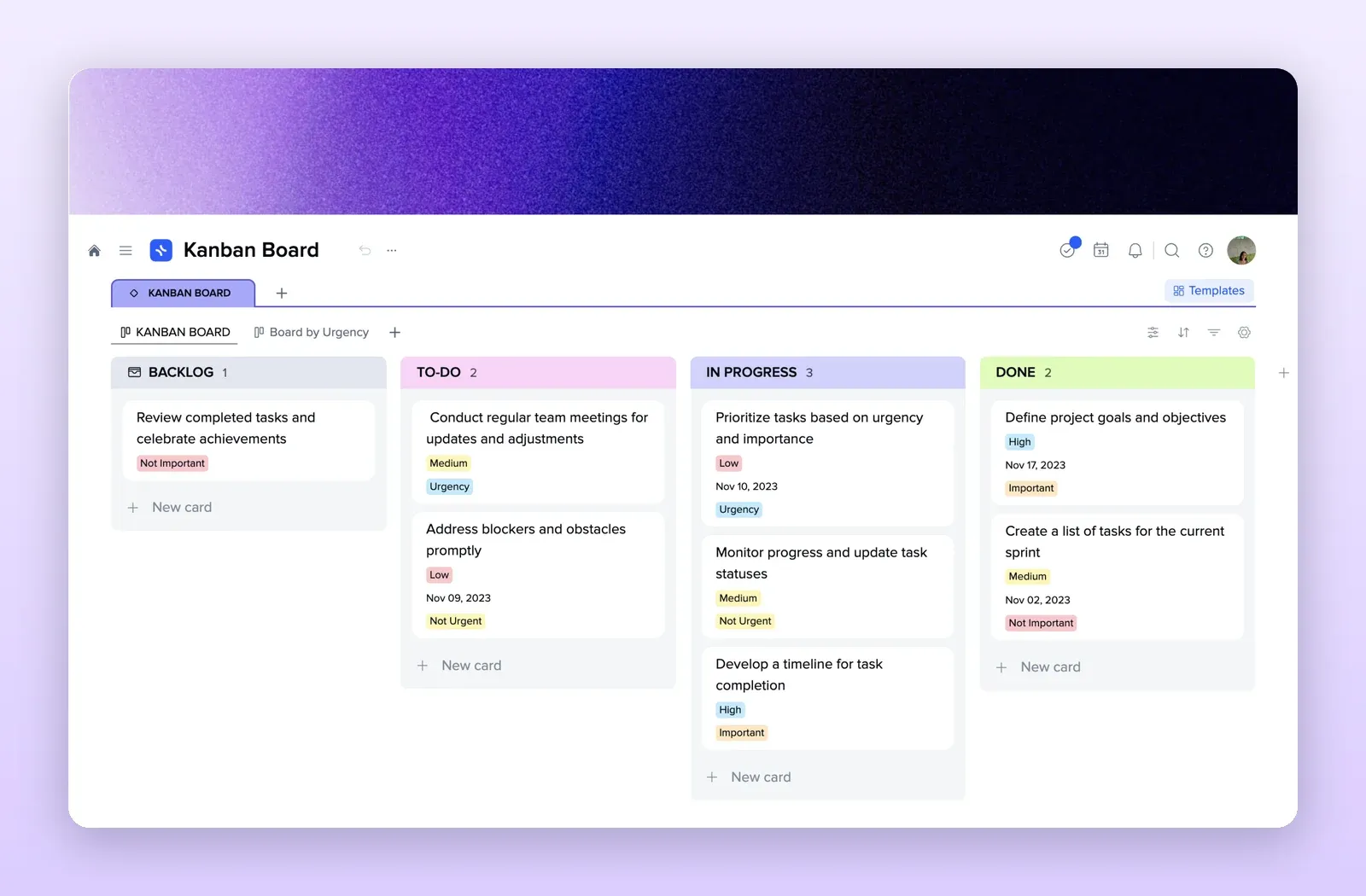
4. Kanban Board: tasks by status
Backlog, to do, in progress and done, with priority and dates on each card, if you prefer moving cards to checking boxes. Open the Kanban Board template.