One calendar for the family, a different list for work
Samantha plans her days in xTiles on her desktop. Her calendar is shared with the whole family, and that is exactly why she does not want every work item on it. A short work meeting on the family calendar is noise for everyone else: "that becomes so much clutter that they can't parse through to see what they need to see."
Her answer is a daily page with two separate places: the calendar for things the family needs to see, and a grid for the rest of the day. The setup below copies that idea.
Step 1: build the daily page from five tiles
- Schedule: your synced calendar, so you see family events and appointments next to everything else.
- Work grid: a simple grid with a time and an item per row, for meetings, calls and blocks of work that should not go on the shared calendar.
- Tasks: today's to-dos, each with a due date.
- Affirmation and gratitude: a short line or two to start the day.
- Notes: anything that comes up during the day.
Save the page as your daily template so every new day starts with the same tiles.
Step 2: decide what goes on the calendar and what goes in the grid
The calendar sync in xTiles works both ways. Events from your calendar appear in the Schedule tile, and an event you create in the Schedule tile is added to your main calendar too. That is useful for anything the family should see. For everything else, use the grid.
- Calendar (Schedule tile): school pickups, appointments, family plans, the times you are not available at home.
- Grid: short work meetings, focus blocks, calls, reminders to yourself.
A simple test: if someone at home needs to plan around it, it goes on the calendar. If only you need to know, it goes in the grid.
Step 3: move unfinished tasks to the next day
Some tasks will not get done today. Samantha's routine is simple: open the previous day, change the due date of what is left, and the task moves to the new day. Doing it by hand takes a minute and doubles as a short review of yesterday.
She keeps weekly planning on paper, because it helps her think, and uses the daily page for the day itself. That split works well: the week on paper, the day in one place on screen.
Step 4: change the look when you get bored
A planner only works if you keep opening it. As Samantha put it, "Sometimes I'll just stop using planners if I, like, I'm bored." Swapping the design of the daily page now and then keeps it fresh: try a different template from the gallery, change the cover or rearrange the tiles, and keep the same five parts.
Optional: let Claude move unfinished tasks for you
Samantha is cautious about AI ("AI kind of ooks me out a little bit"), and the setup above works without it. If you do use Claude, connect it to xTiles in your profile under AI integrations and ask each morning:
- "Find the tasks in my xTiles planner that were due yesterday and are not done. Move them to today and list them for me."
For a fuller version of this routine, see how Claude can reschedule overdue tasks every morning.
Free daily planner templates
All four are free in the xTiles template gallery. Use one as your base and swap when you want a change.
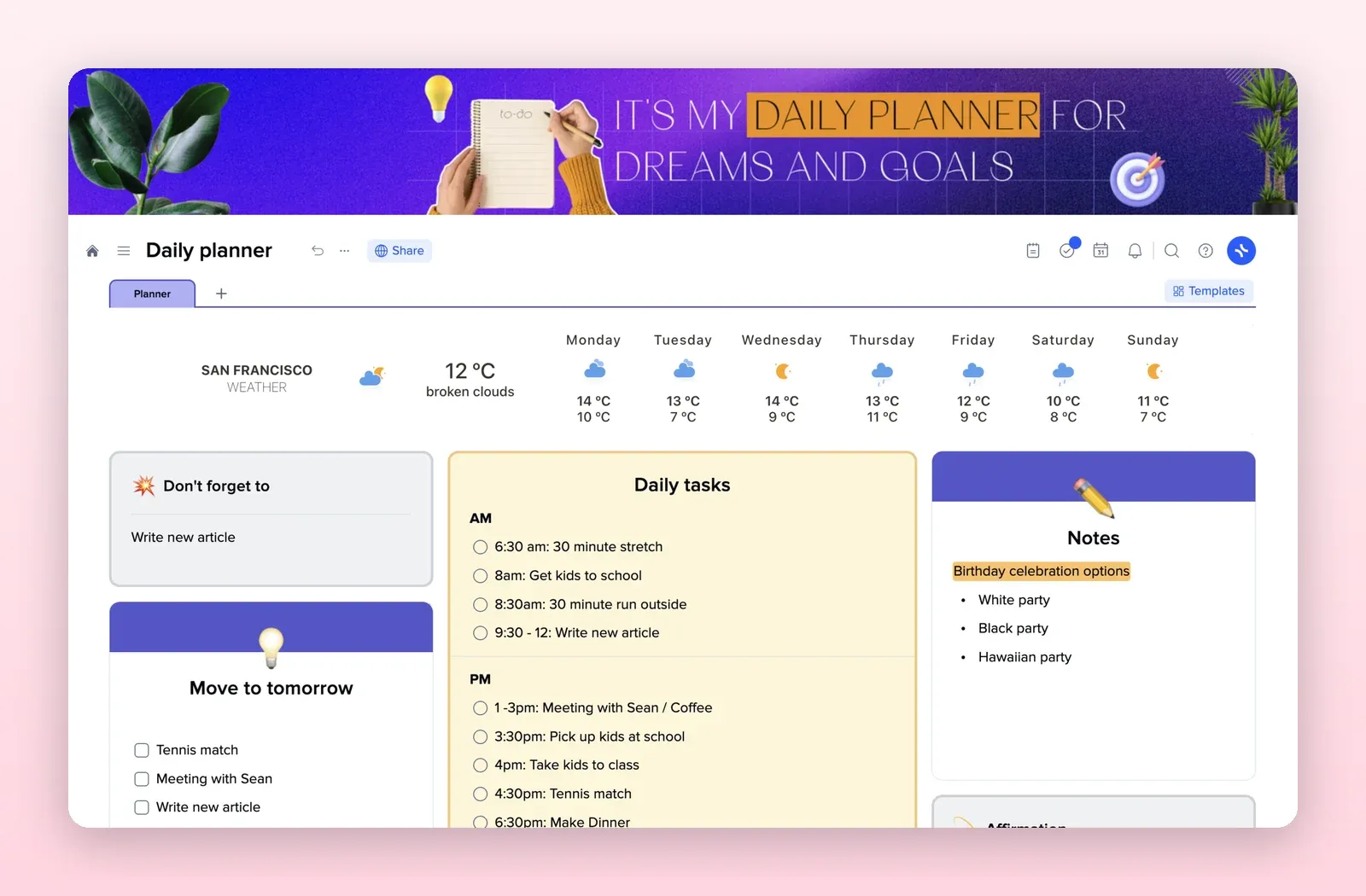
1. Daily Planner: tasks, notes and a move-to-tomorrow list
Daily tasks split into AM and PM, a don't-forget tile, notes, an affirmation and a move-to-tomorrow list. Open the Daily Planner template.
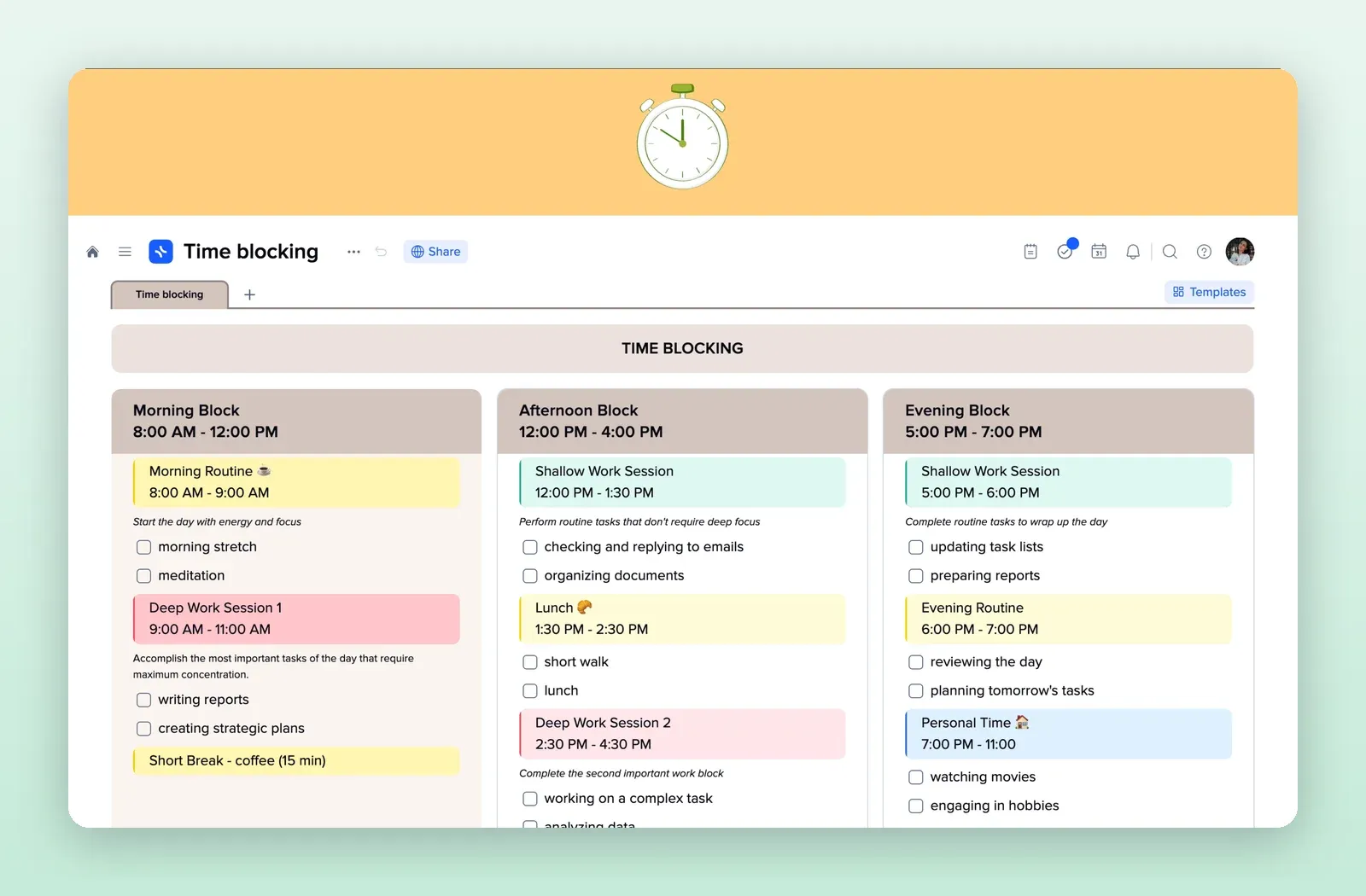
2. Time Blocking: the work grid
Morning, afternoon and evening blocks with sessions and checklists. Use it as the grid for work items that stay off the calendar. Open the Time Blocking template.
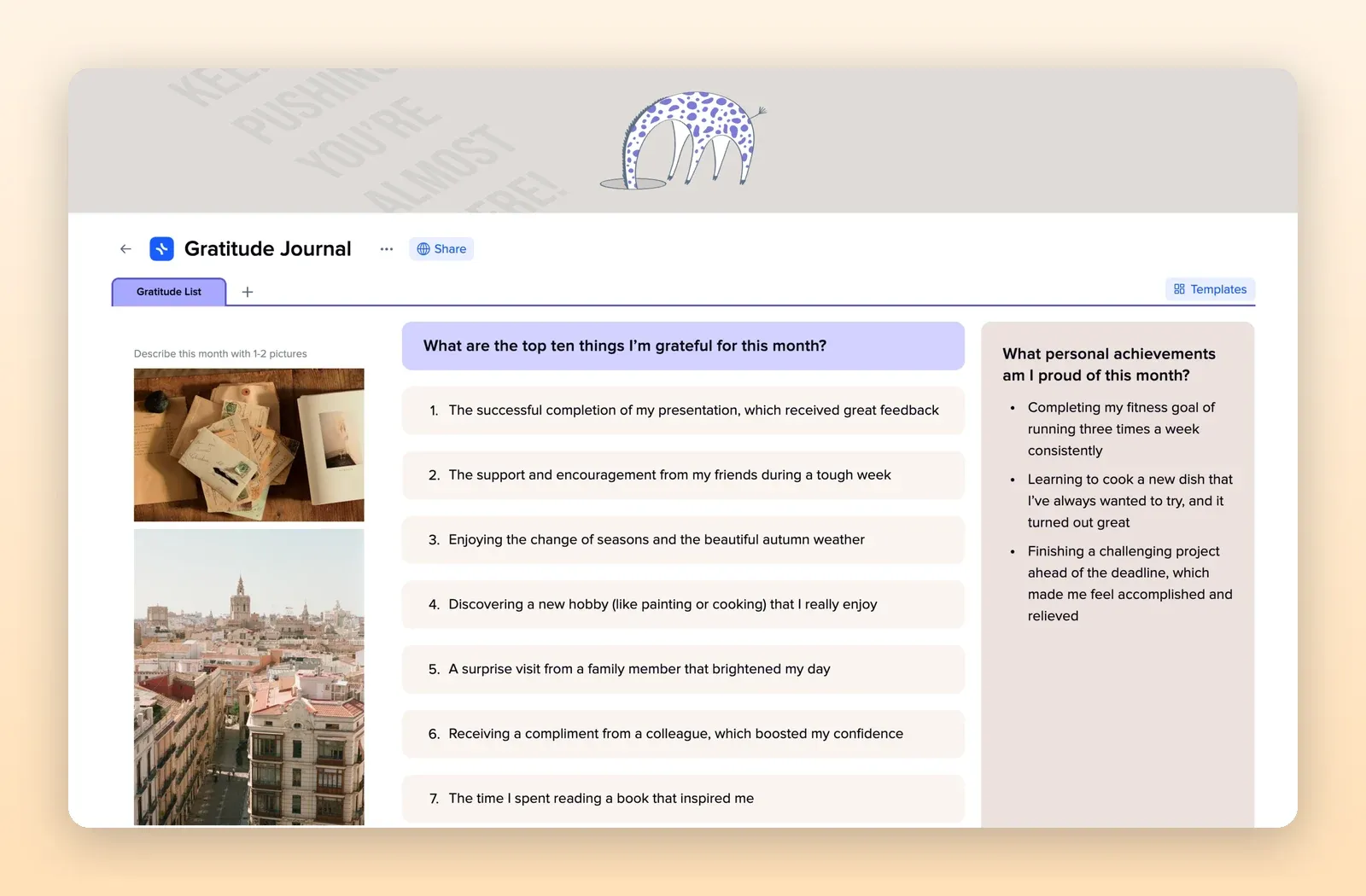
3. Gratitude Journal: the morning lines
Prompts for what you are grateful for and proud of. Copy one prompt into the daily page. Open the Gratitude Journal template.
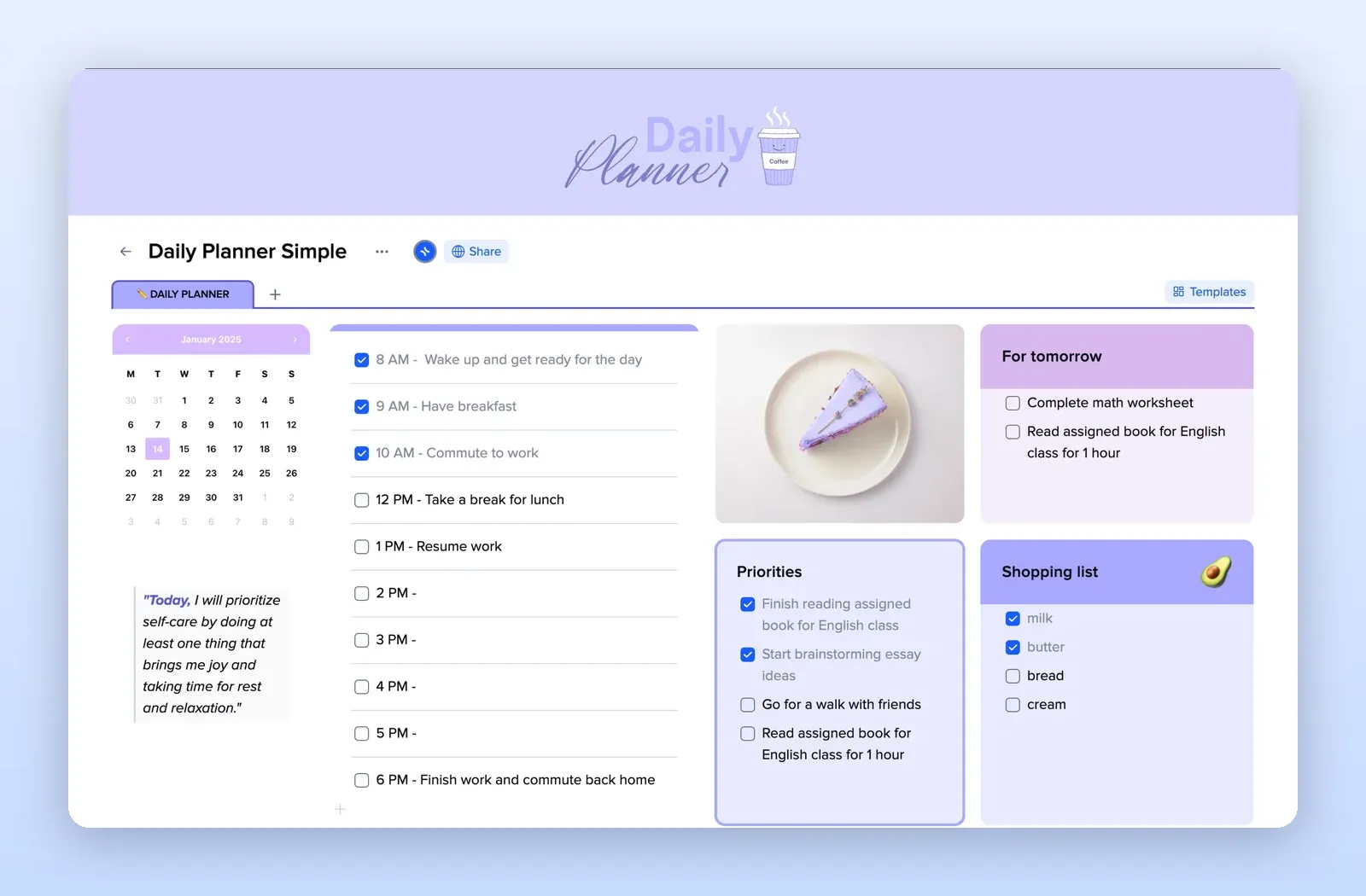
4. Daily Planner Simple: a lighter design to switch to
A mini calendar, an hourly list, priorities, a for-tomorrow list and a shopping list. A good alternative when you want a change. Open the Daily Planner Simple template.