A ten-minute do-over
Joan had already seen someone connect Claude to xTiles once before — on a call the previous day. But as she put it herself, she "wasn't paying that close of attention" the first time around. So she booked a short follow-up, with one goal: do the setup herself, from scratch, slowly enough that it would actually stick.
Before Claude, her workflow was a paper-thin version of what xTiles could do. She had a Planner she rarely opened, and a business page she used for almost everything else. "This is how I was using it before Claude. Let's put it that way." The gap between those two states — before and after — is really the whole story.
This is a first-time setup, told in the order it actually happened — including the parts where the interface was found by scrolling around a shared screen rather than reading documentation top to bottom.
If you have never connected Claude to xTiles, or you connected it once and are not fully sure what it unlocked, this is the same path Joan took: xTiles first, then Gmail, then Calendar, then one real prompt.
Step 1: Connect xTiles to Claude
The first stop was inside xTiles itself. Clicking the profile icon in the corner opens account settings, and inside that menu sits the xTiles MCP setting — the option that lets Claude read and write to your workspace. From there, the flow hands off to Claude: open Claude, and either add xTiles as a connector or confirm it is already connected. You can read more about how this connection works on the xTiles + Claude integration page.
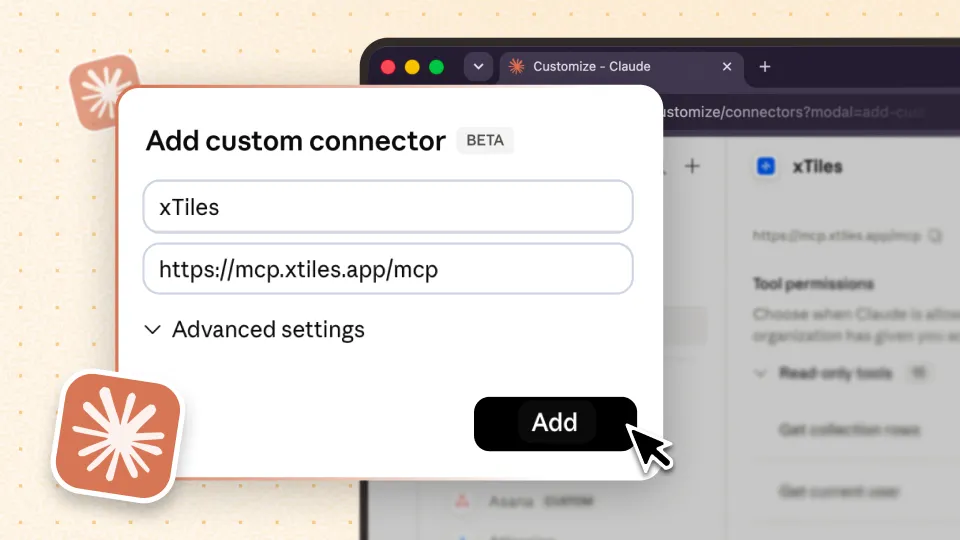
In Joan's case, the connector was already listed — the earlier walkthrough had left it in place. The important part is what it means once it is there: this connection lives inside Claude's chat interface. You are not switching to a separate app to manage it. You talk to Claude, and Claude reads or updates your xTiles Planner and projects directly, always asking permission first before it changes anything.
- Open account settings in xTiles via the profile icon and find the MCP / integrations setting.
- Follow the prompt into Claude and confirm or add xTiles as a connector — a one-time step per account.
- Nothing else to configure. Once connected, Claude can see your Spaces, Projects, tasks, and Planner without any separate sync setup.
Step 2: Add Gmail and Google Calendar as connectors
With xTiles connected, the next step happened entirely inside Claude. Under the same account menu, the Connectors tab has a plus sign — click it, then Browse connectors, then search for the tool you want. Typing "gmail" surfaces the Gmail connector directly.
Open Connectors
In Claude, go to the account menu and select the Connectors tab.
Browse and search
Click the plus sign, choose Browse connectors, and search for the tool — Gmail first, then Google Calendar.
Connect and verify
Click Connect, then verify your identity (a passkey or device prompt is normal here).
Grant access
When asked which permissions to allow, selecting all is the simplest option unless you want to scope it down later.
The Calendar connector follows the identical path. One detail worth calling out: connecting a tool through Claude does not require any separate setup back in that tool's own settings. As Joan asked partway through, does that mean I no longer have to set up Gmail and xTiles separately? It does — one connection inside Claude is the whole job.
Claude's connector library covers far more than these two. Slack, meeting-note tools, and dozens of others follow the same browse-and-connect pattern, so once you have done it for one tool, doing it for the next takes under a minute.
Step 3: Run the first prompt and see it become a plan
With three connectors in place — xTiles, Gmail, and Calendar — the last step was starting a new chat in Claude and pasting in a single prompt: something close to "look through my inbox, my calendar, and my xTiles tasks, and give me a brief for today."
One small adjustment made a real difference: switching the model's effort setting from low to medium before sending the prompt. It is a one-click change next to the model selector, it does not burn through significantly more usage, and for a multi-connector prompt like this one, it noticeably improves the quality of what comes back.
Claude pulled from all three sources, then asked for permission before creating anything inside the xTiles Planner — consistent with the earlier point that it always checks first. After approving, the tiles appeared: a morning summary, a list of today's meetings pulled from Calendar, and a set of important emails to review from Gmail.
The default version creates a readable summary. Ask it instead to create actual xTiles tasks with due dates, and it will do that just as easily — the output format is a matter of how you phrase the request, not a separate setup step.
The same prompt can also be turned into a scheduled task, so the brief is waiting in your Planner each morning rather than something you ask for manually.
A realistic first session, not a highlight reel
Joan's setup was not a power-user tour. It was a single new user, working through a screen share, hitting the ordinary friction points — figuring out where "new chat" lives, mixing up which menu holds which setting, occasionally clicking the wrong thing by accident. All of that is normal, and none of it took more than the ten minutes the session was booked for.
She also noticed other connectors available in the same browse list — enough that she considered connecting one more tool on the spot before deciding to save it for a future session instead. That is a reasonable way to approach this: connect what you need today, and treat the rest of the library as available whenever you are ready for it.
By the end of the call, the outcome was simple and concrete: three connectors in place, one working prompt tested, and a Planner with real tiles in it instead of an empty page. "That's all I want today. Just simply to start today." For a first session, that is exactly the right bar to clear.