The problem: turning team conversation into structured work
Annika and Matthew co-own a digital agency. They have been paying customers of xTiles for a while — Matthew in particular had been exploring the platform in depth. But when they joined a call with the xTiles team, Matthew's interest was not in the features themselves. It was in a specific workflow problem he was trying to solve.
He was building what he called a "nano Claude layer" — a team intelligence layer sitting on top of their existing tools. The goal: any team member should be able to speak plainly — "I'm working on this thing" or "here's an idea for a project" — and have Claude automatically convert that into structured xTiles tasks and projects, distributed to the right people.
This is the gap that most productivity tools leave open. They are excellent repositories for work that has already been structured. The friction is upstream — at the point where someone has a thought, a client update, or an idea, and needs to turn that raw input into something the team can act on without manually creating tasks, assigning owners, and filing everything in the right project.
A team intelligence layer sits between raw communication and structured work. Instead of requiring team members to navigate a project management tool and create tasks manually, they describe what they are working on in natural language — and the intelligence layer handles the translation.
With Claude connected to xTiles via MCP, this layer can read your workspace, create tasks and project tiles, assign them to team members, and surface relevant context from past projects — without anyone leaving their conversation interface.
How the Claude + xTiles connection works
The connection between Claude and xTiles is built on MCP — Model Context Protocol. Once connected, Claude can read your entire xTiles workspace: your Spaces, Projects, tasks, and Planner. It can also write to them — creating tiles, tasks, project pages, and daily planner entries on your behalf.
To set it up, go to your xTiles account settings, navigate to Integrations, and generate an API token. This token connects your xTiles workspace to Claude as an MCP server. Once connected, Claude has read and write access to your workspace and can act as a layer between your team's communications and your project structure.
- Read your workspace: Claude can scan existing projects, tasks, and notes to understand what is already in progress before creating anything new.
- Create structured content: From a plain-language description, Claude can create a project page, break it into tasks, assign due dates, and place everything in the correct Space.
- Connect to your other tools: Via Claude's connector ecosystem, your inbox, calendar, Slack, and meeting notes can all feed into the same workflow — Claude pulls from all of them and writes the results into xTiles.
- Work at team level: Claude can read and write tasks assigned to different team members, making workload visible across the whole project rather than just to the individual.
The morning brief: what a scheduled intelligence layer looks like in practice
One of the most immediately useful configurations is a scheduled morning brief. Claude connects to all your linked tools — Gmail or Superhuman, Google Calendar, Slack, meeting notes — and runs automatically each morning. It reads across all of them, identifies what needs attention, and creates a structured summary directly in your xTiles daily Planner page.
The result is a single view: important emails that need responses, meetings for the day pulled from your calendar, action items from yesterday's conversations in Slack, and tasks due today surfaced from across all your xTiles projects. Everything in one place, created automatically, before you open any of the source tools.
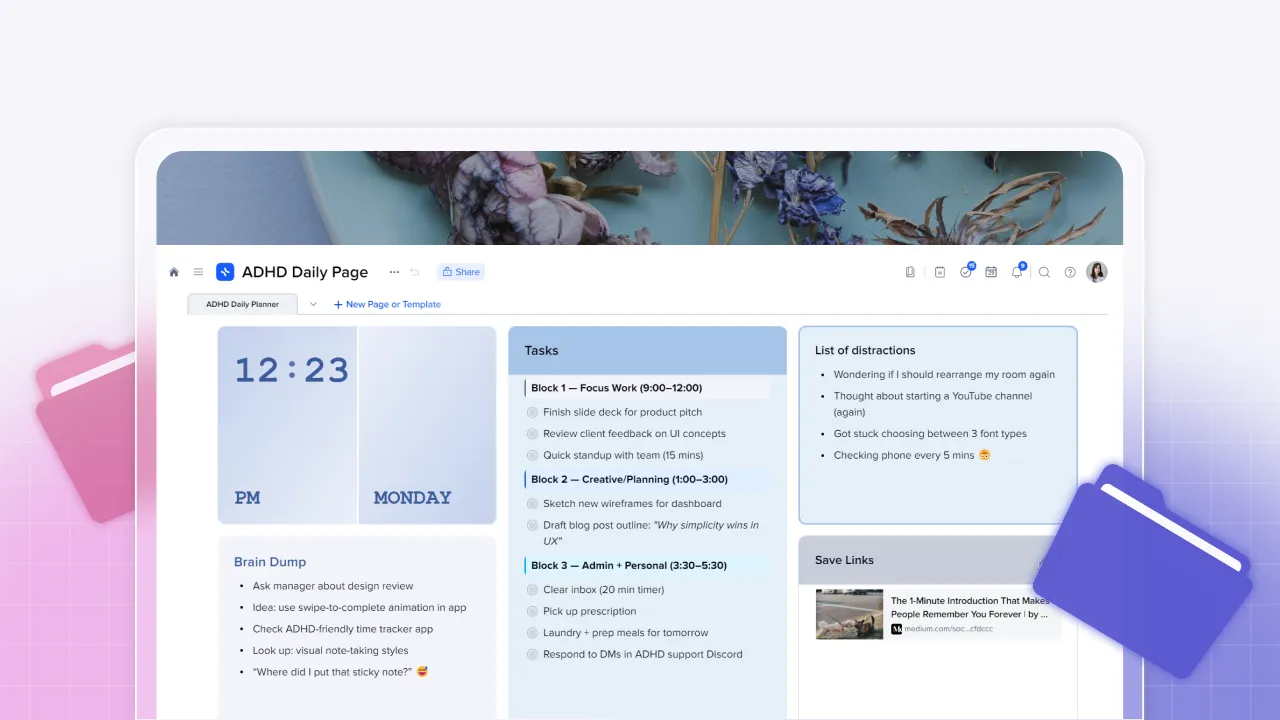
For an agency managing multiple clients and ongoing projects, this matters because the morning is where priorities get set — and priorities set without full context tend to be wrong. The briefing is not just a to-do list. It is a synthesis of everything that moved overnight across every tool the team uses.
Matthew also raised a related use case: newsletter and inbox triage. His team receives a high volume of newsletters and marketing emails. Claude is configured to review his inbox each morning, summarize each newsletter into a single tile in the daily Planner page, and archive the originals. The inbox stays clear; the relevant information arrives in xTiles rather than requiring manual filtering.
Using xTiles projects as context for client work
Annika raised a problem that will be familiar to anyone who runs multiple client accounts: finding the right previous conversation. In an active agency, there are Claude chats about specific clients scattered across weeks of history. When you return to a client, reconstructing that context — what was discussed, what was decided, what is still open — takes time.
The solution Matthew was building solves this by making xTiles the persistent memory layer for each client. When Claude generates a useful summary, recommendation, or decision record in a conversation, it creates a tile with a link back to that conversation inside the relevant client project in xTiles. The next time you open that project, the history is there — not as a folder of documents to re-read, but as a set of structured tiles that can be searched, filtered, and handed to Claude as context for the next conversation.
This means Claude does not need to be re-briefed from scratch each time. Instead of pasting in background context at the start of every client chat, you point Claude at the xTiles project and ask it to continue from there. The xTiles project becomes the shared memory between you, your team, and your AI layer.
Team-level workload visibility inside xTiles
One feature that came up during the call — one that is not obvious from standard xTiles usage — is project-level task visibility across team members. In a shared project, owners can see all tasks assigned to any team member in one view: who has what, how much work is in each person's queue, and where things might be stacking up.
When Claude is connected at the project level, this visibility extends to the intelligence layer. Claude can read the team's workload distribution before creating new tasks — so rather than simply adding more work to whoever owns a project, it can flag that a team member already has a full queue, or suggest redistributing tasks before assigning new ones.
For Annika and Matthew, this closes the loop between natural-language input and structured team execution. A team member describes what they are working on. Claude creates the tasks. Claude checks workload before assigning them. The result appears in each person's Planner automatically, on the right day, without any manual scheduling.
The goal they described — "plain speak in, structured project out" — is not a future state. With Claude connected to xTiles via MCP, it is a workflow that can be set up and running in less than an hour.