The gap in most AI workflows nobody talks about

You ask Claude to help you plan a project. Claude gives you a brilliant outline. And then... you copy-paste it somewhere. Maybe a notes app, maybe a doc, maybe nowhere at all. The thinking happened, but it didn't land anywhere useful.
The same loop plays out a hundred times a week. AI generates, and you manually transfer. The cognitive load doesn't disappear — it just moves. xTiles MCP closes that gap.
What MCP is, in plain English
MCP stands for Model Context Protocol — an open standard that lets AI assistants like Claude connect directly to the tools you already use.
Think of it as a two-way bridge. Claude can read your xTiles workspace, understand what's in it, and write back to it — creating projects, tasks, planner pages, and tiles — all from a single conversation.
You don't install anything complex. You don't write code. You connect once, and Claude gains a memory: your actual workspace, your actual projects, your actual tasks.
What changes when Claude can see your xTiles
Most AI tools answer questions in a chat window. The answer lives there, isolated from the rest of your life. You close the tab, and it's gone.
When Claude is connected to xTiles, something different happens: the output has a home. Claude doesn't just suggest — it builds. It reads what's already in your workspace and writes back into it. Your planner updates. Your tasks appear. Your project structure takes shape. You come back tomorrow, and the work is there, organized, visual, ready to continue.
This is what we mean by xTiles being the visual layer for your AI workflow. Claude does the reasoning. xTiles holds the result.
Six ways this changes your day
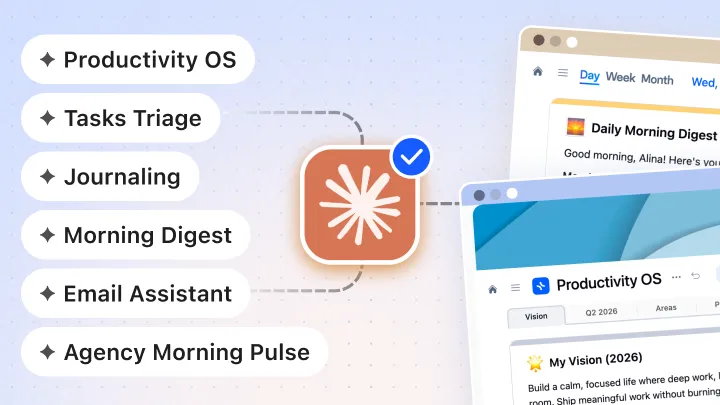
1. Your inbox becomes a task list
Paste a prompt, and Claude scans your email, filters out the noise, and creates xTiles tasks for every message that actually needs a response — complete with a direct link back to the thread and a due date based on urgency. No more rereading emails to remember what needs to be done.
"Check my inbox and find emails I haven't replied to that need a response. For each one, create a task in xTiles with a short title, link to the thread, and due date."
2. Meetings stop disappearing
Paste a transcript. Claude reads it, extracts every action item, assigns them to the right people based on who said what, adds due dates where mentioned, and creates tasks in xTiles. It's the single most-requested use case from users who started testing MCP early.
I can stop manually re-reading every meeting to figure out what I said I'd do. An early xTiles MCP tester, describing the "finally" moment
"Here's my meeting transcript. Extract all action items, assign them to the right person, set due dates where mentioned, and create tasks in xTiles."
3. Your morning brief, assembled before your first coffee
Claude pulls your calendar, reads your open tasks, and writes a structured morning page directly into your xTiles daily planner: what's on today, what's overdue, and your top 3 priorities. You open xTiles, and your day is already waiting.
"Create my morning brief for today in my xTiles planner. Pull from my calendar and my tasks. Format: Today's Focus, Schedule, What I carry forward from yesterday."
4. Your task list, actually prioritized
Give Claude access to your open tasks, and it won't just list them back at you. It will pick the three that matter most today based on deadlines and context, mark them, and break down any that are vague or too large to act on. This isn't AI giving you advice — it's AI working inside your workspace.
"Look at my current xTiles tasks. Pick the 3 I should focus on today. Mark them with 🎯 in the title. For each one that looks vague or large, break it into 2–3 sub-tasks."
5. Your day, captured without you having to capture it
At the end of the day, Claude checks your calendar for completed meetings, scans your completed xTiles tasks, and looks at where you actually spent your time. Then it writes an evening digest tile in your daily planner: what moved forward, what didn't, what's still open. You didn't fill your daily page. It filled itself.
You open the planner the next morning and see yesterday the way you never could reconstruct from memory. Not raw data — a coherent story. An xTiles team member, on building the evening digest
6. Your week in one prompt
Ask Claude to look at your week's planner content — tasks completed, tasks left open, how the days unfolded — and write a weekly digest: what happened, what didn't, one honest insight about the week, and three intentions for next week. It's the weekly review you always meant to do but never had time for.
The bigger picture: xTiles as your AI dashboard
Most productivity tools were designed to help you manage work you already understand. AI changes the equation: now there's more work arriving, faster, from more directions. Your inbox, your meetings, your ideas, your clients — all generating tasks and context at a pace no manual system can keep up with.
xTiles MCP is a response to that reality. The visual workspace isn't just a place to store things anymore — it becomes the output layer for your AI, the place where Claude's thinking becomes your structure. Projects appear. Plans take shape. Tasks organize themselves. Your day comes pre-assembled.
This is the new format: not AI in a chat window answering questions, but AI inside your workflow, building alongside you.
How to connect in 3 steps
Getting started takes about two minutes.
Open Connectors in Claude
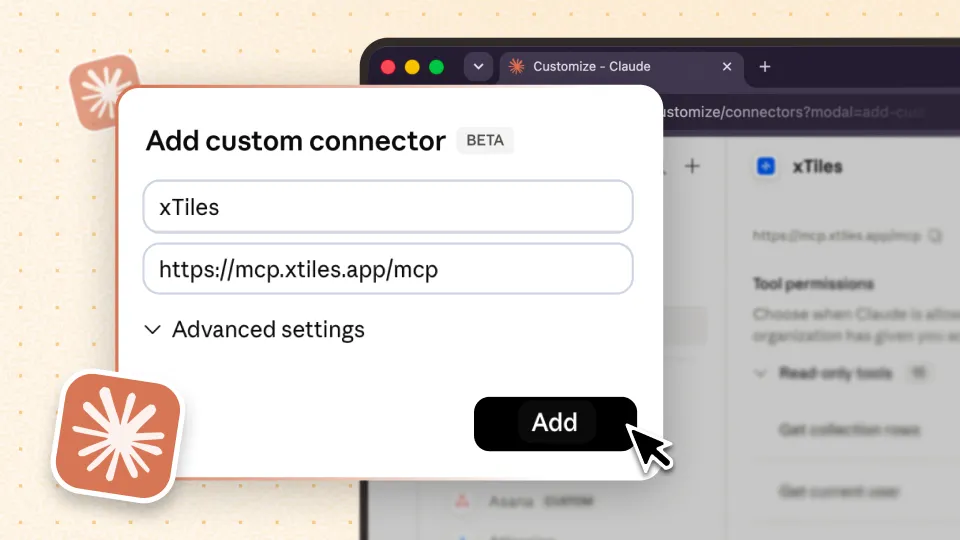
Go to Customize → Connectors, either at claude.ai/customize/connectors or directly in the Claude desktop app.
Add a custom connector
Name it xTiles and paste the server URL below.
https://mcp.xtiles.app/mcp
Connect and sign in
Click Add → Connect, then sign in with your xTiles account. That's it — Claude can now see your workspace.
For the full walkthrough, see the xTiles + Claude integration guide. xTiles MCP is available now for xTiles users on Plus and above.
What early users are saying
We've been running this in beta with a group of xTiles users for the past several months. Here's what they told us.
Juggling multiple projects means I need tools that work with me, not against me. xTiles does exactly that — and when paired with Claude AI, it's a productivity shift I didn't see coming. Karine Davis, Teacher & Digital Creator
The xTiles + MCP integration with Claude completely changed the way I work. What used to take hours — like building roadmaps or structuring developer backlogs — now happens in seconds. Chakib Dekik, Product Manager at Bewize
xTiles is the visual layer in my AI workflow. It gives structure, clarity, and connection to the way my agentic process operates. Staci Clarke
Beyond the named testimonials: one consultant in the beta built an entire cash-flow model in Excel with Claude, then structured the outputs and action plan inside xTiles — the whole thing took under an hour. A virtual assistant started processing every client meeting transcript directly into xTiles tasks using Claude, eliminating her manual copy-paste routine. An ADHD coach described the morning brief as "the missing link" between her AI work and her organizational system.
The common thread: people who connect Claude to xTiles stop switching between tools. They stay in one place and let Claude do the moving.
What's coming next
We're continuing to expand what xTiles MCP can do — more use cases, deeper automation, and tighter integration with the tools already in your daily workflow.
And we want your use cases too. If you've built a workflow with Claude and xTiles that changes how you work, share it with the community on Discord or Reddit.